
After you having created your account and adding in your company information using this helpful article https://juvo.zendesk.com/knowledge/articles/360042673452/en-us?brand_id=360000744751
It is now time to start adding your data.
Contacts
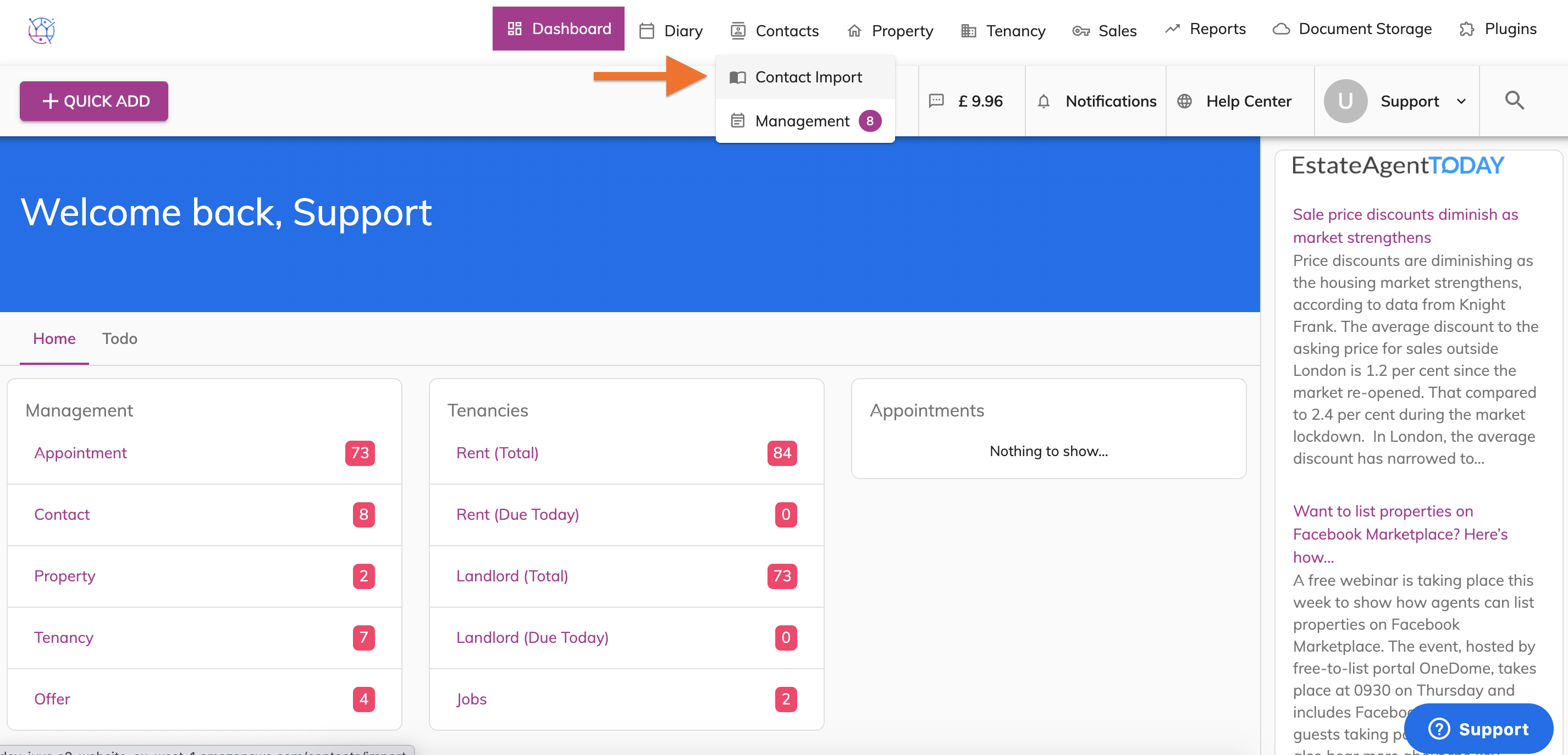
If you have your contacts in an csv spreadsheet you can use our handy import tool to bulk import all of your contacts https://juvo.zendesk.com/hc/en-us/articles/360044710972-Bulk-importing-contacts-clients
Property
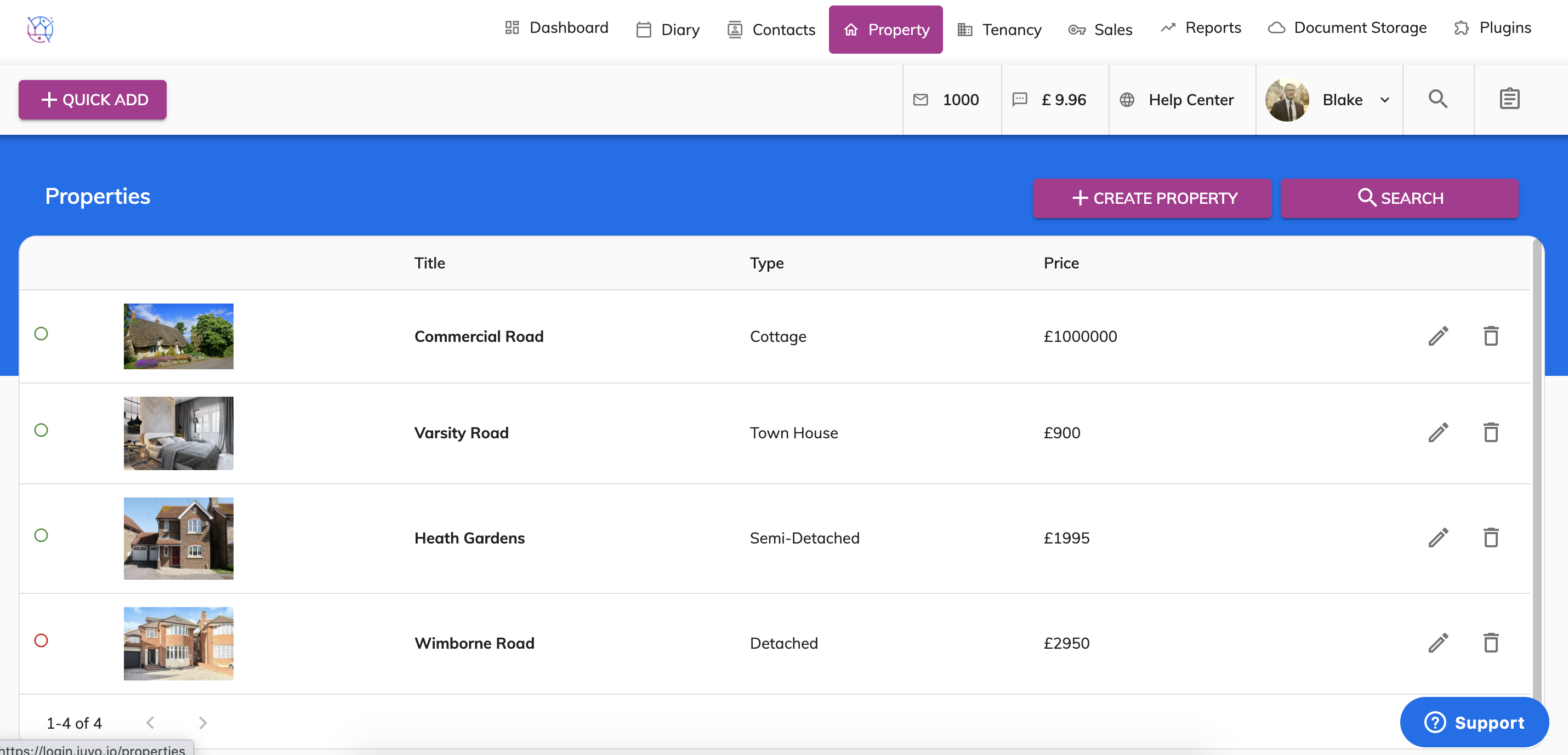
If you have your properties in a csv spreadsheet you can use our handy import tool to bulk import all of your properties.
Add your available properties into Juvo first, so that once you have added these properties you can activate your portals and website uploads including Rightmove, Zoopla, On The Market.
https://juvo.zendesk.com/hc/en-us/articles/360038444012-Create-a-property
Tenancy
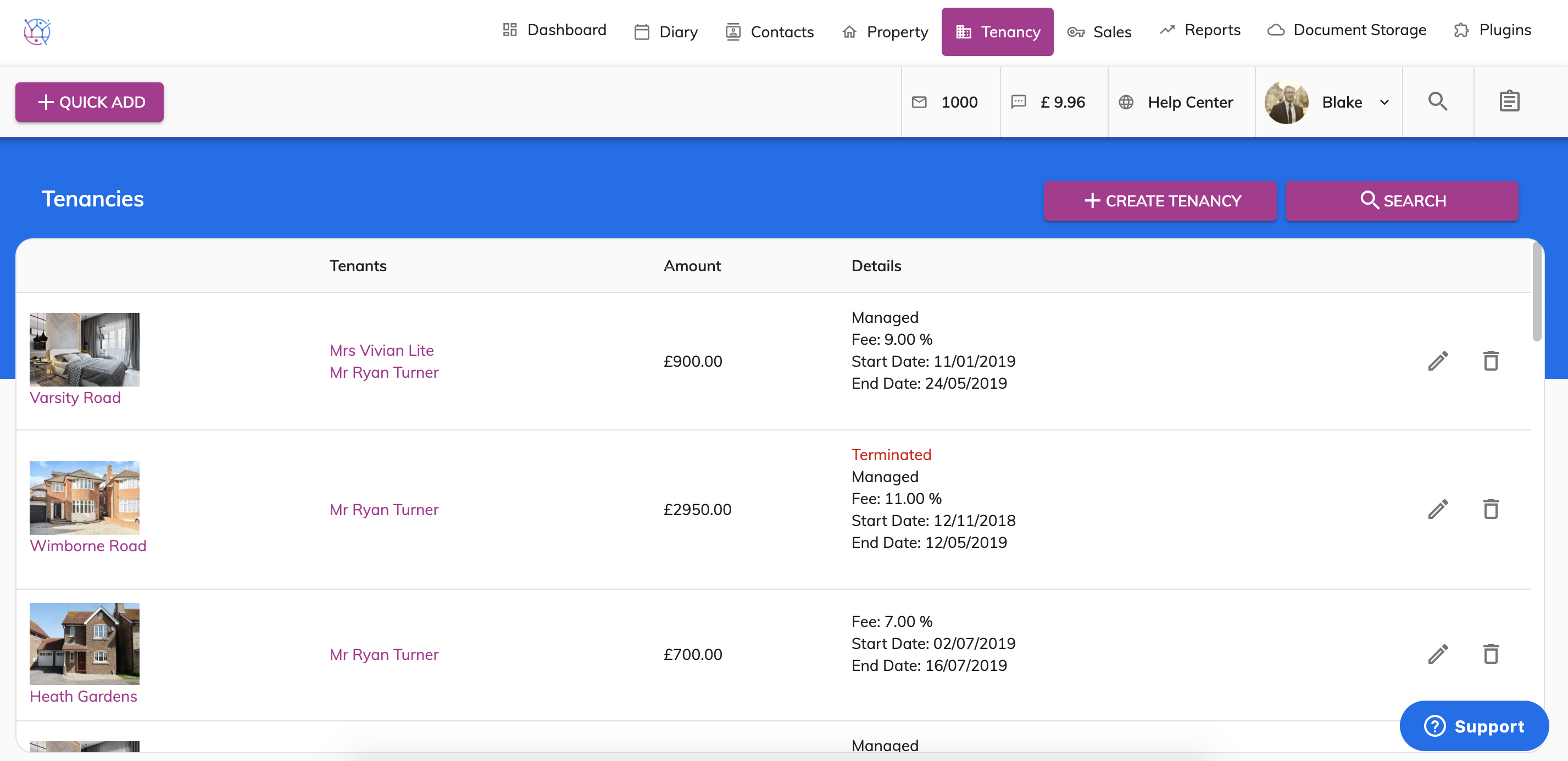
Next add the active tenancies into Juvo, remember you can use the quick add buttons to add the tenants or properties if these have not already been added into Juvo.
https://juvo.zendesk.com/hc/en-us/articles/360035926571-Create-a-tenancy
https://juvo.zendesk.com/hc/en-us/articles/360035926831-Add-rent-reminders
Offers
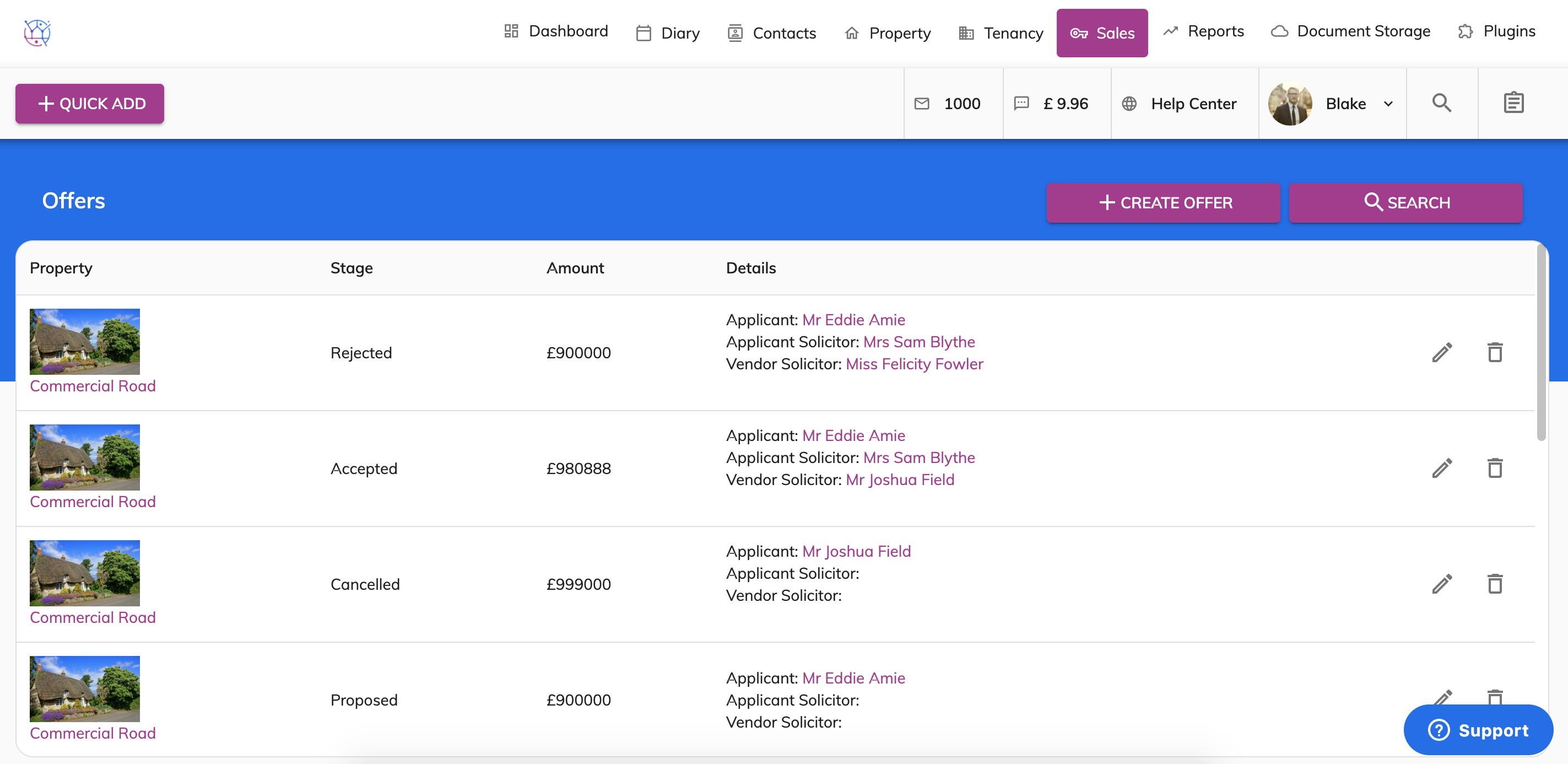
Now add the active offers and chains, remember you can use the quick add buttons to add properties or contacts if these have not already been added into Juvo.
https://juvo.zendesk.com/hc/en-us/articles/360035925671-Create-an-offer
https://juvo.zendesk.com/hc/en-us/articles/360045441131-How-to-add-a-Sales-Chain
Next step
Once you have added all the active properties, tenancies and offers you can then begin adding the historical data so that you have a record of these.