To create a sales offer, follow the steps below:
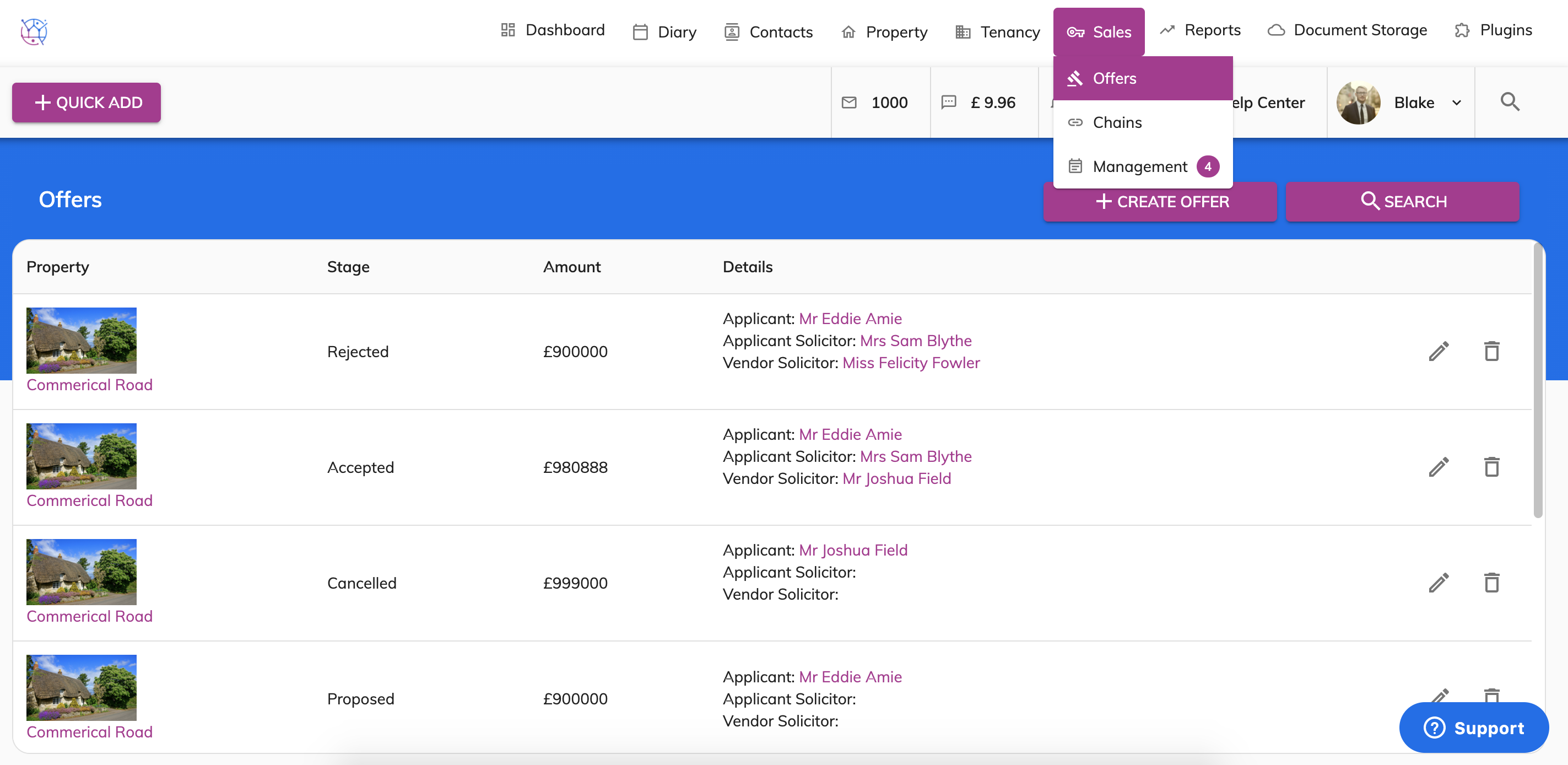
1) Hover on the Sales button and select Offer from the drop down.
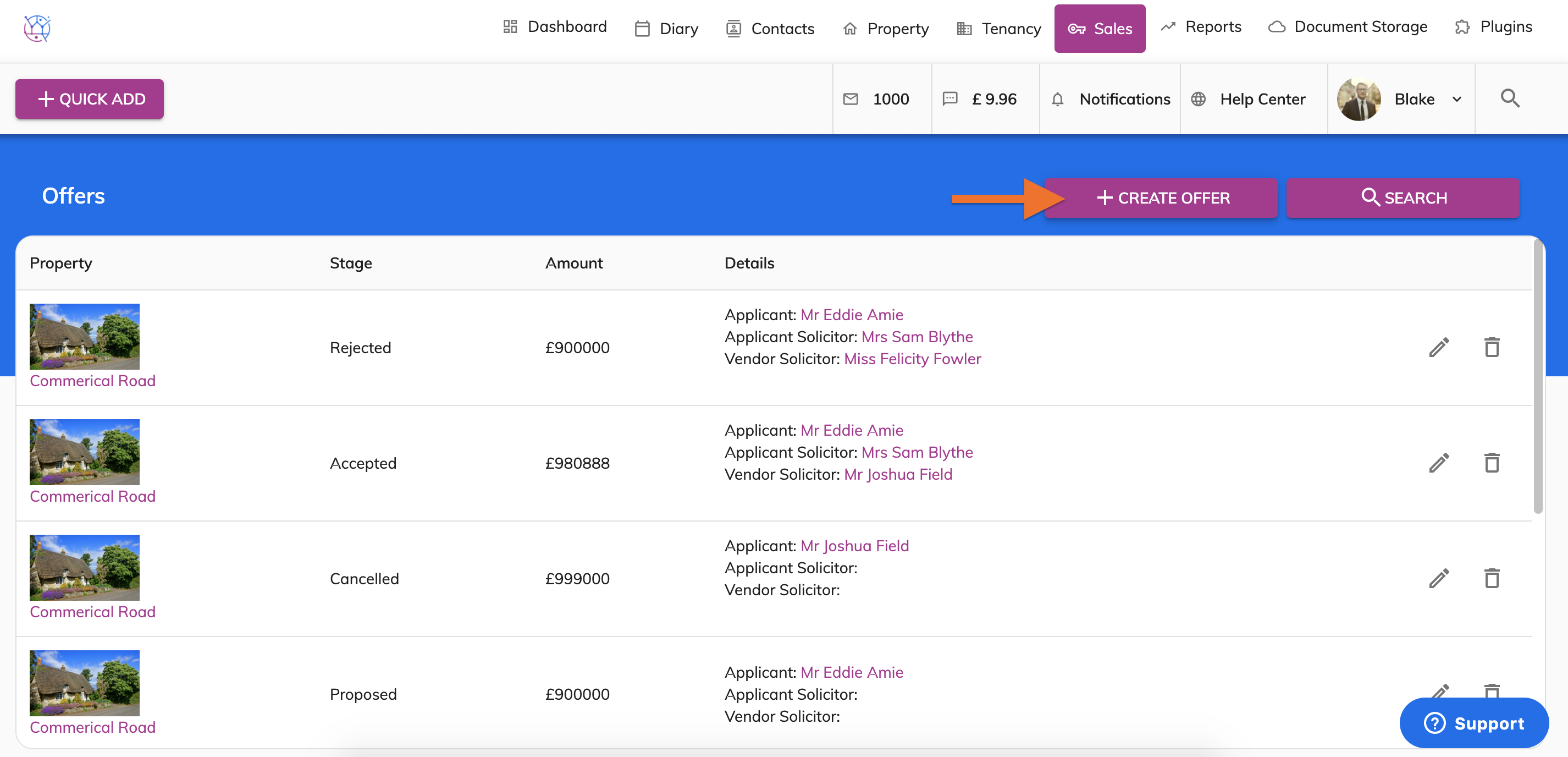
2) Press the Create Offer button.
3) Start completing the create offer form starting with the stage.
Stage types explained:
Interest - an interest offer shown from a potential purchaser.
Negotiation - an offer that is in negotiation with both parties.
Proposed - an offer that has been proposed to the vendor, no decision made as of yet.
Accepted- an offer that has been made by the potential purchaser and has been accepted by the vendor.
Rejected -an offer that has been made by the potential purchaser and has been rejected by the vendor.
Cancelled- an offer that has been made by the potential purchaser and then cancelled or retracted by the potential buyer.
Completed - an offer that has been made by the potential purchaser, has been accepted by the vendor and has completed all the legal stages of the property being sold.
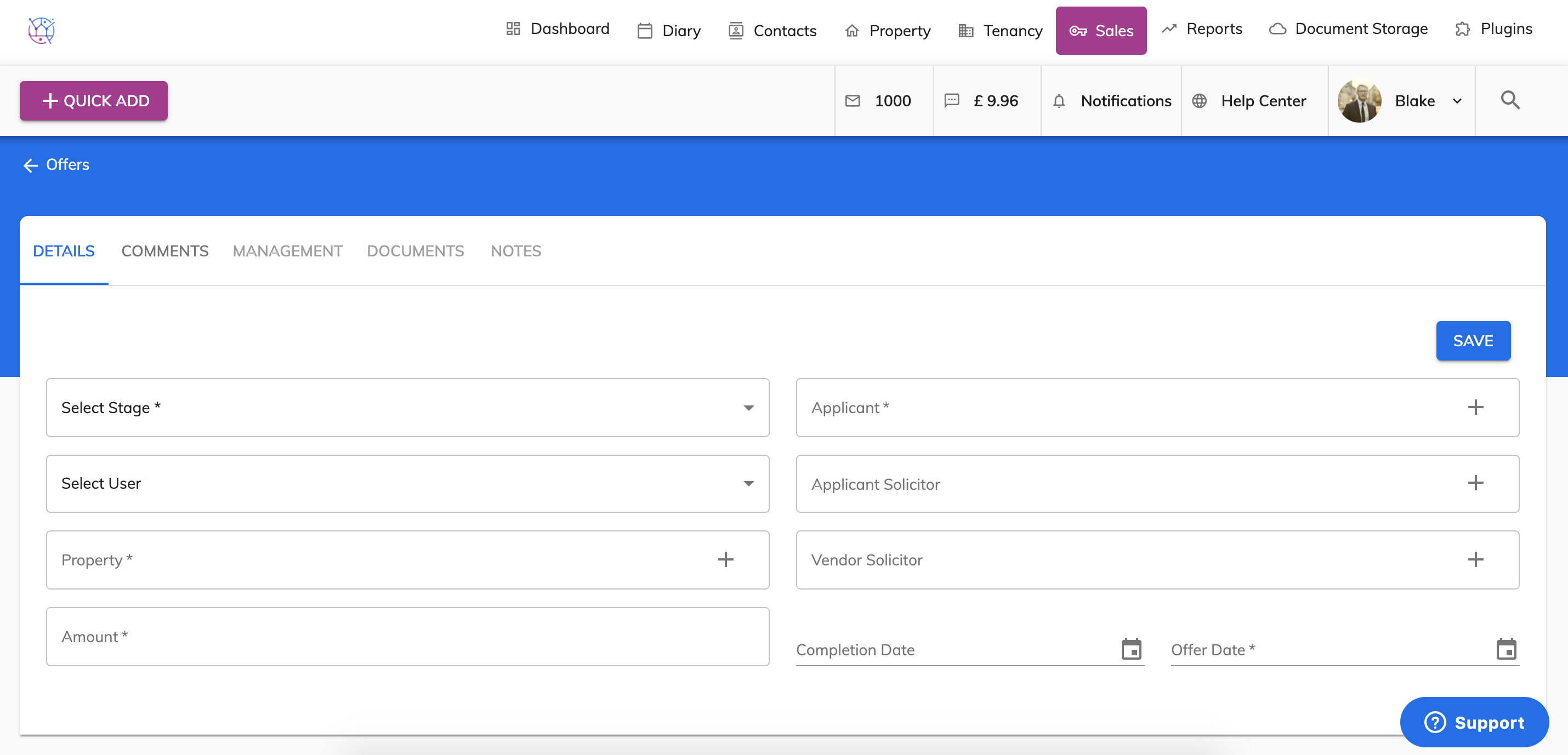
3) Select the main user (member of staff) that will be managing the offer.
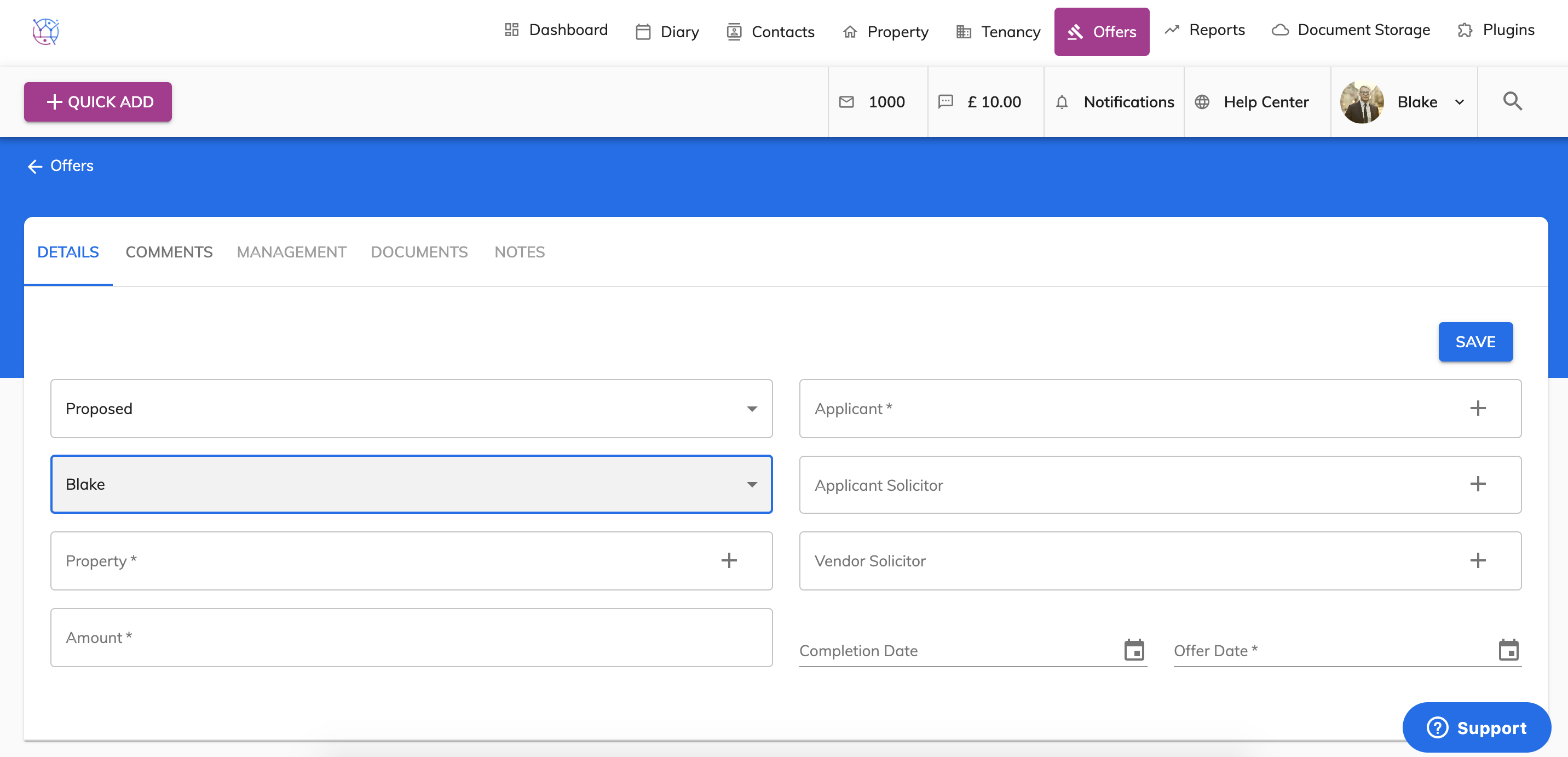
4) Link the property to the offer, do so by typing the name of the property in to the property field and selecting the correct property from the dropdown.
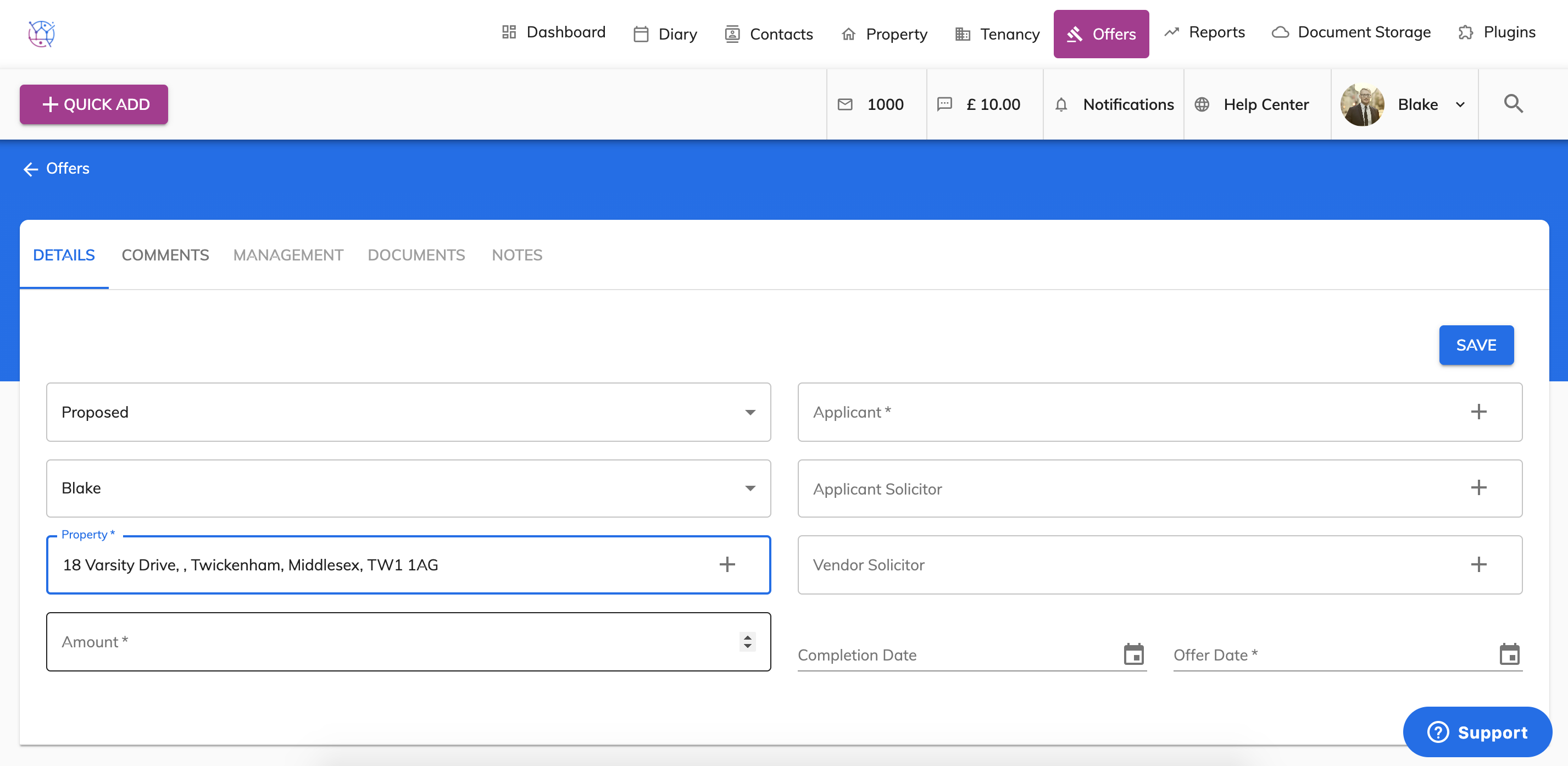
5) Enter the amount of the offer that has been proposed. Only uses numbers in this field, do not include any symbols or punctuation.
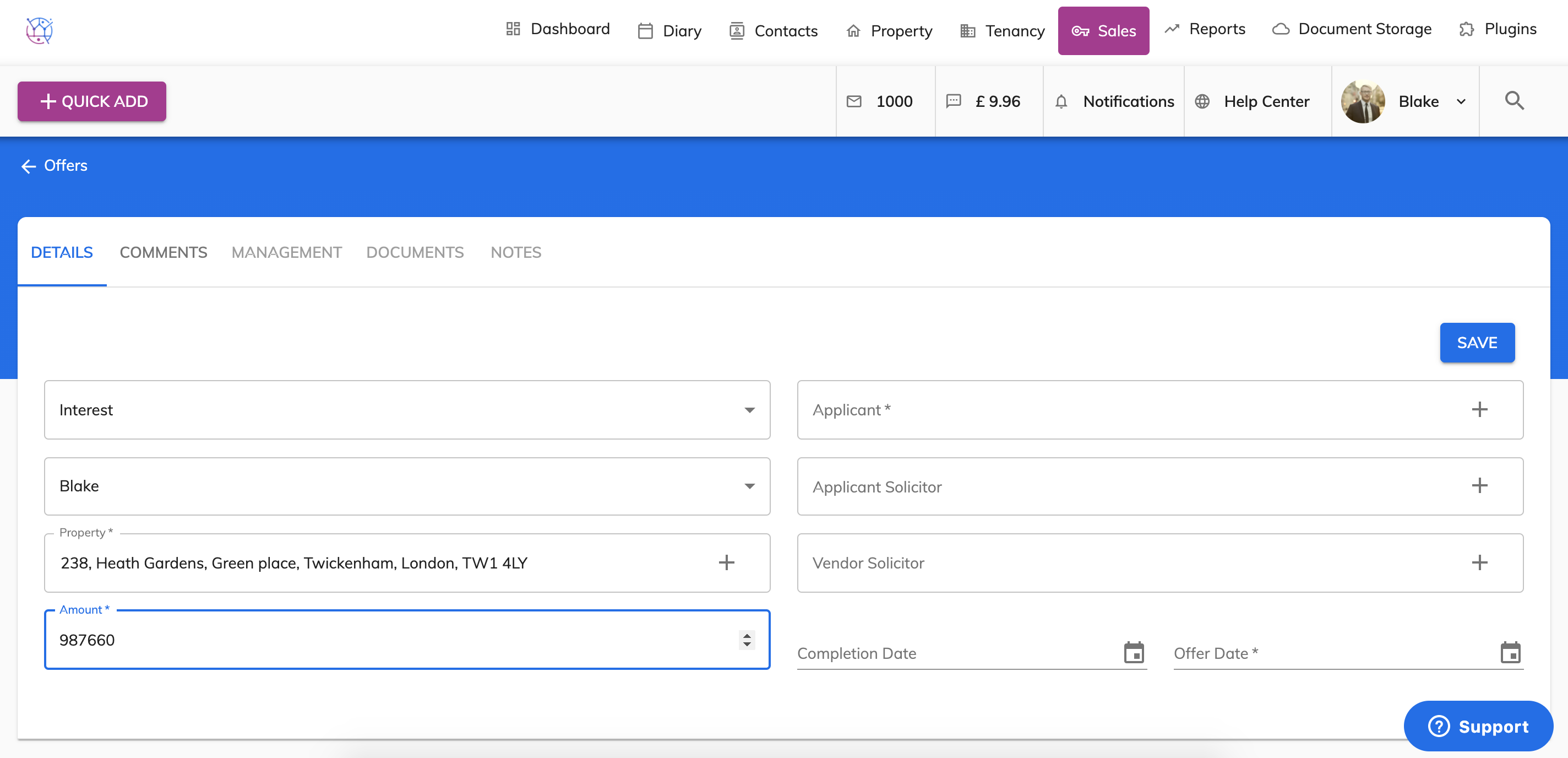
6) Link the potential purchaser to the offer in the applicant field. Do so by typing the name of the potential purchaser and selecting the correct name from the dropdown.
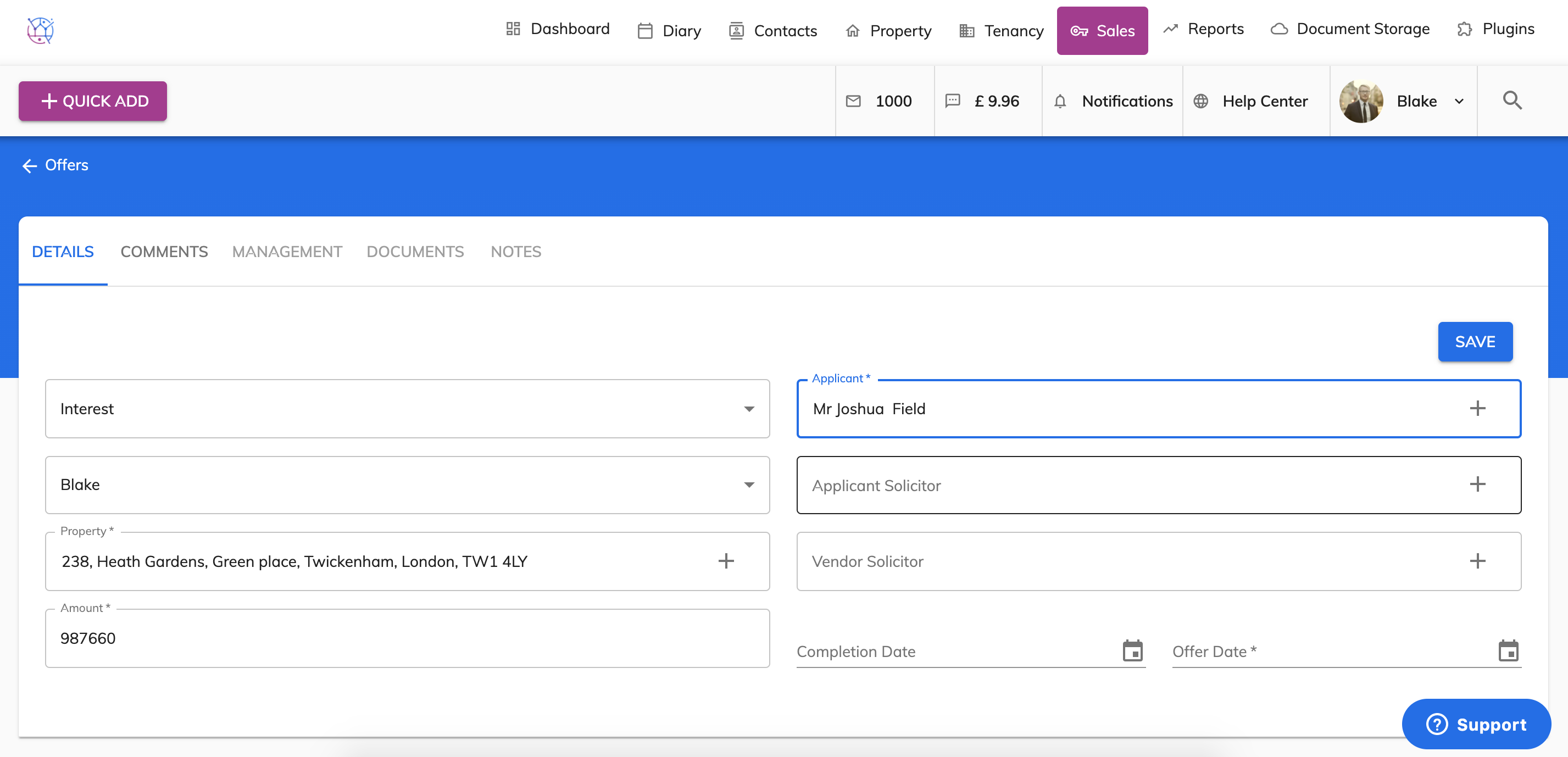
If the potential purchaser in not already added into Juvo, use the quick add button on the form by clicking on the small plus icon This will allow you to add the potential purchaser into Juvo and then link them to the offer.
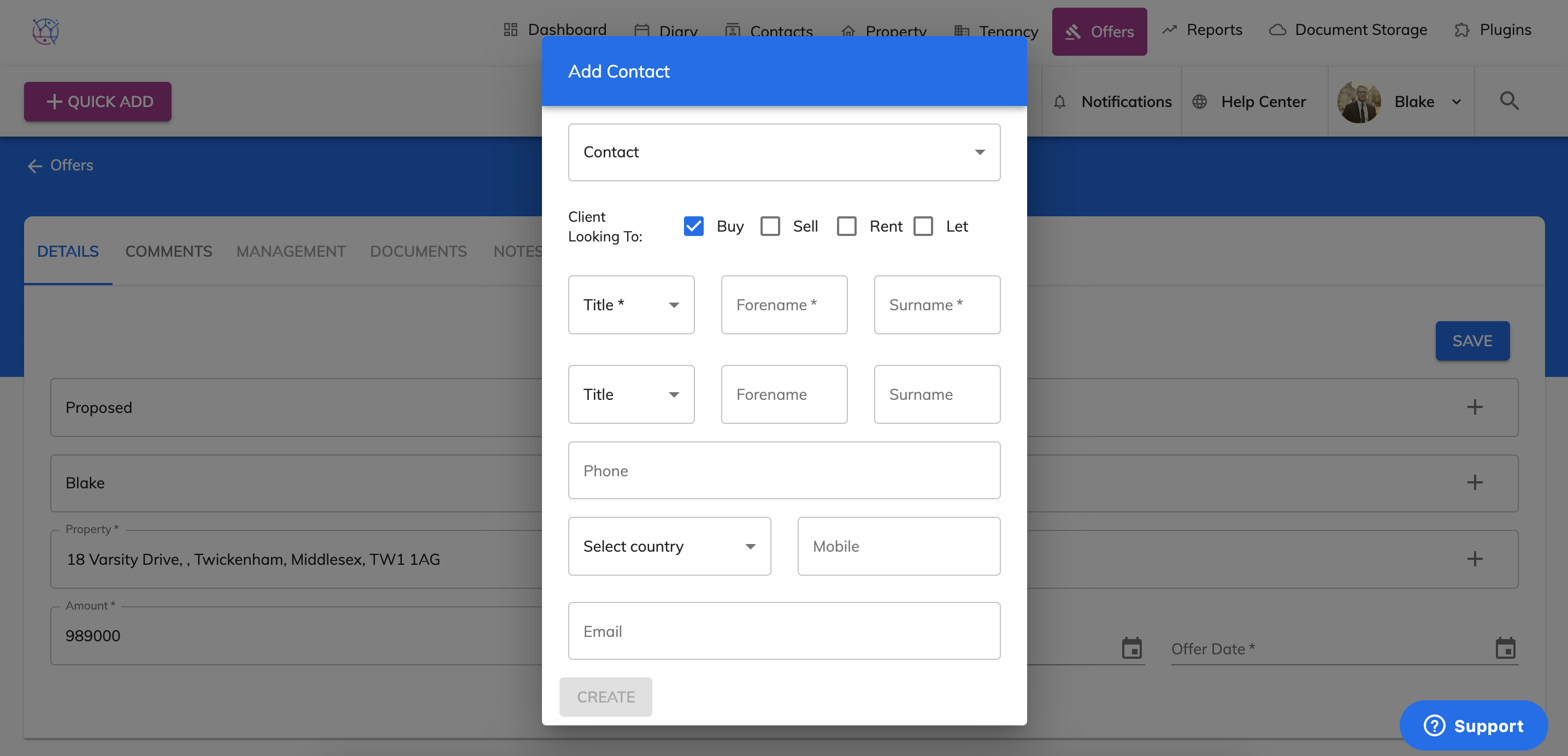
7) Link the solicitors for both parties using the applicant solicitor and vendor solicitor fields. Start typing the names of the solicitors and selecting the correct name from the dropdown. If the solicitor is not already added into Juvo, use the quick add button on the form by clicking on the small plus button. This will allow you to add the solicitor into Juvo and then link them to the offer.
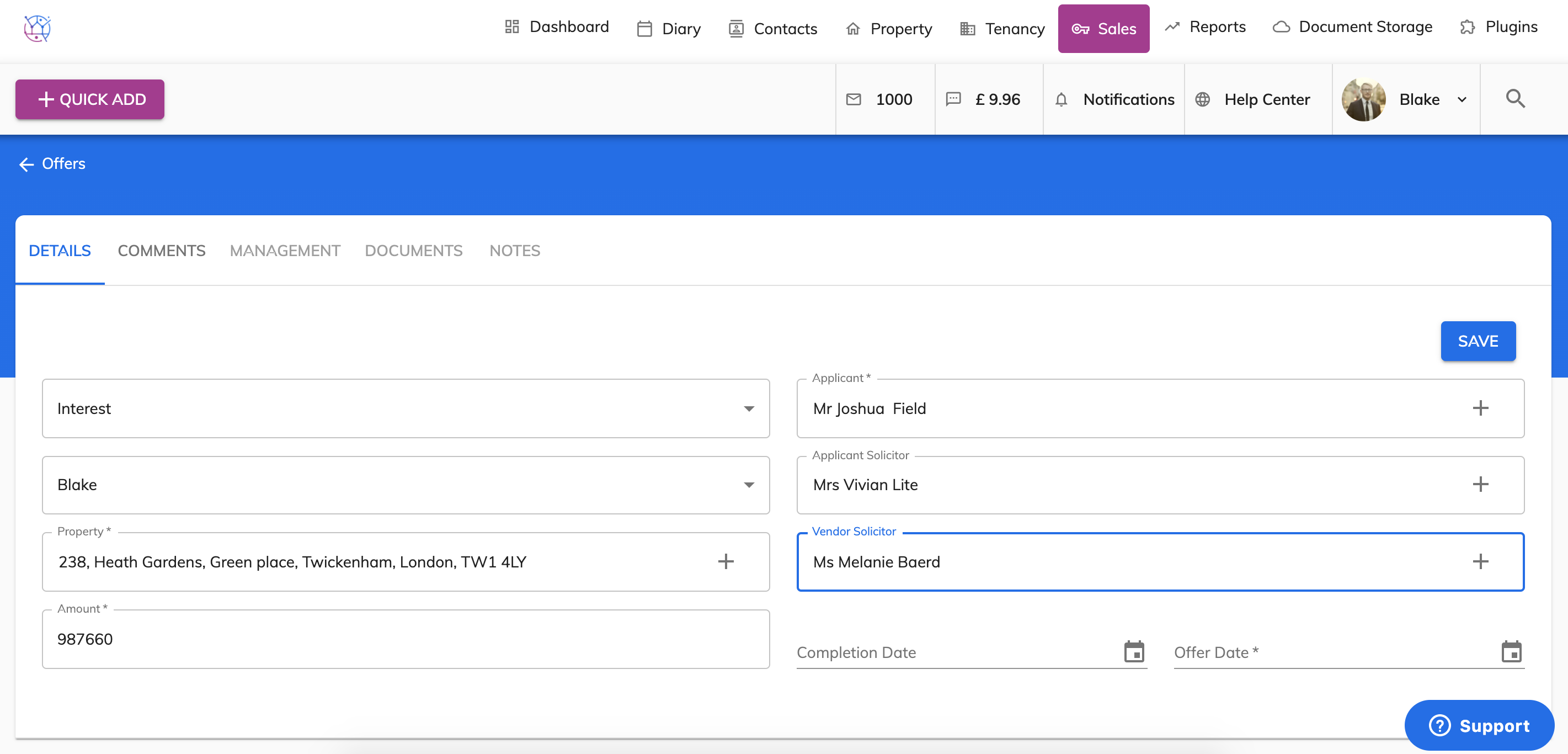
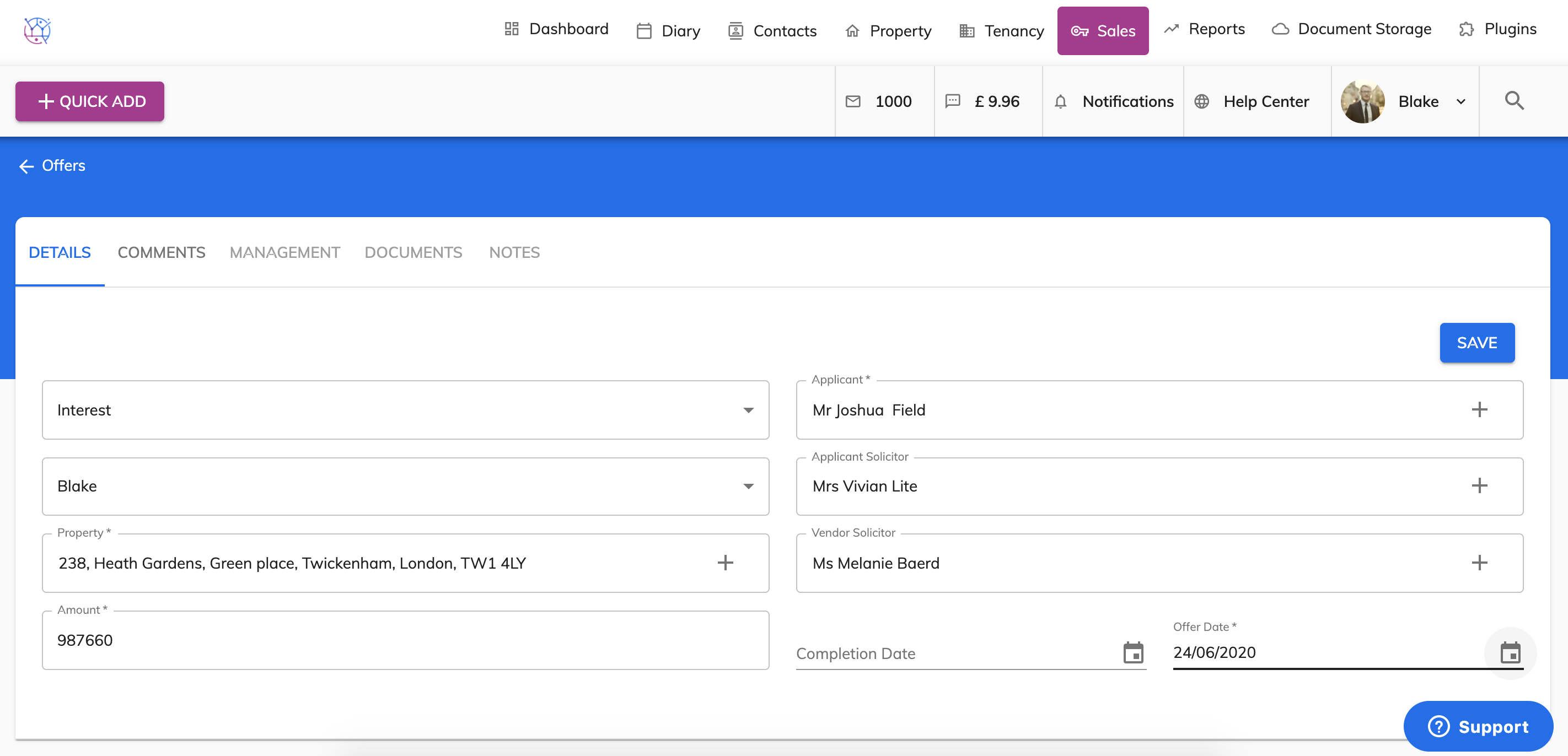
8) If the offer has already been completed, add this date into the Completion field. If not leave this field blank. Enter the date of the offer.
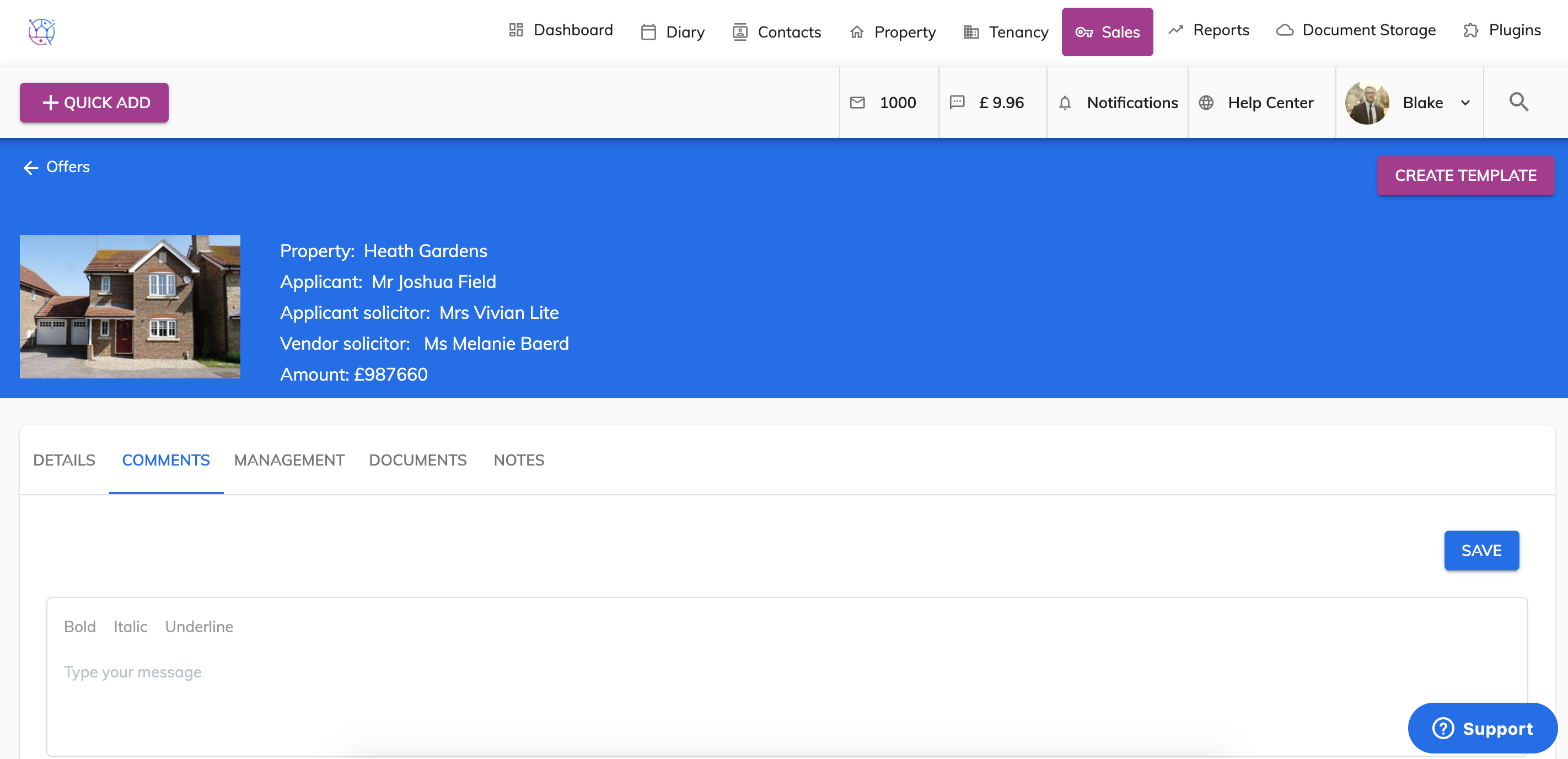
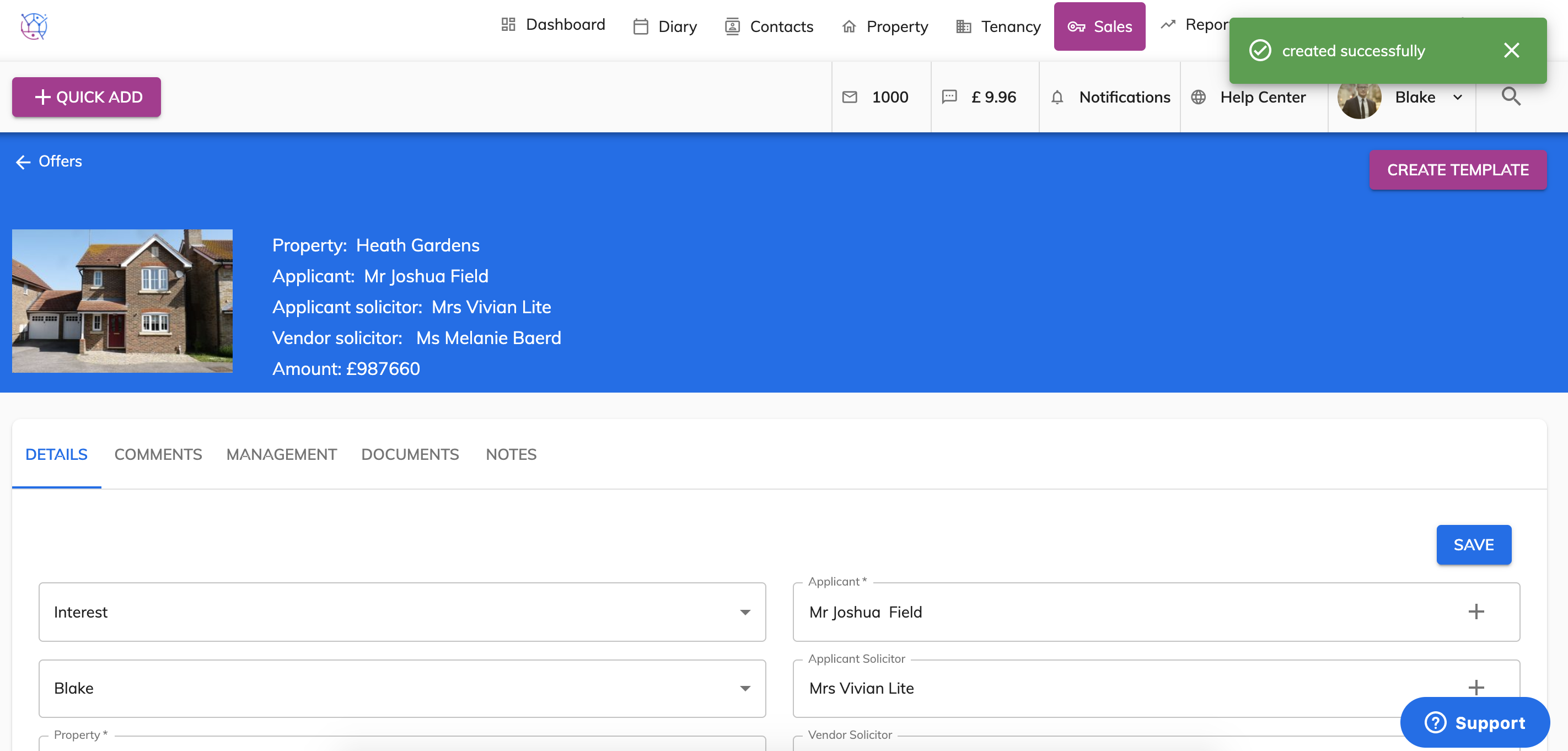
9) Press Save, you will receive a green 'saved' confirmation box to show the contact has been added. You will also now be able to see additional options on the top menu - from here you can upload documents, add notes and add management tasks for reminders of when to complete those important tasks.
10) Add any additional notes including chain details in the comments section from the menu at the top.