To create a tenancy, follow the steps below:
1) Click the Tenancy tab.
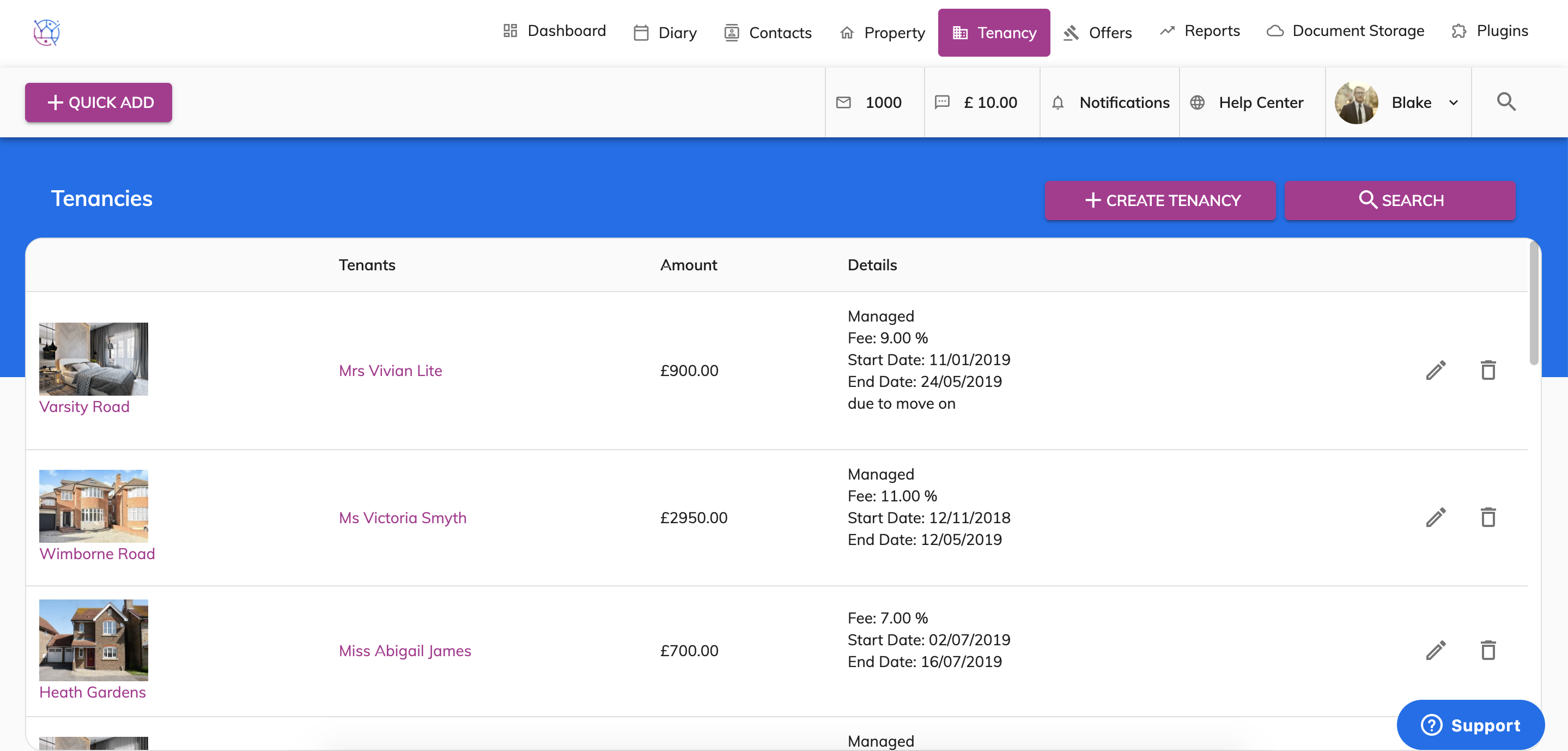
2) Press the Create Tenancy Button.
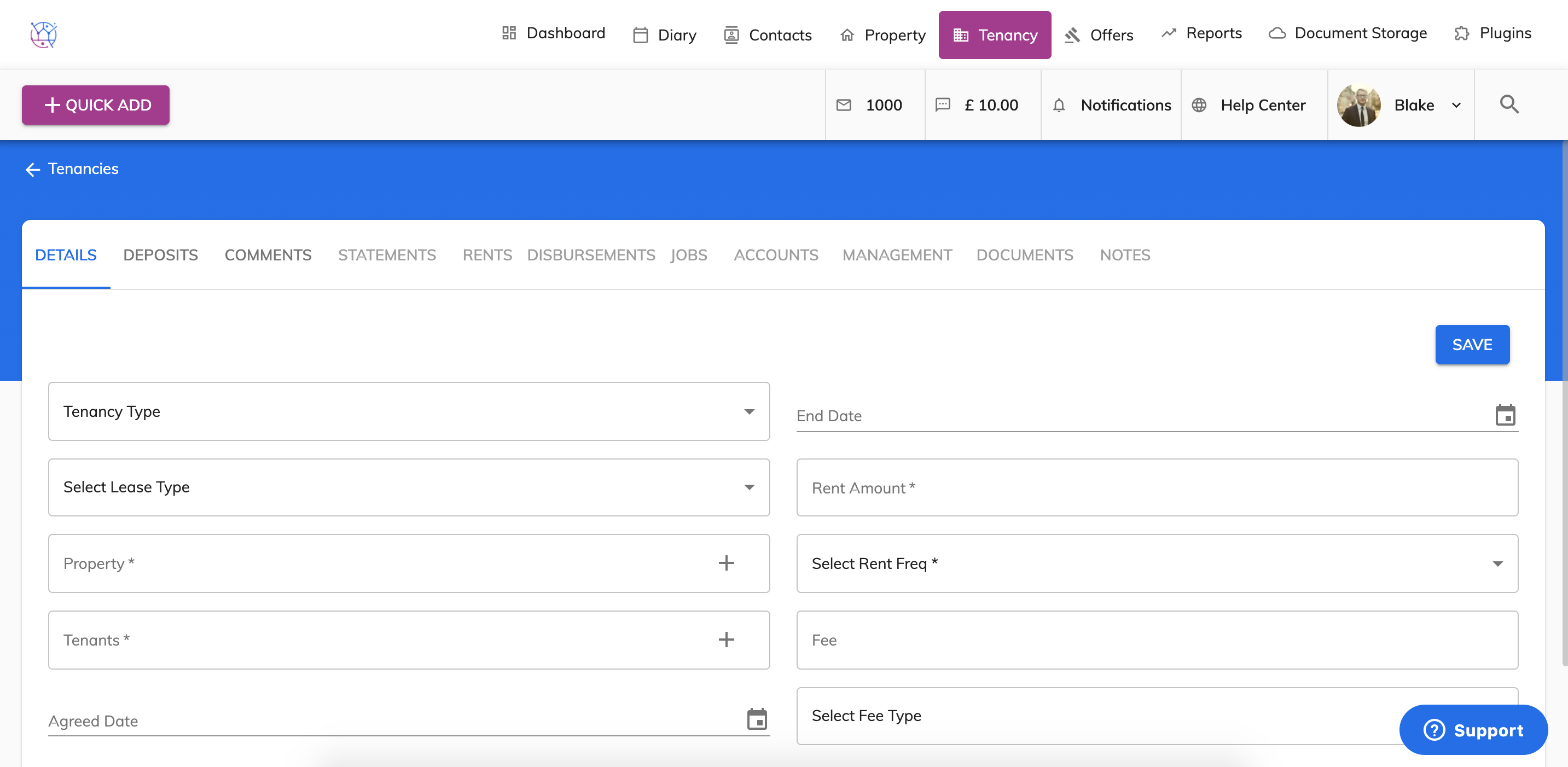
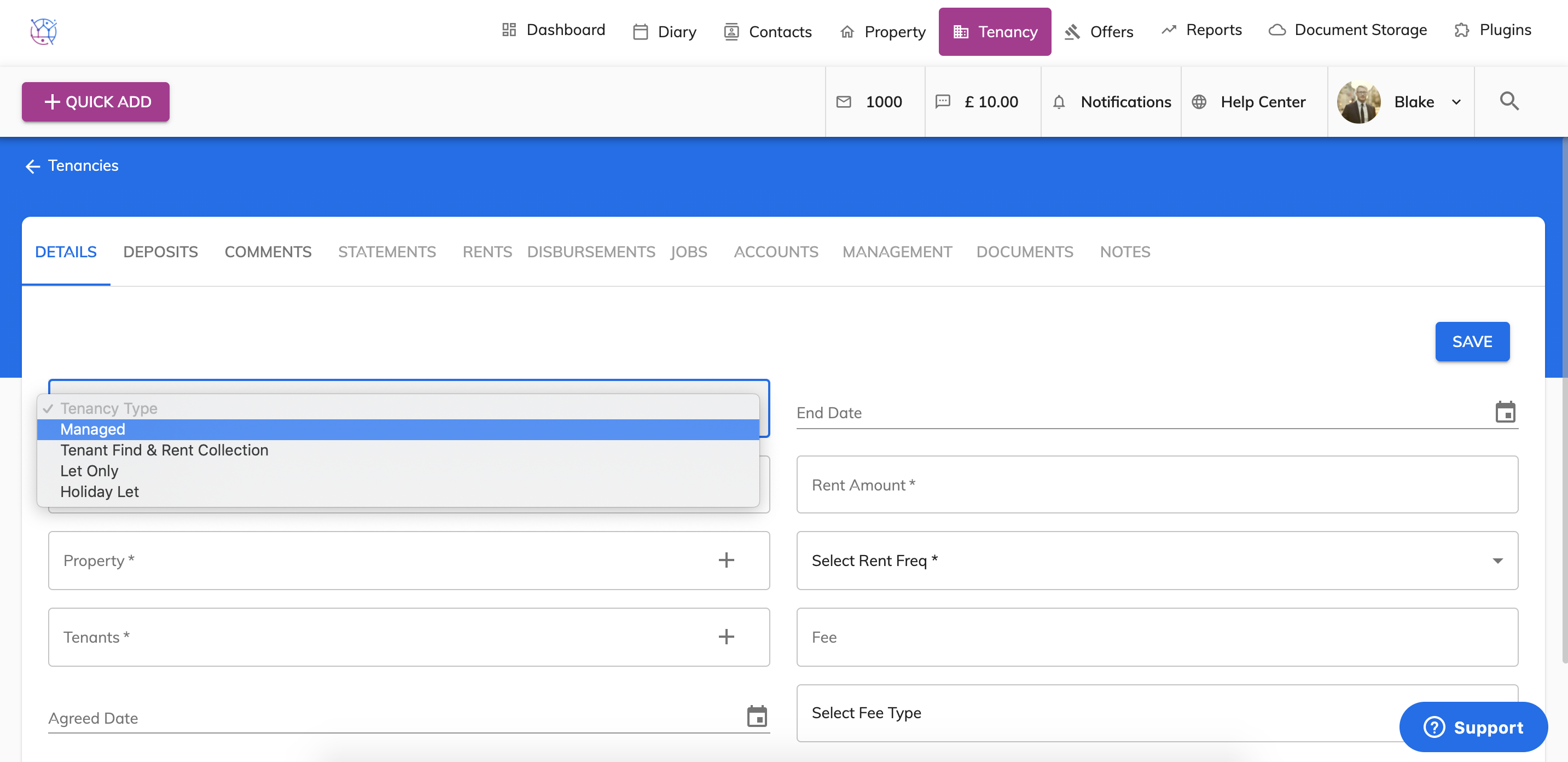
3) Start completing the tenancy details form starting with the tenancy type.
Tenancy types explained:
Managed - a tenancy where the letting agent finds the tenants, completes the necessary paperwork, moves the tenants into the property, collects rent and manages the tenancy on going.
Tenant find & rent collection - a tenancy where the letting agent finds the tenants, completes the necessary paperwork and moves the tenants into the property and collects rent. The landlord normally manages the tenancy is responsible for management, inspections and maintenance of the tenancy, however this can vary.
Let only - a tenancy where the letting agent finds the tenants, completes the necessary paperwork and moves the tenants into the property. The landlord collects rent and manages the tenancy ongoing.
Holiday let - a tenancy of a property used for holidays lets that is fully furnished on a short term basis, usually less than 30 days.
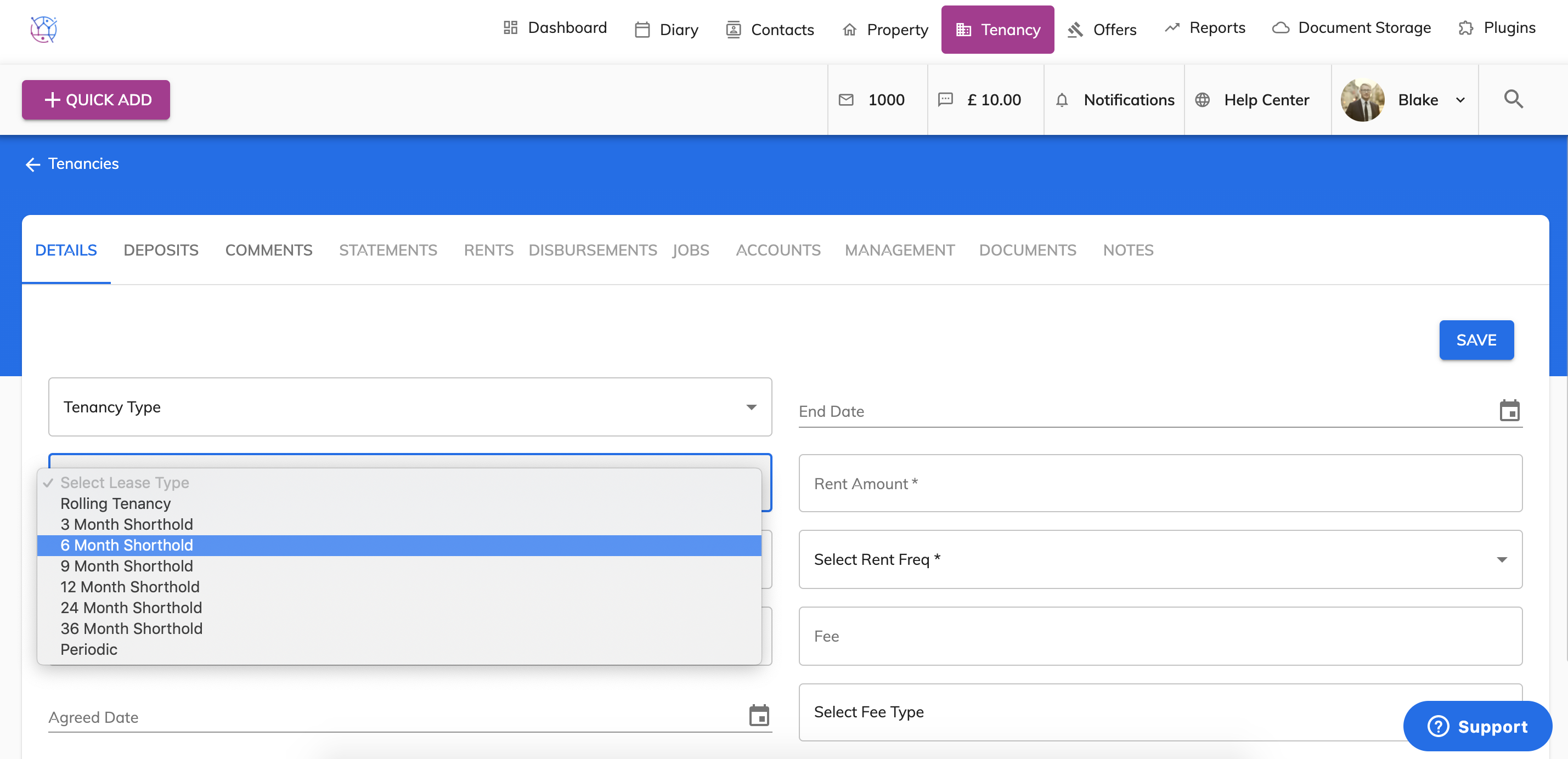
3) Next select the lease type from the dropdown.
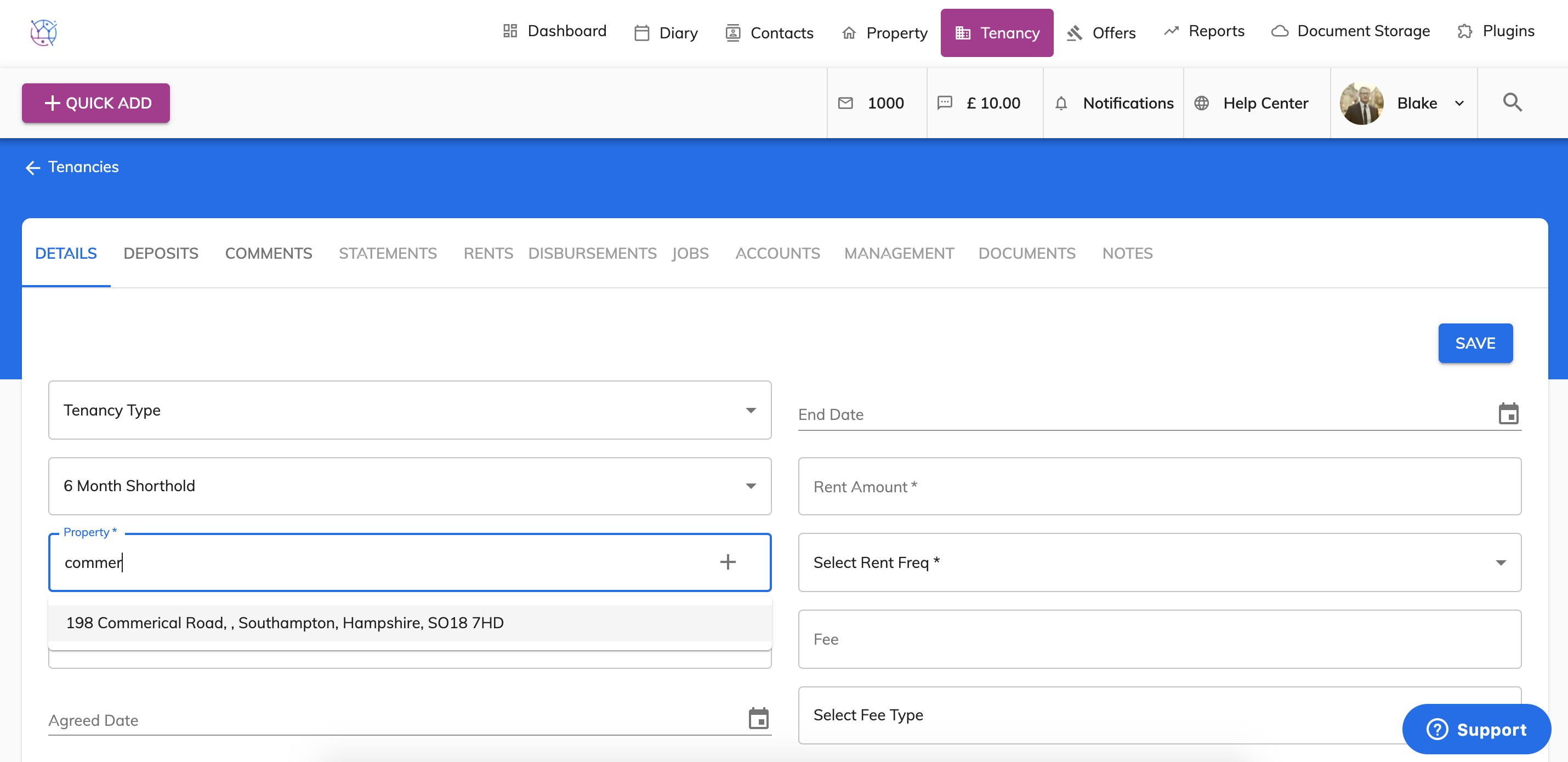
4) Link the property to the offer, do so by typing the name of the property in to the property field and selecting the correct property from the dropdown.
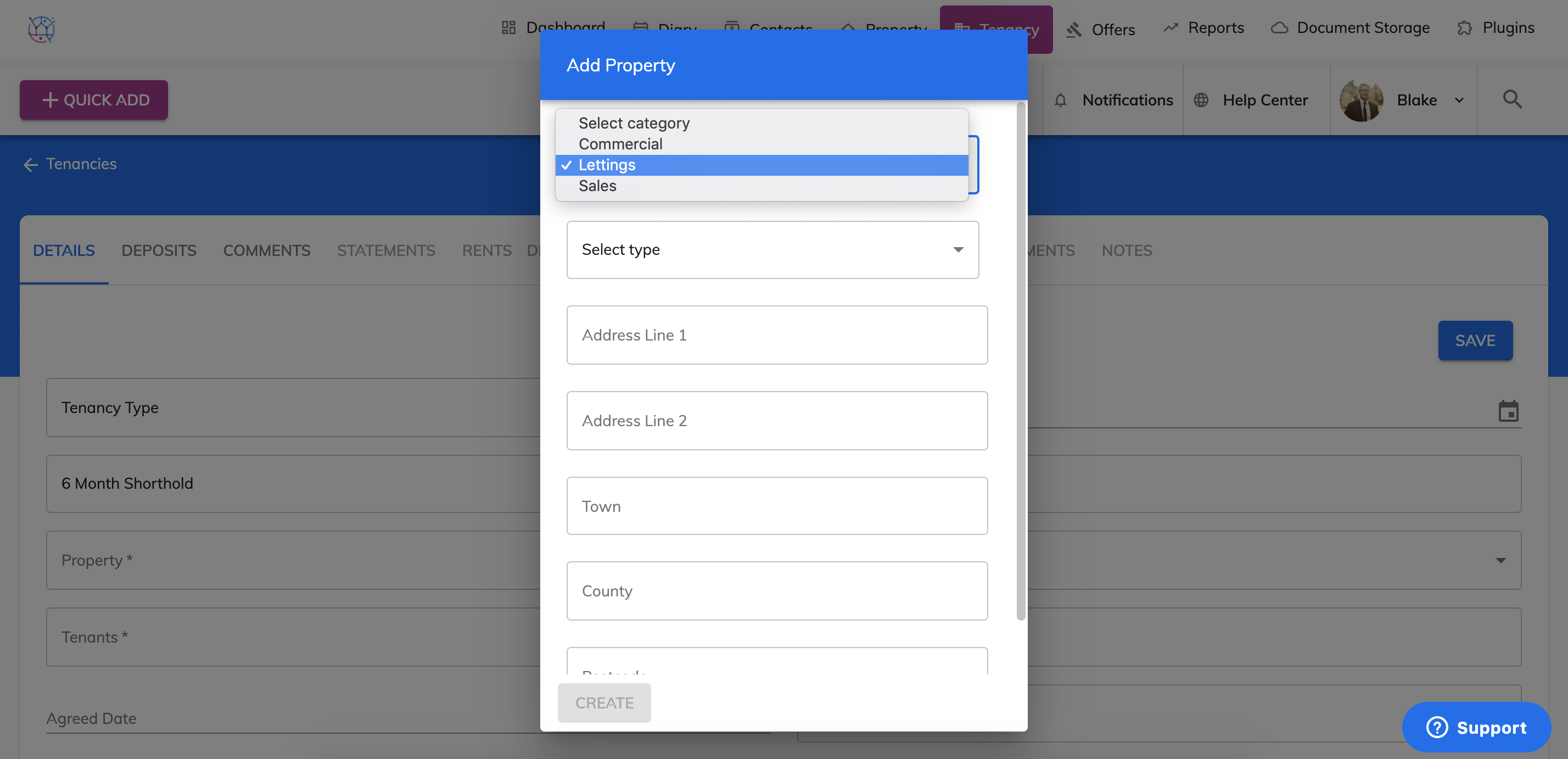
If the property in not already added into Juvo, use the quick add button on the form by clicking on the small plus button. This will allow you to add the property into Juvo and then link them to the tenancy.
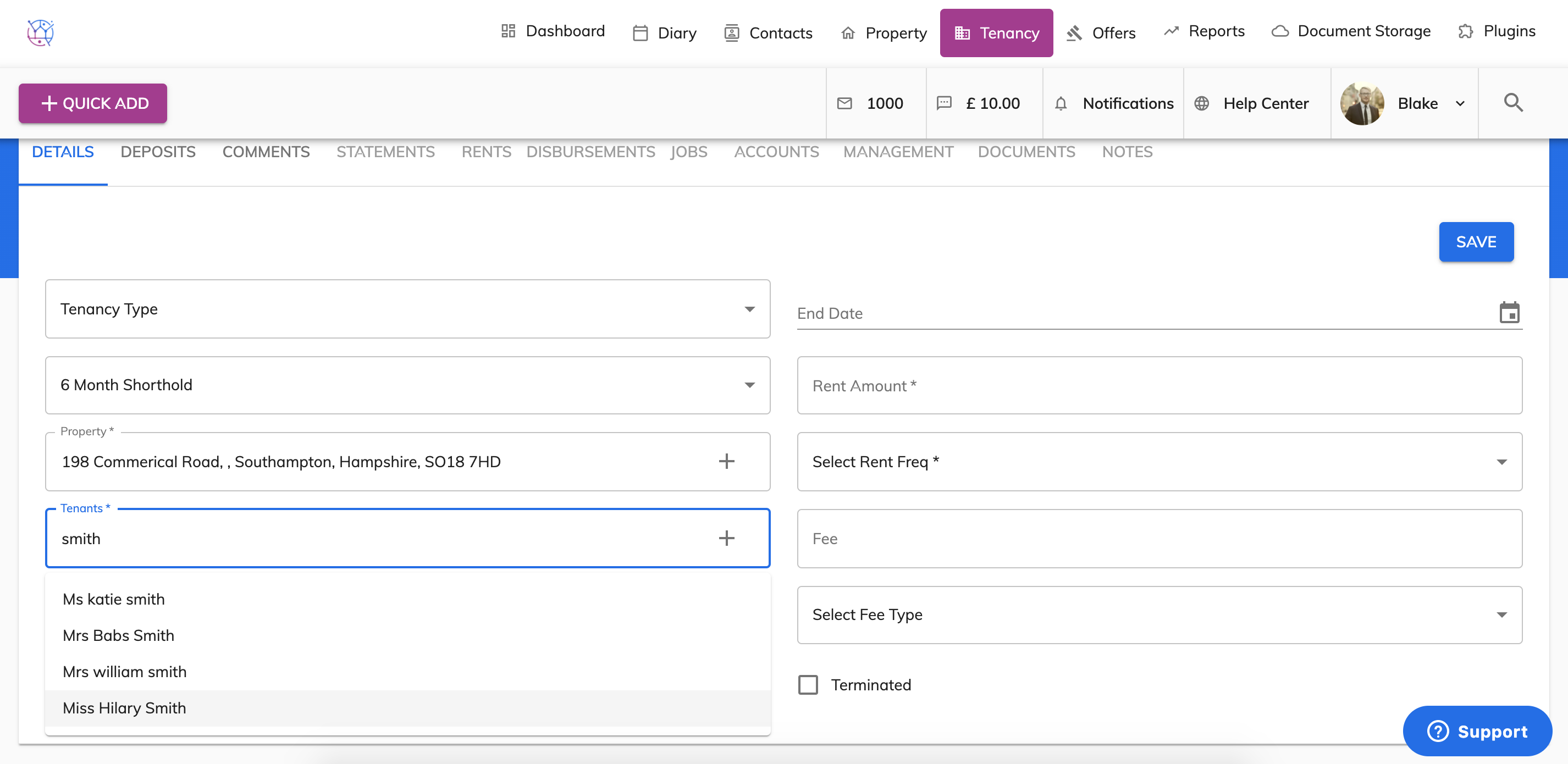
5) Link the tenants to the tenancy, do so by typing the name of the tenant in to the tenant field and selecting the correct tenant from the dropdown. This can be done for multiple tenants, repeat step 5 until all the tenants are shown in the tenant field.
If the tenant in not already added into Juvo, use the quick add button on the form by clicking on the small plus button. This will allow you to add the tenant into Juvo and then link them to the tenancy.
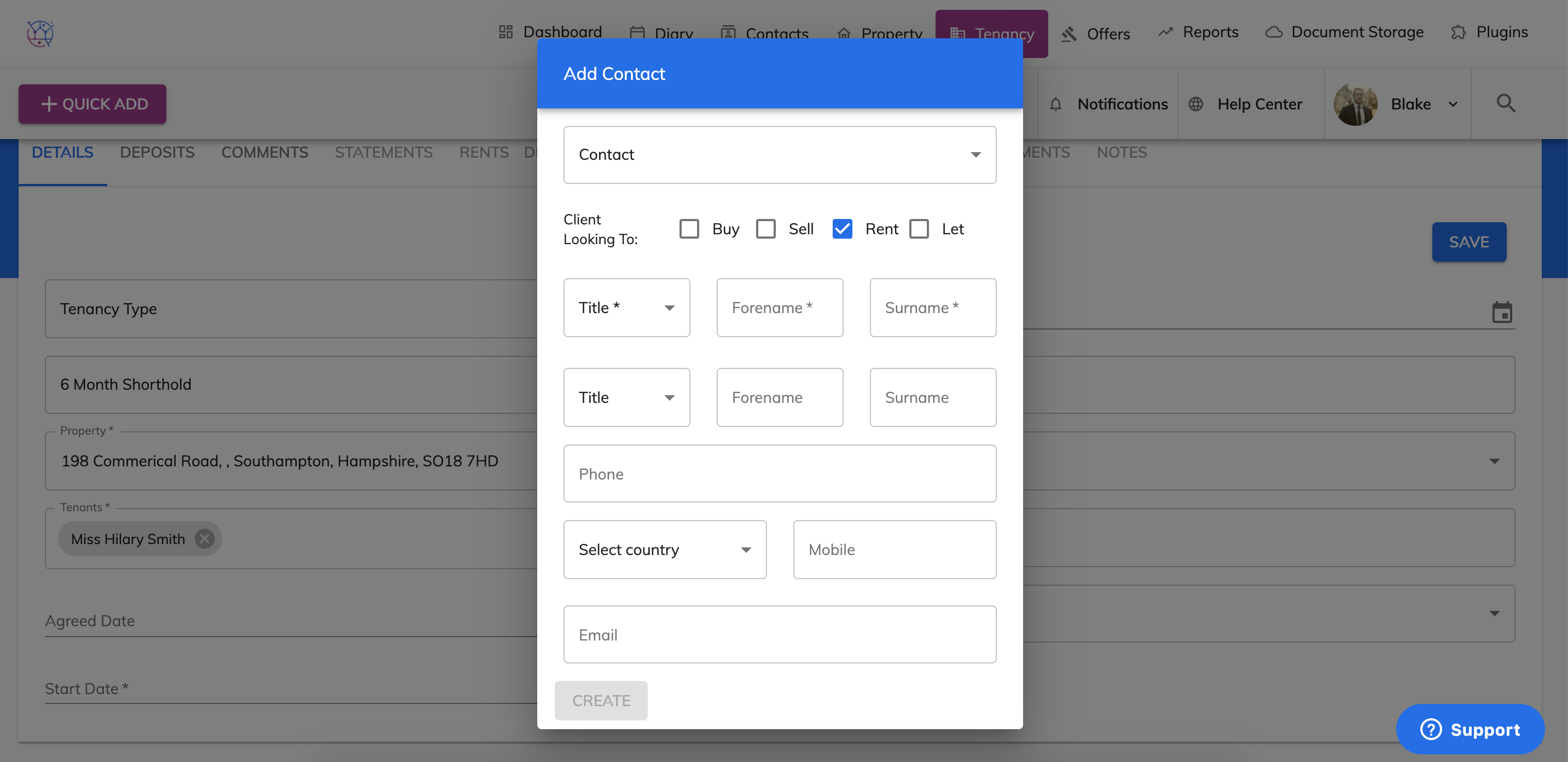
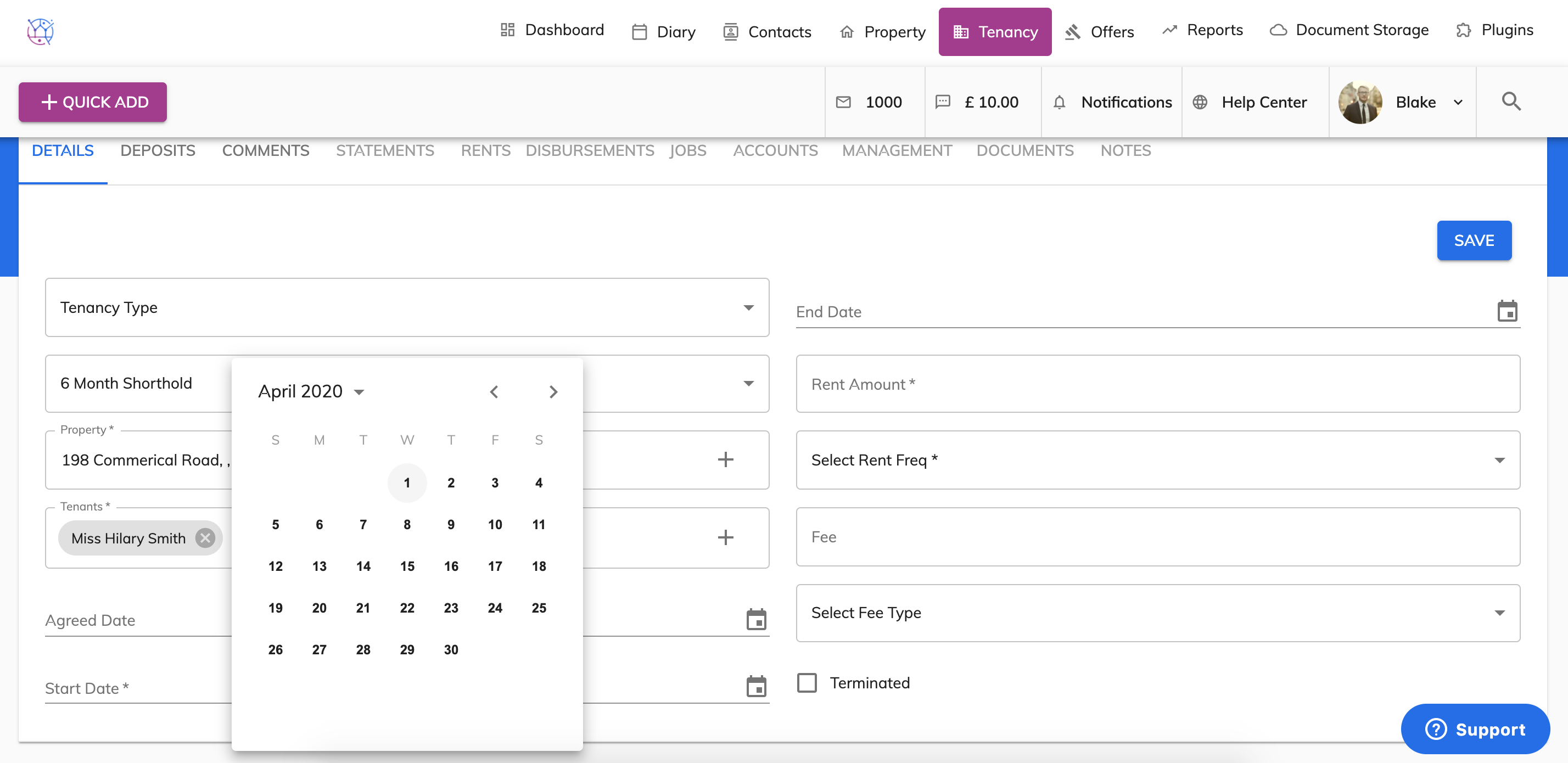
6) Select the Agreed Date of the tenancy from the pop out diary. This is the date you agreed with the landlord and tenants that you would progress with the tenancy paperwork and start with the necessary checks.
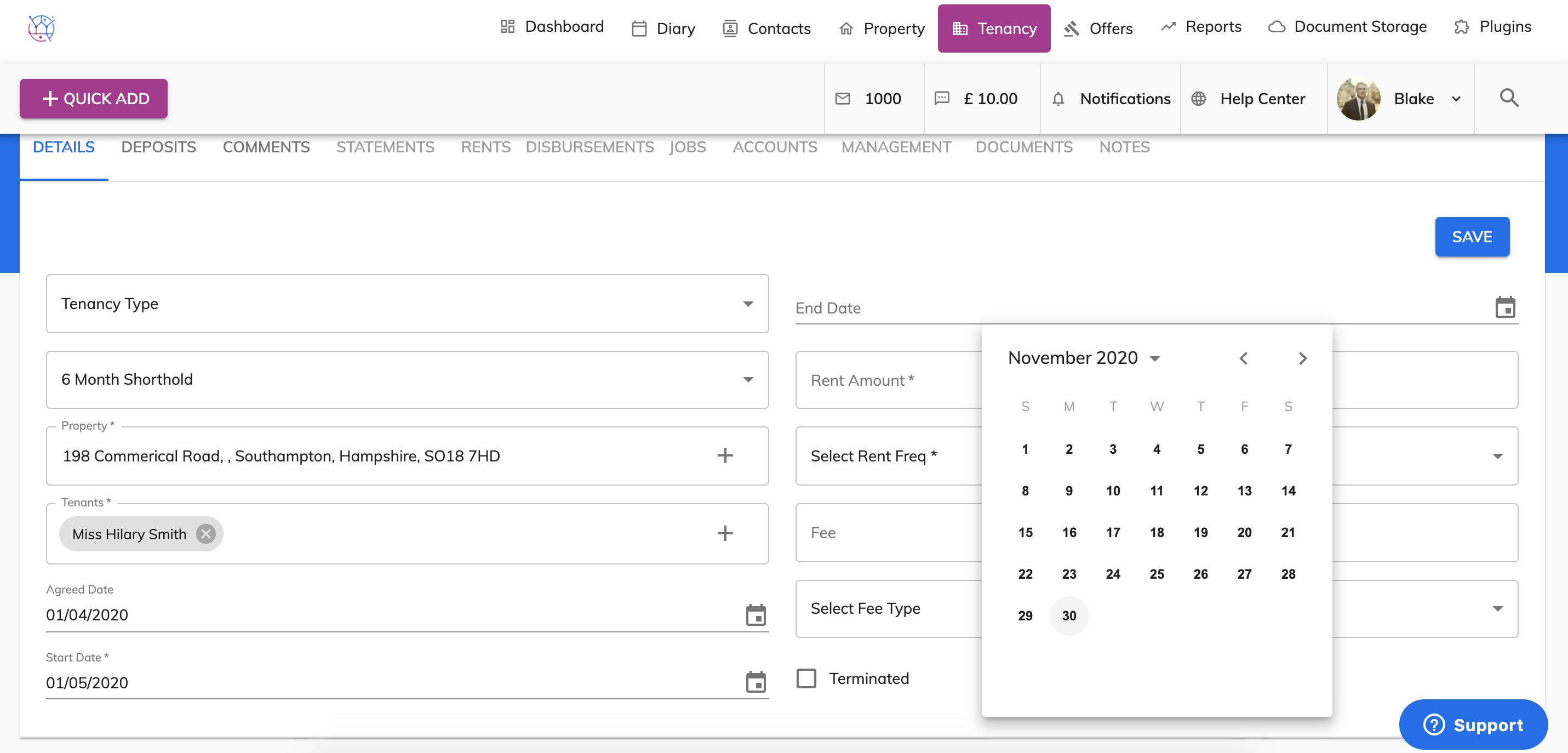
7) Enter the start and end dates of the tenancy. Not to worry if the tenants extends their tenancy later, the end date can be changed later as needed.
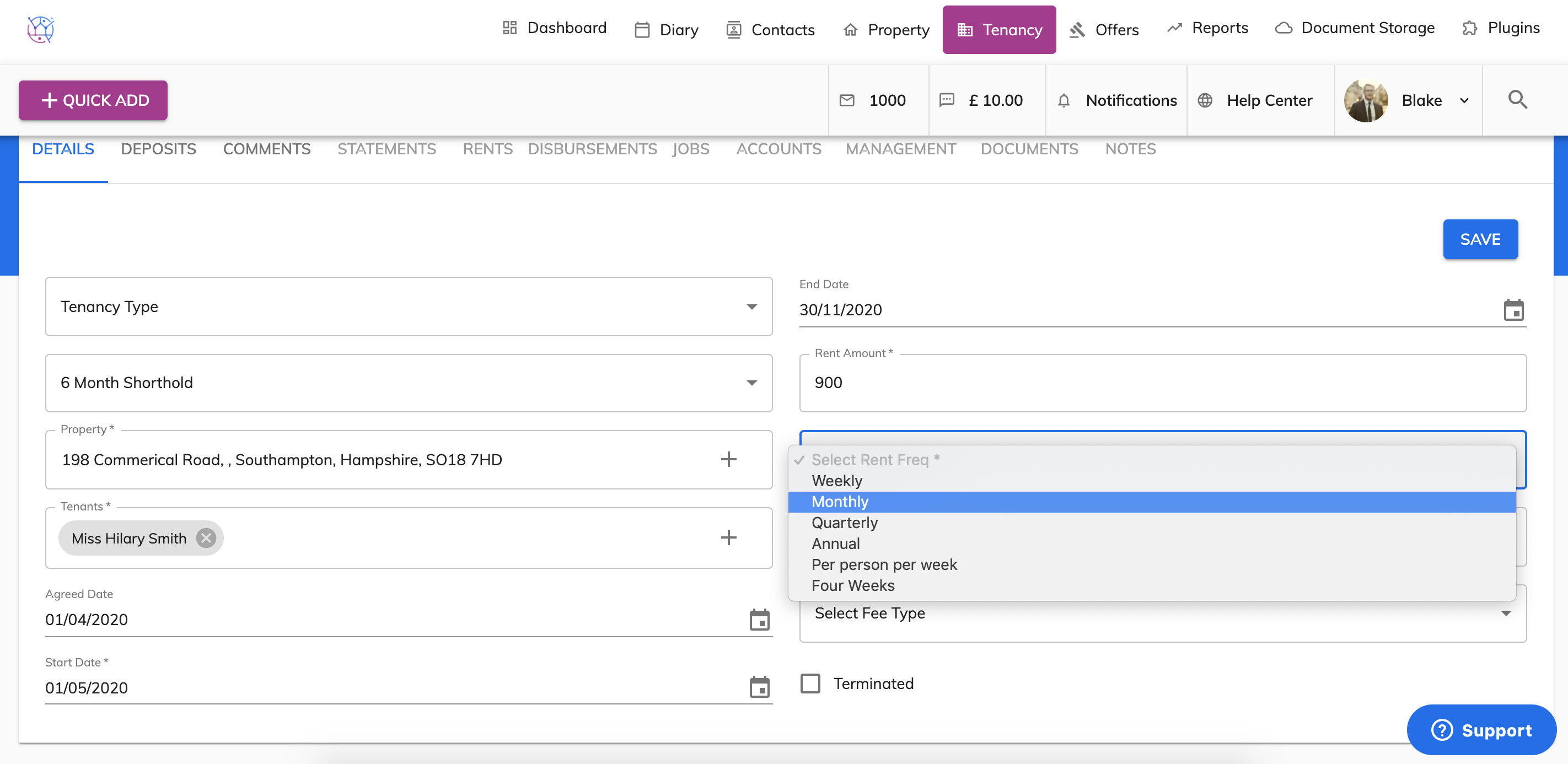
8) Enter the rental amount and the rent frequency of the whole tenancy.
9) Add your management fee to the tenancy. This can either be added a percentage or as a fixed fee. This management fee will automatically get deducted from any rent that is due to be paid to the landlord.
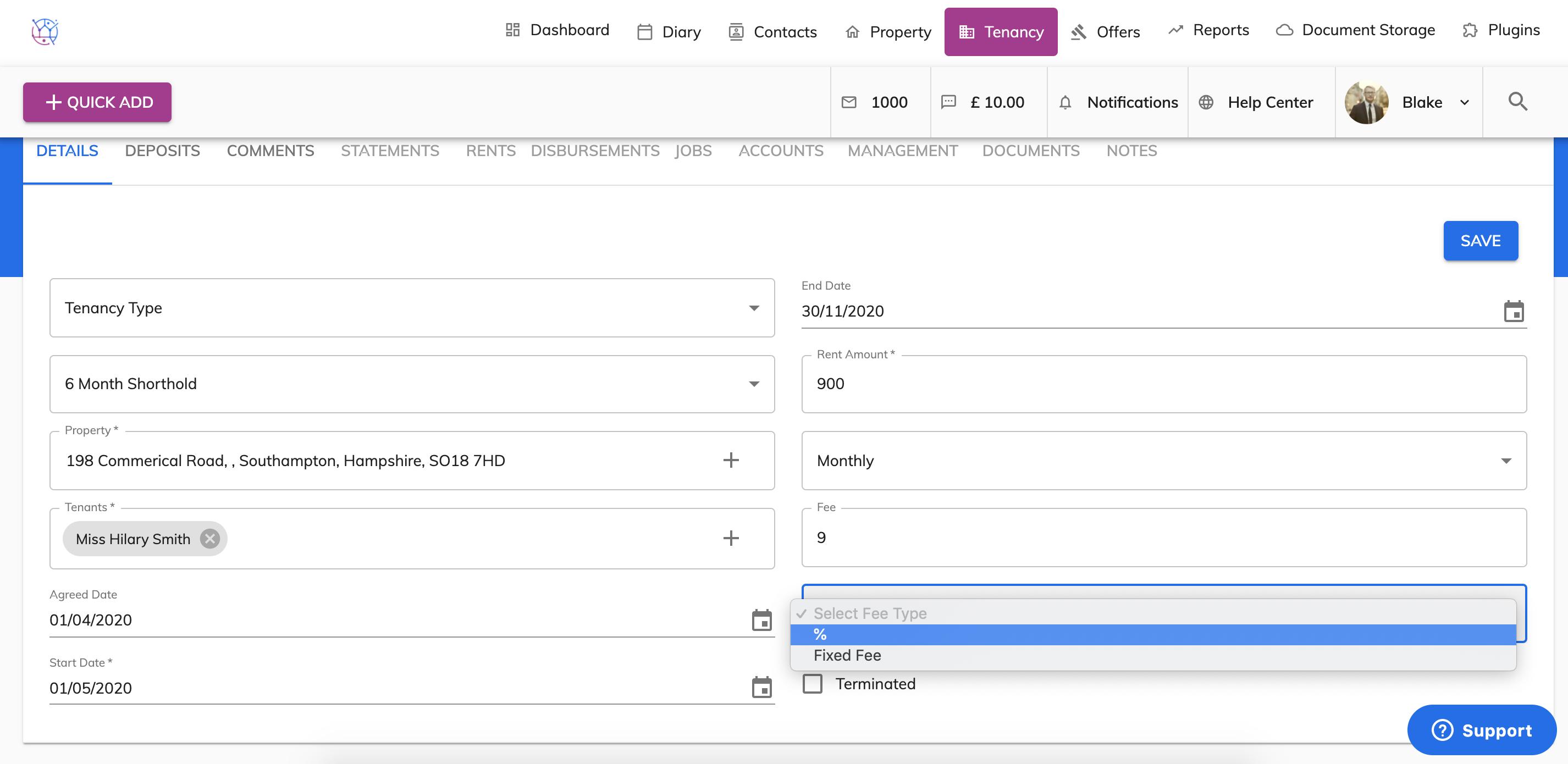
10) Save the tenancy, this will add the tenancy onto Juvo and then provide you with additional options for the tenancy on the top menu.
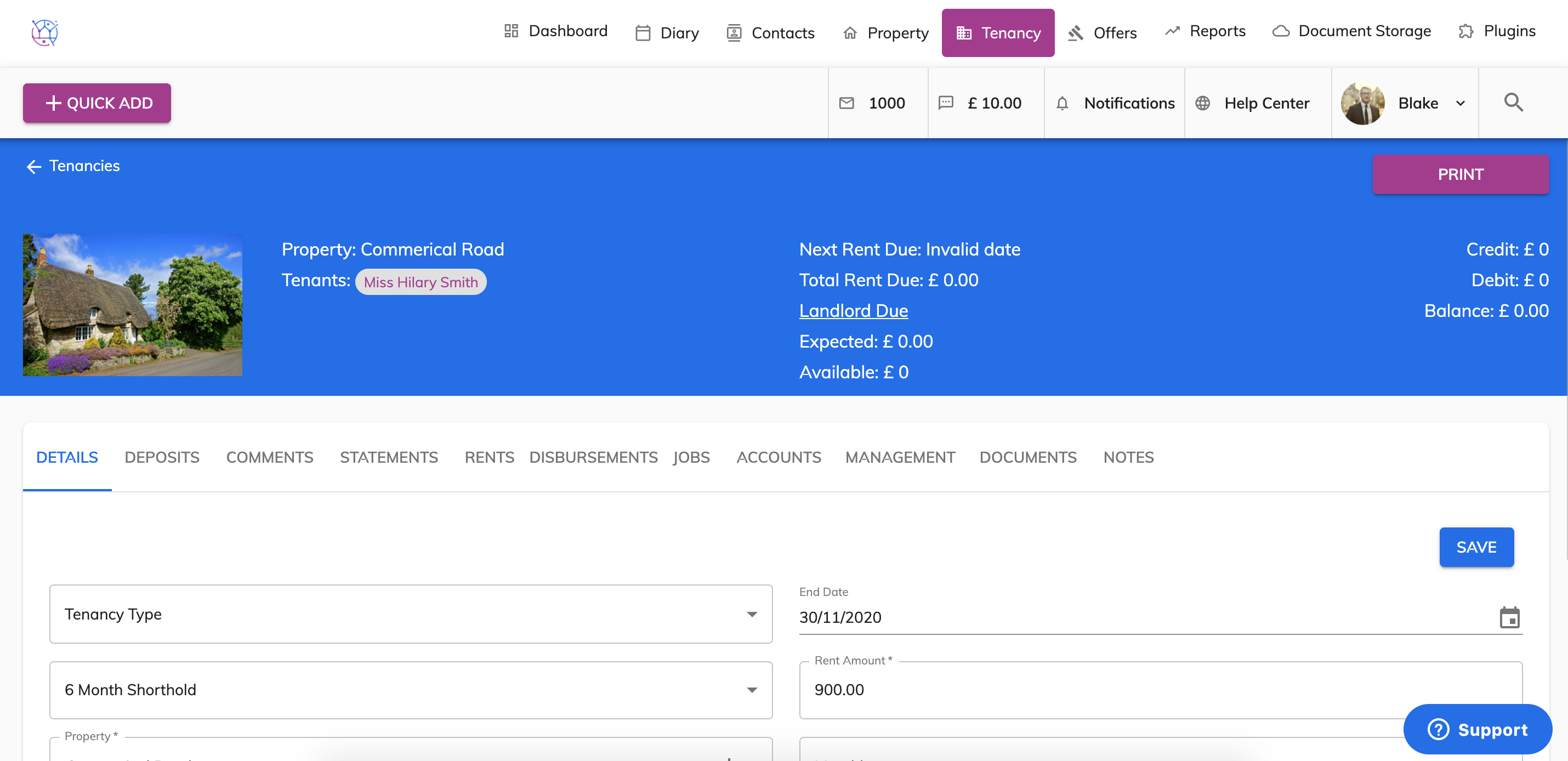
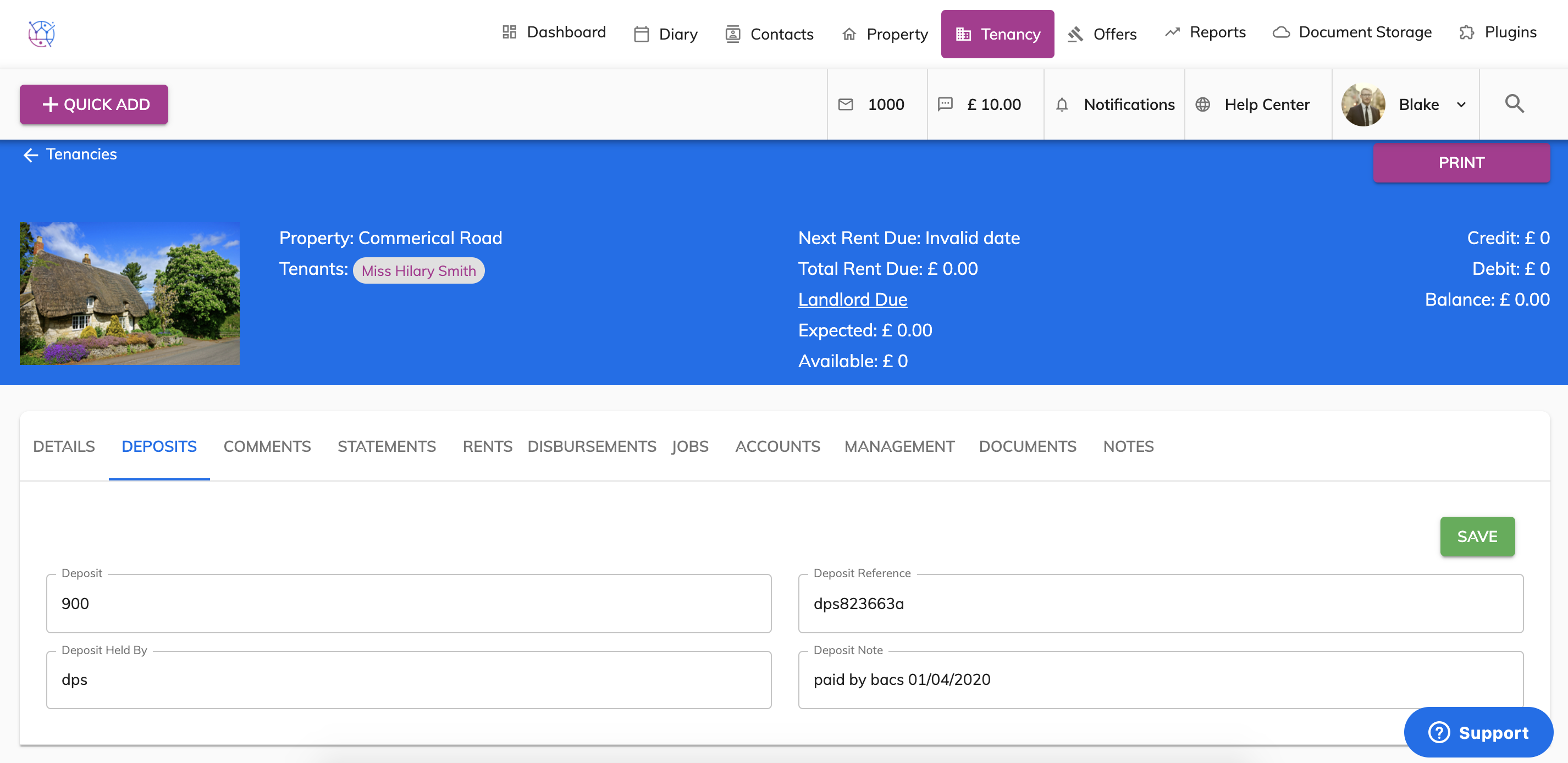
11) Click on the Deposits tab and enter the details for the deposit paid by the tenant. Include the deposit amount, where it is being held and the reference number and press Save. If the tenant has not yet paid their deposit, leave this blank and add it later.
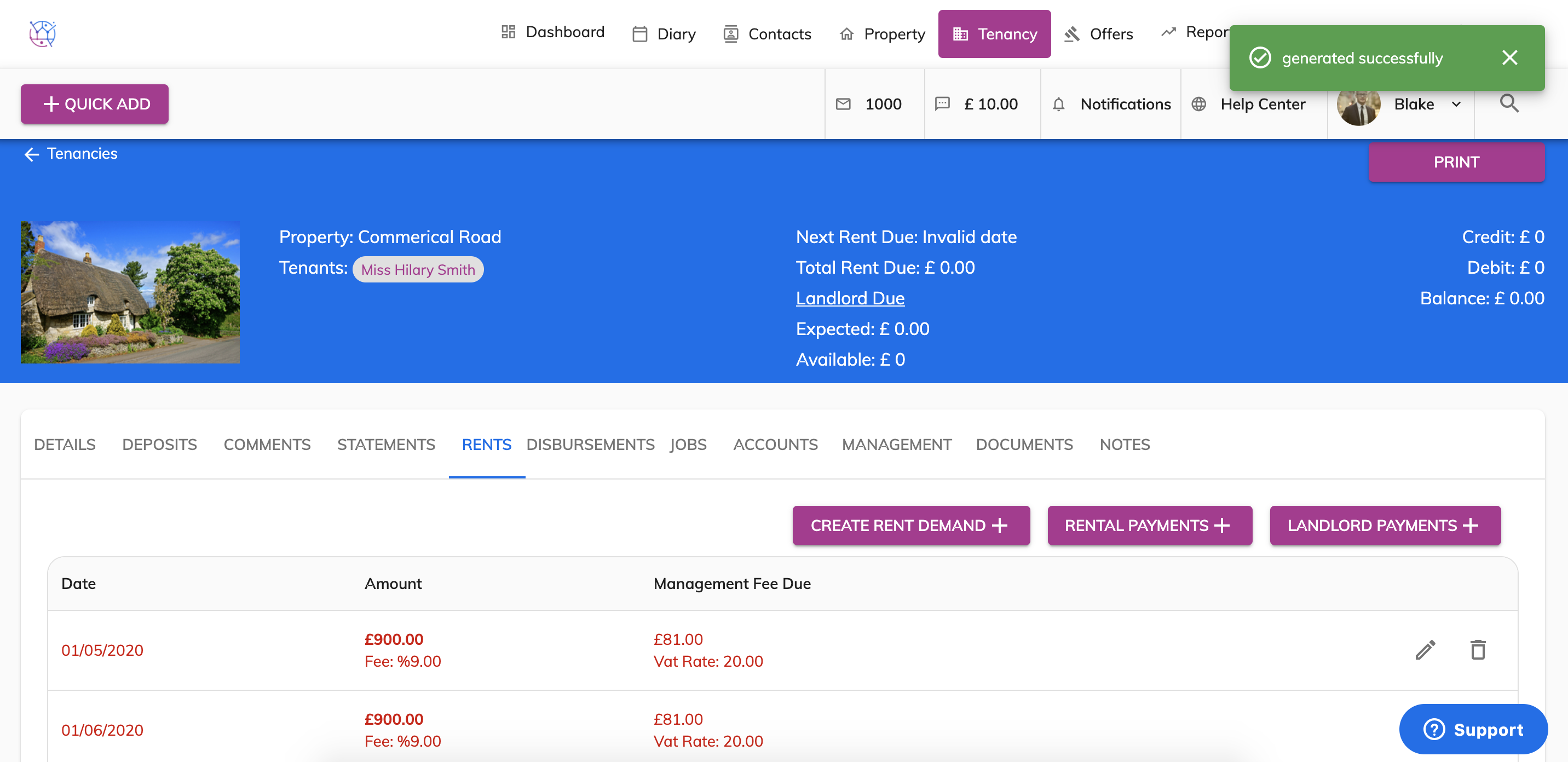
12) If you are adding a managed tenancy. Go to the 'Rents' tab from the menu.
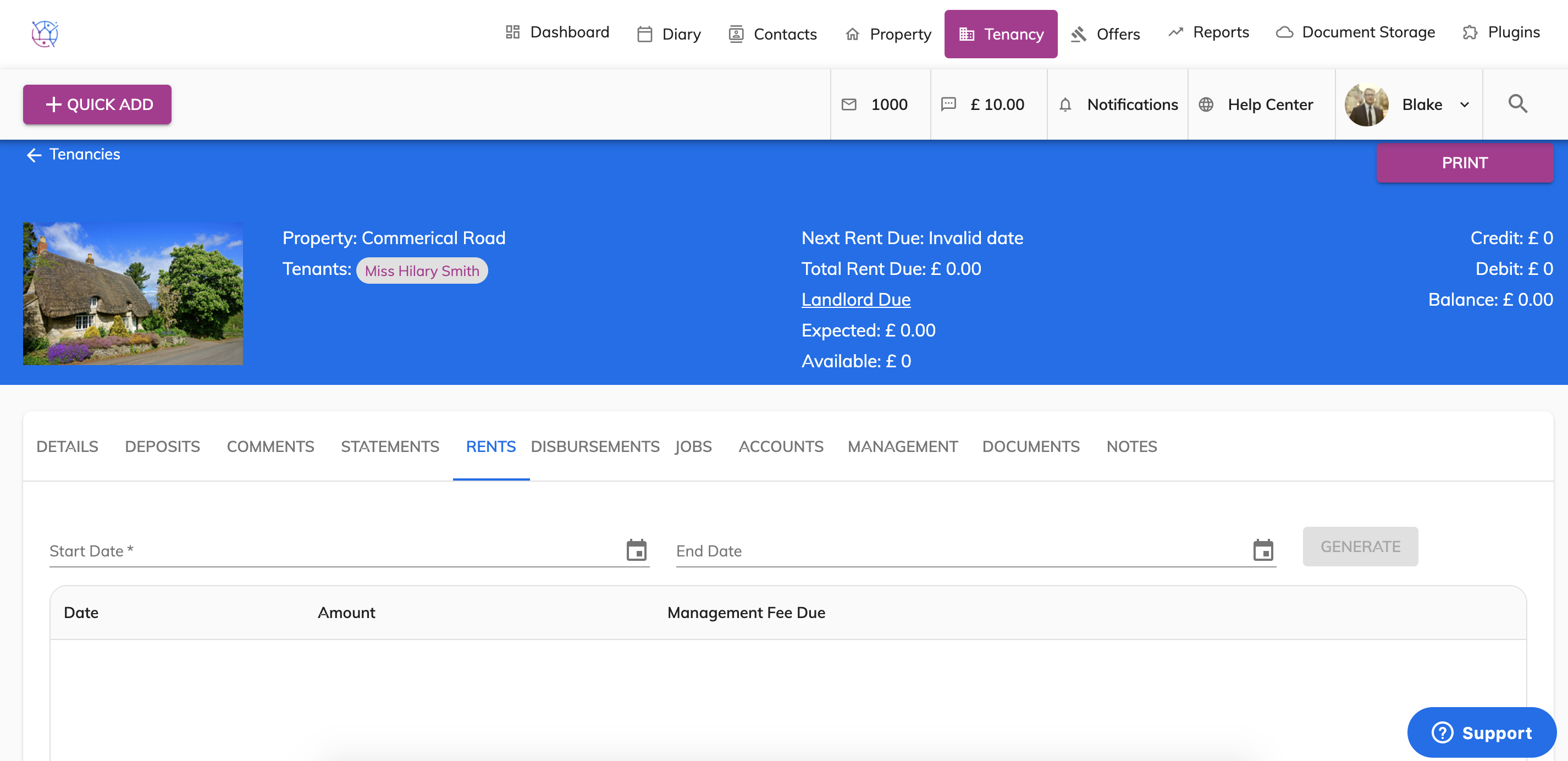
13) Select the start date and end date of the tenancy. Press Generate. When you start adding rents on to the tenancy, rent demands will automatically be added to the end of the tenancy, so that you are continually reminded that rent is due on the tenancy, until the tenancy has been terminated.
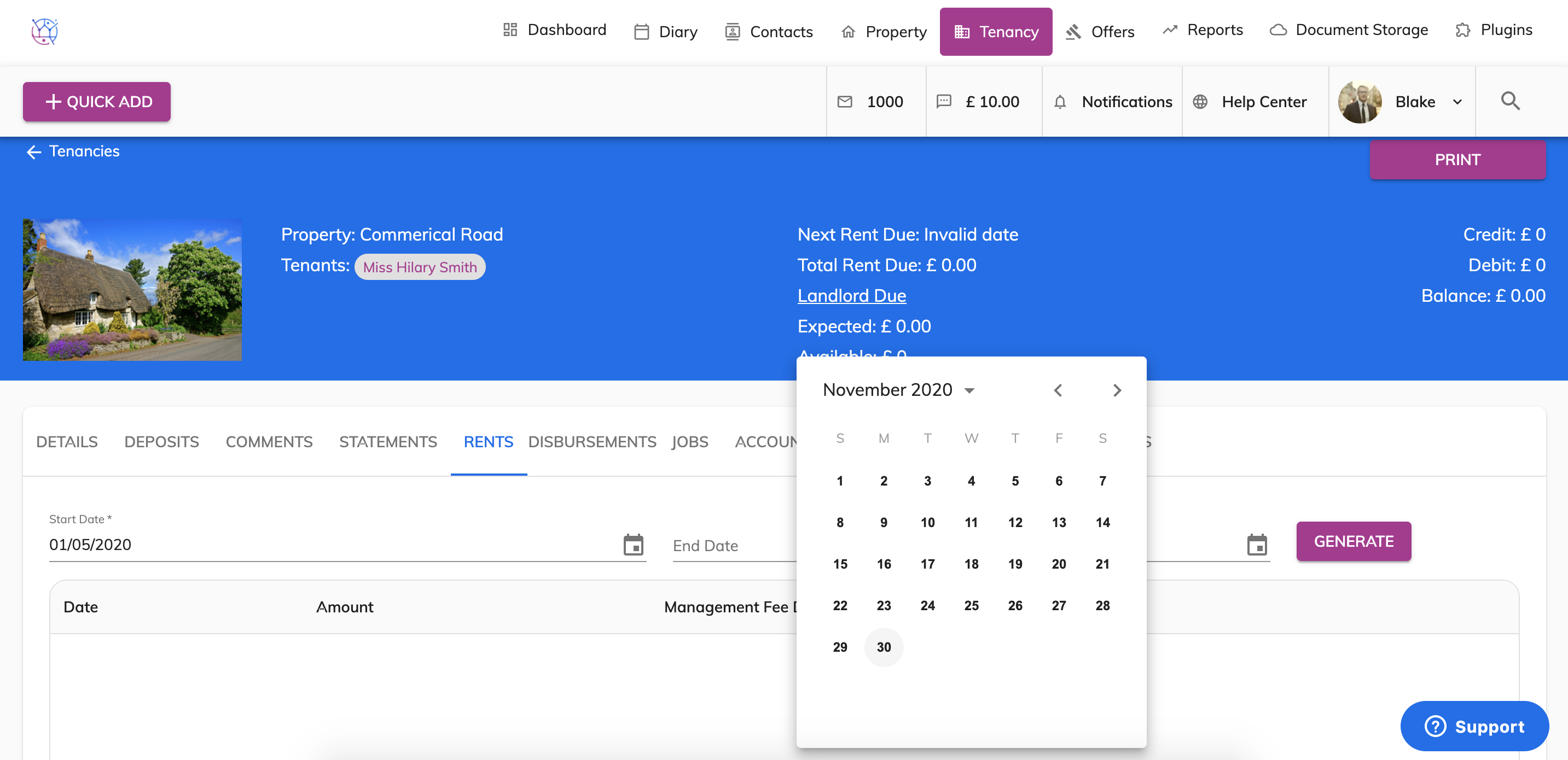
If the tenancy is rolling with no fixed end date, please make sure the start and end dates are at least 6 months apart. If the tenants move out of the property, the additional rent demands can be removed.
14) After the generate button has been pressed, the tenancy will have all the rent demands for that date period. Based on the information added on the tenancy details page, including rental amount, rental frequency, management fee and management frequency.