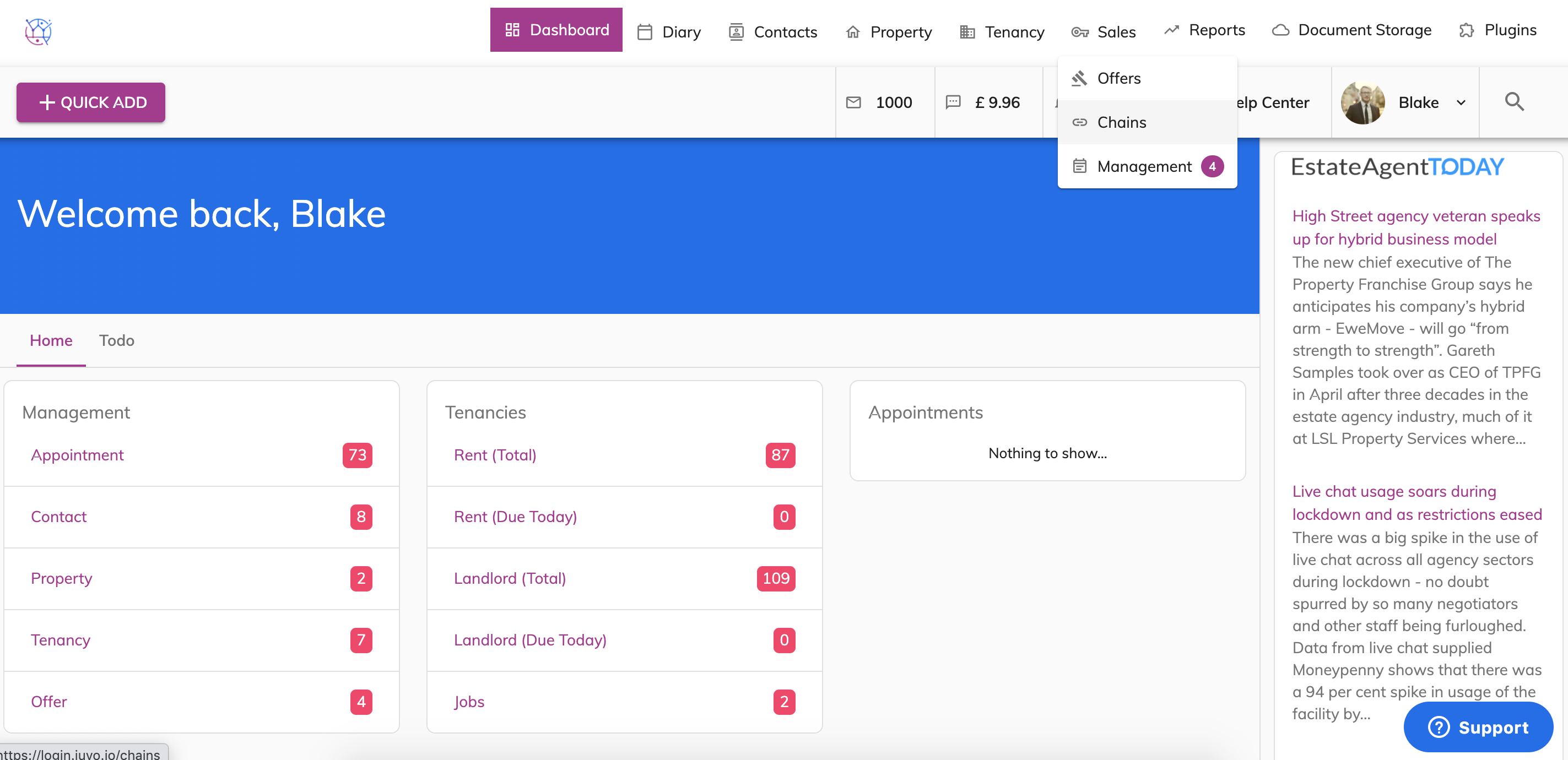
1) Click on the Sales tab and select Chains from the dropdown.
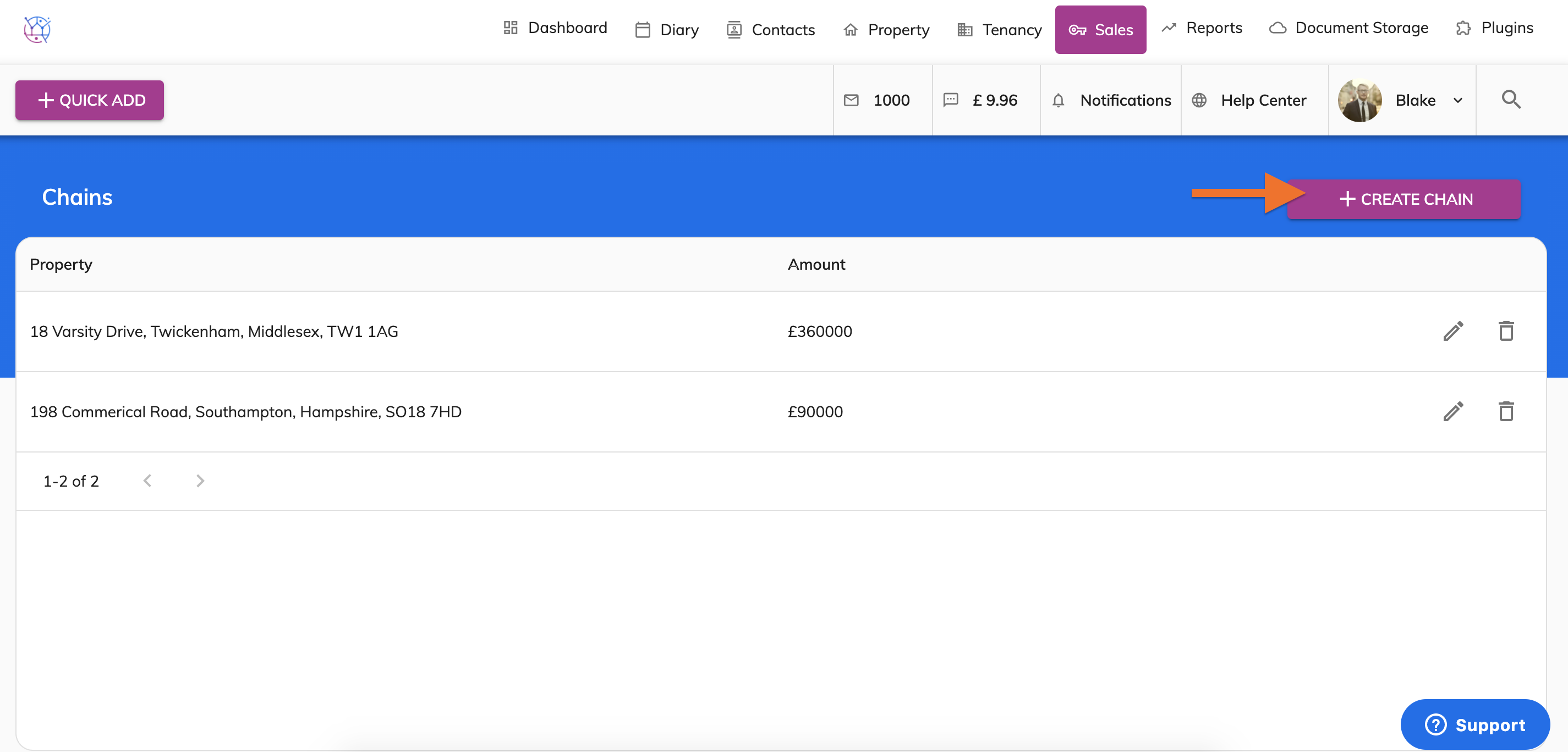
2) Press the Create Chain button.
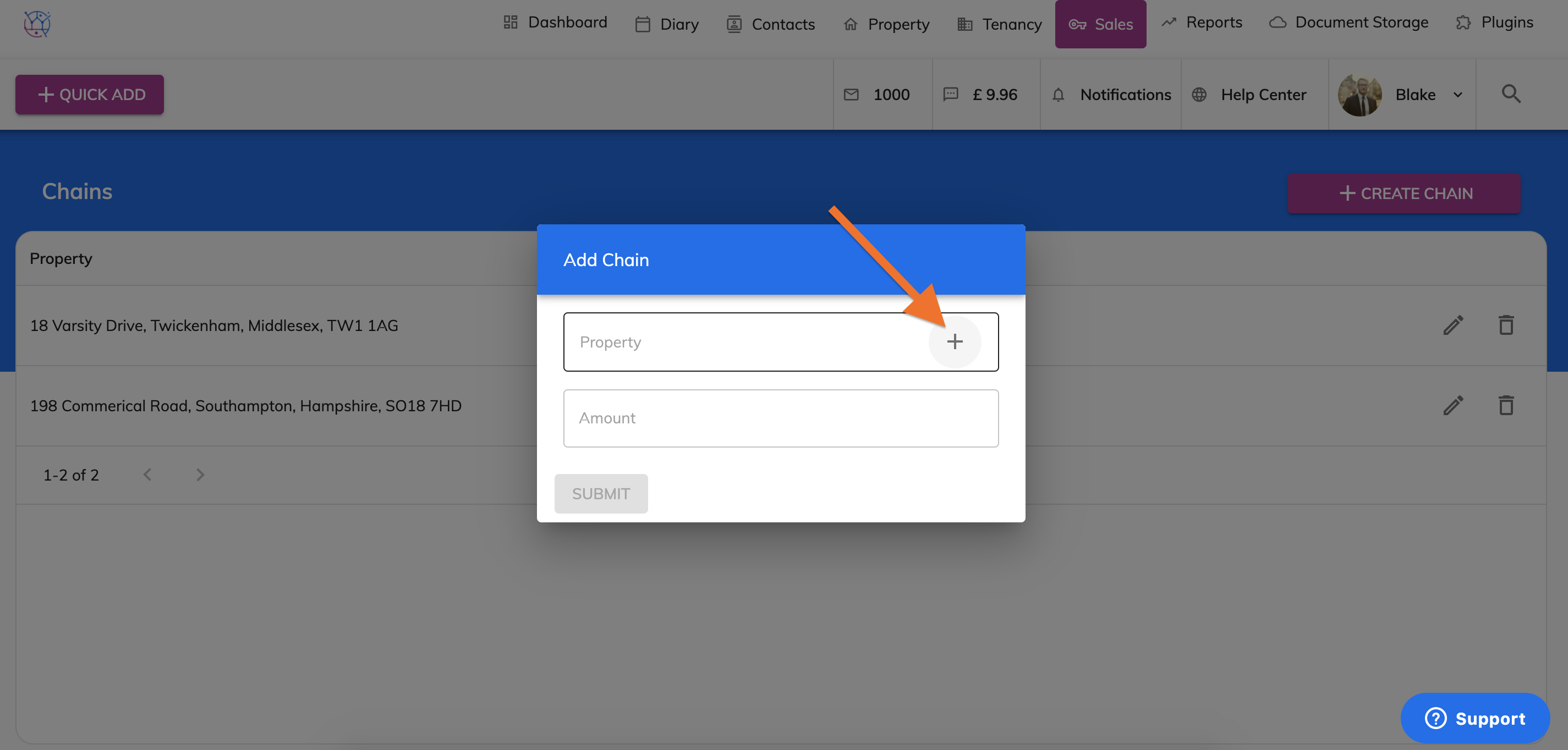
3) Start typing the name of the property that you are selling for the vendor & select from dropdown.
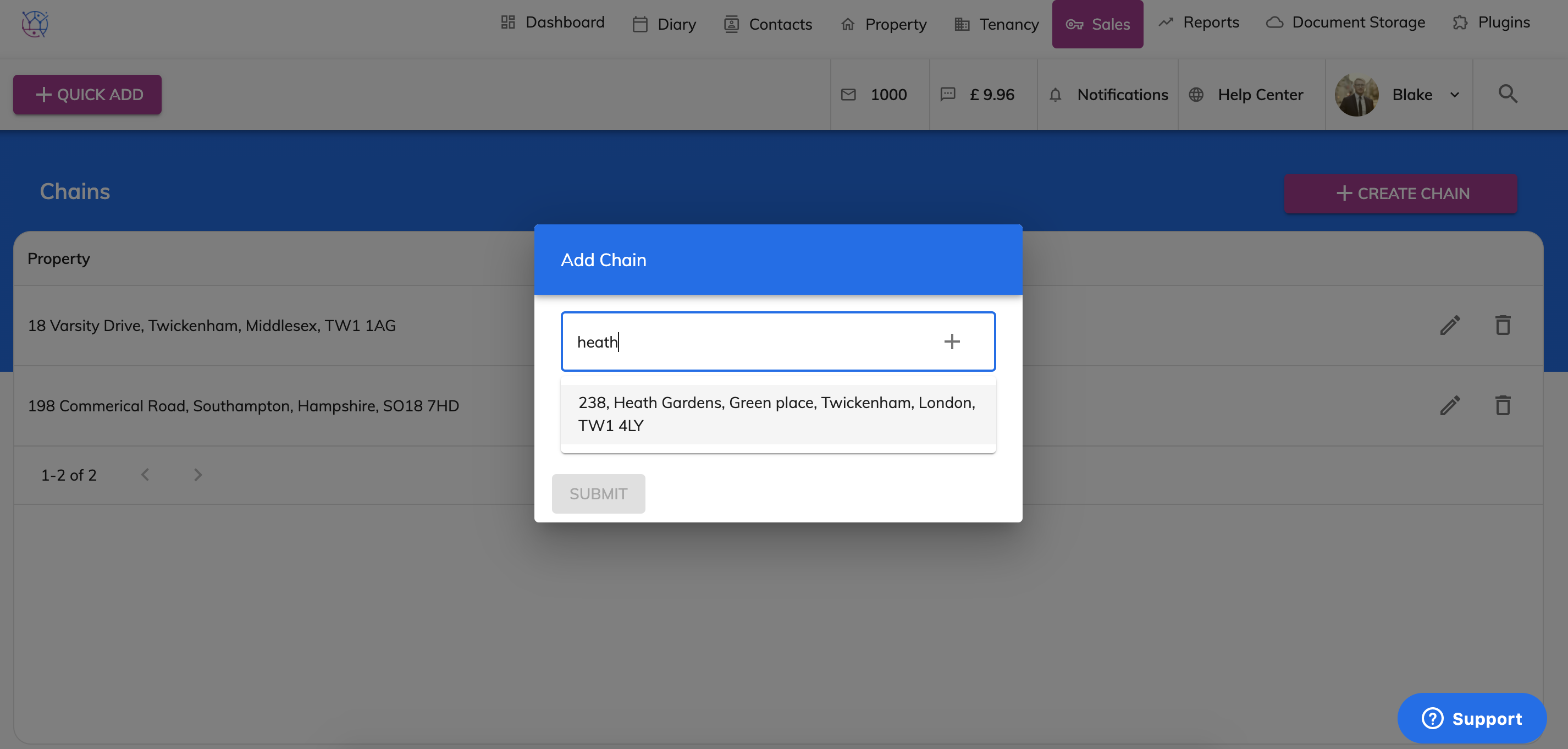
If the property is not appearing in the dropdown, these means it is not yet added in Juvo. Use the plus icon to use the quick add functionality to add the property.
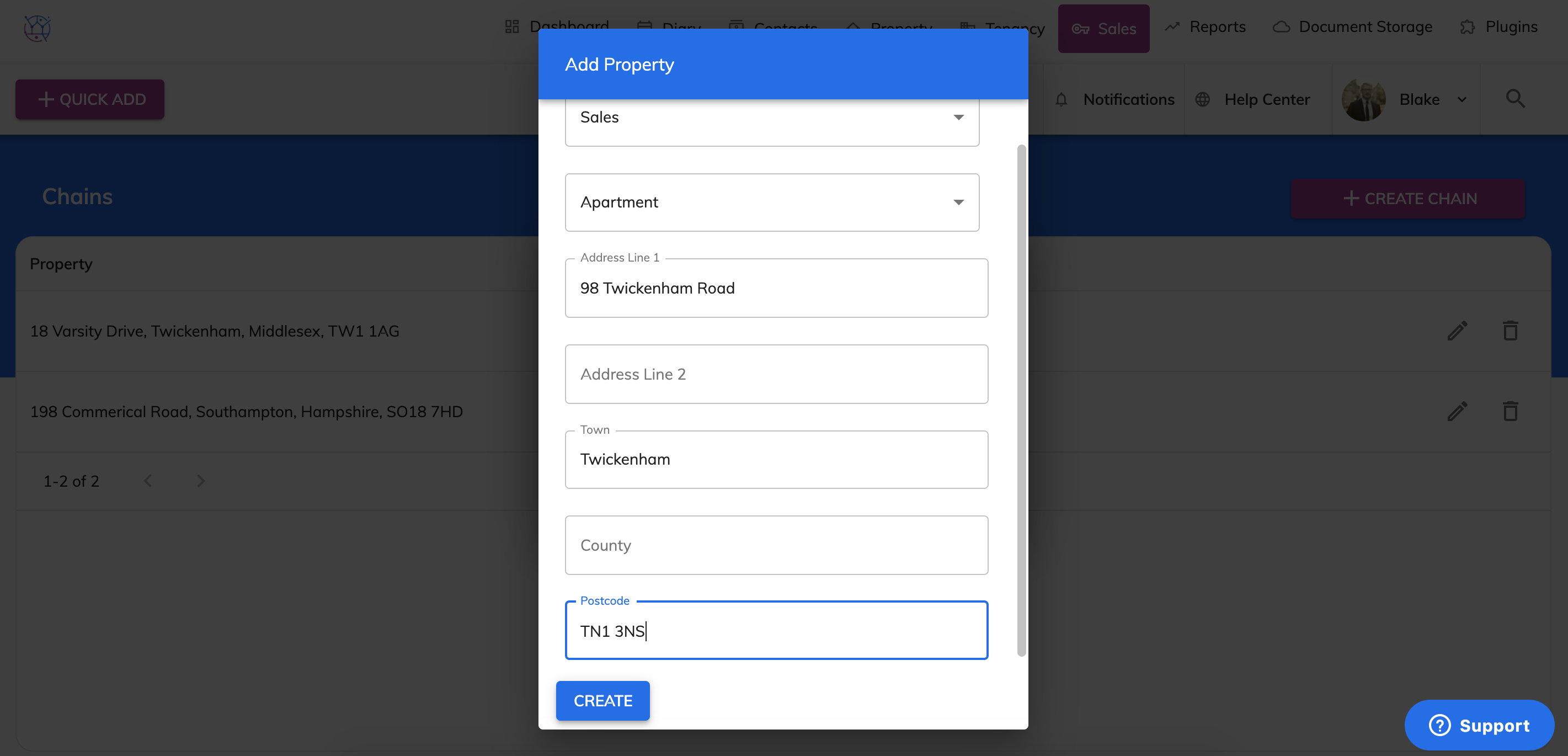
4) Complete the form & Press Create.
5) Enter the accepted offer amount.
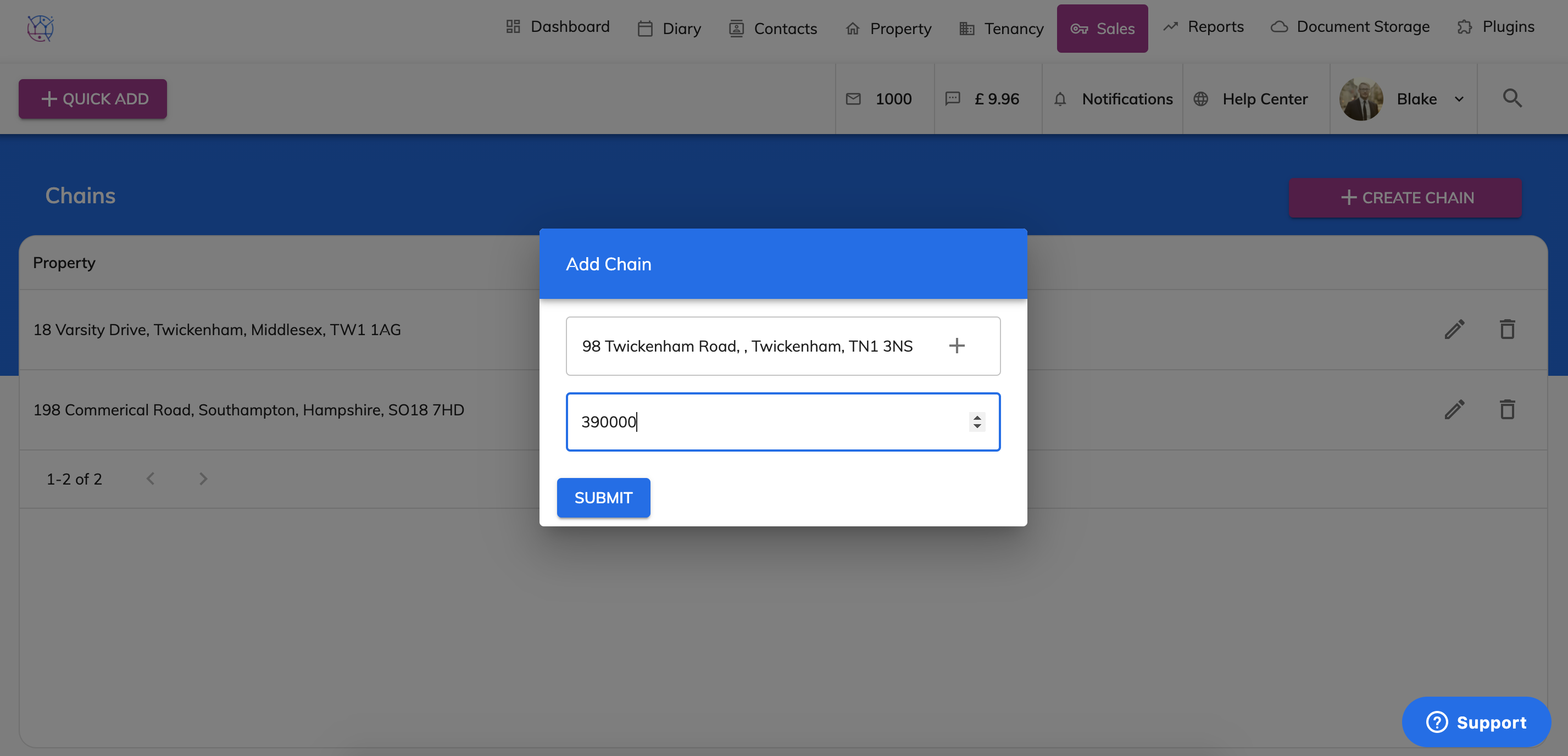
6) Press submit. The first part of the chain has now been added.
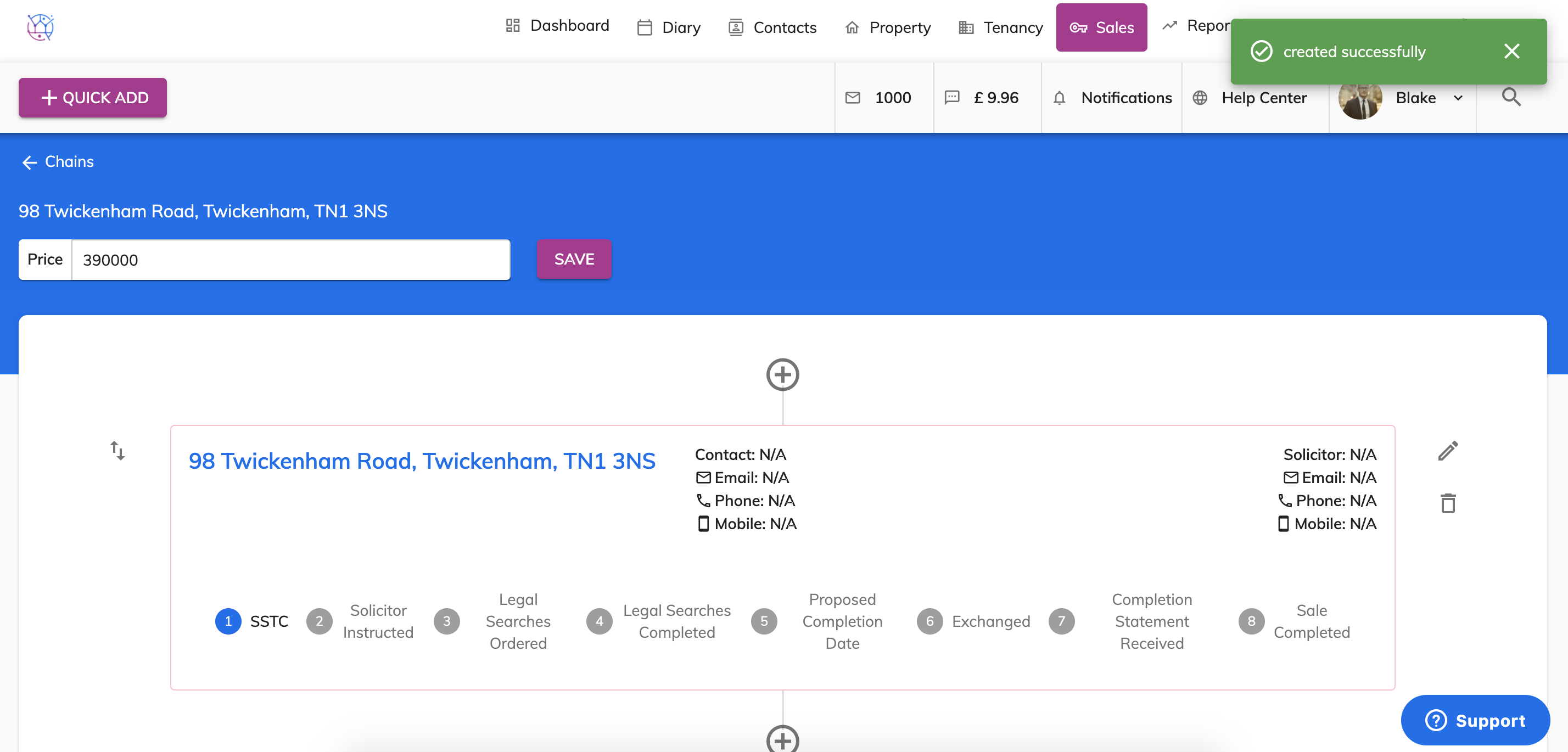
7) Next add other elements of the chain, by pressing the plus icons. Now add in the details for the other client/property in this chain by clicking on the pencil icon.
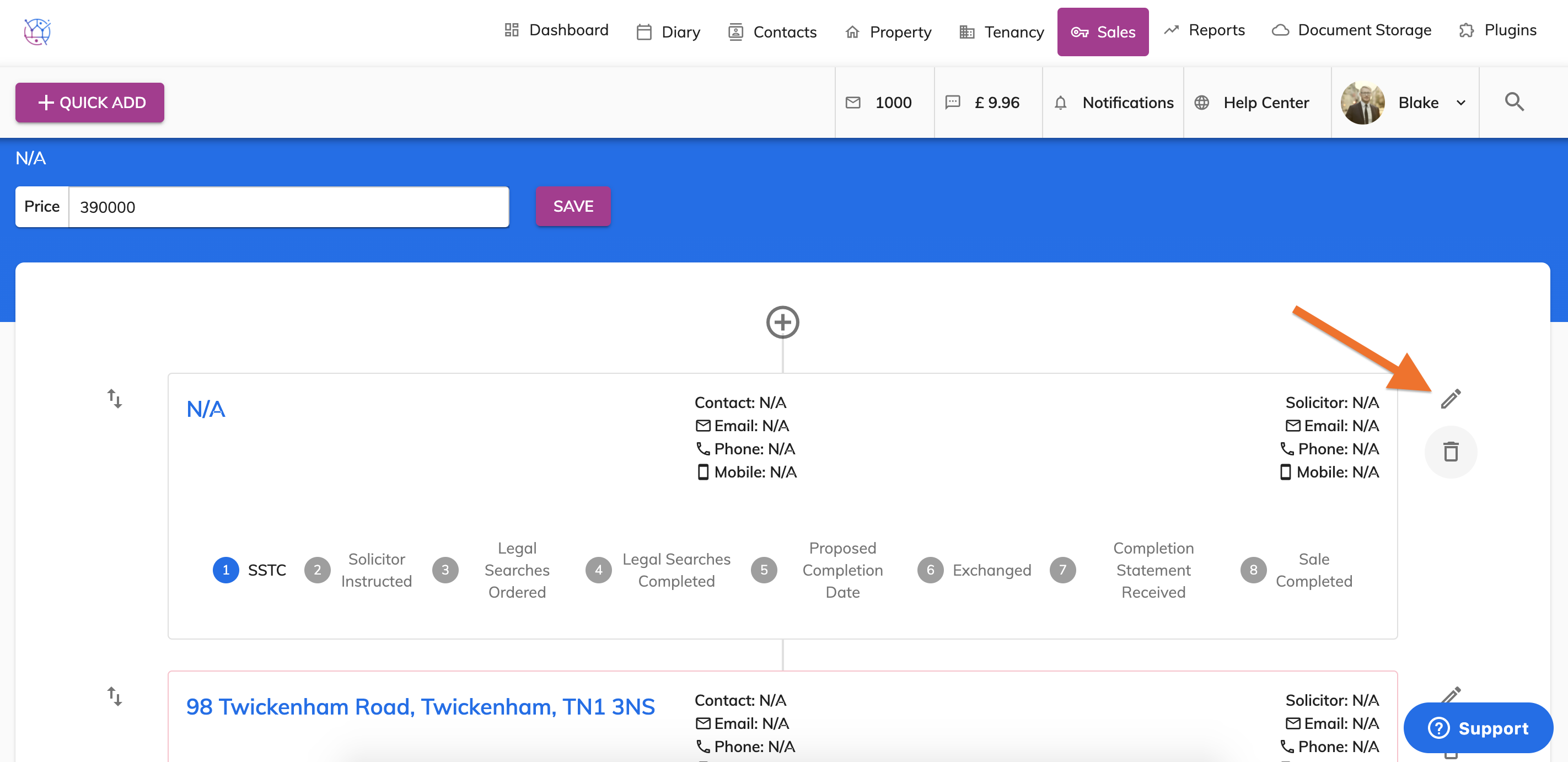
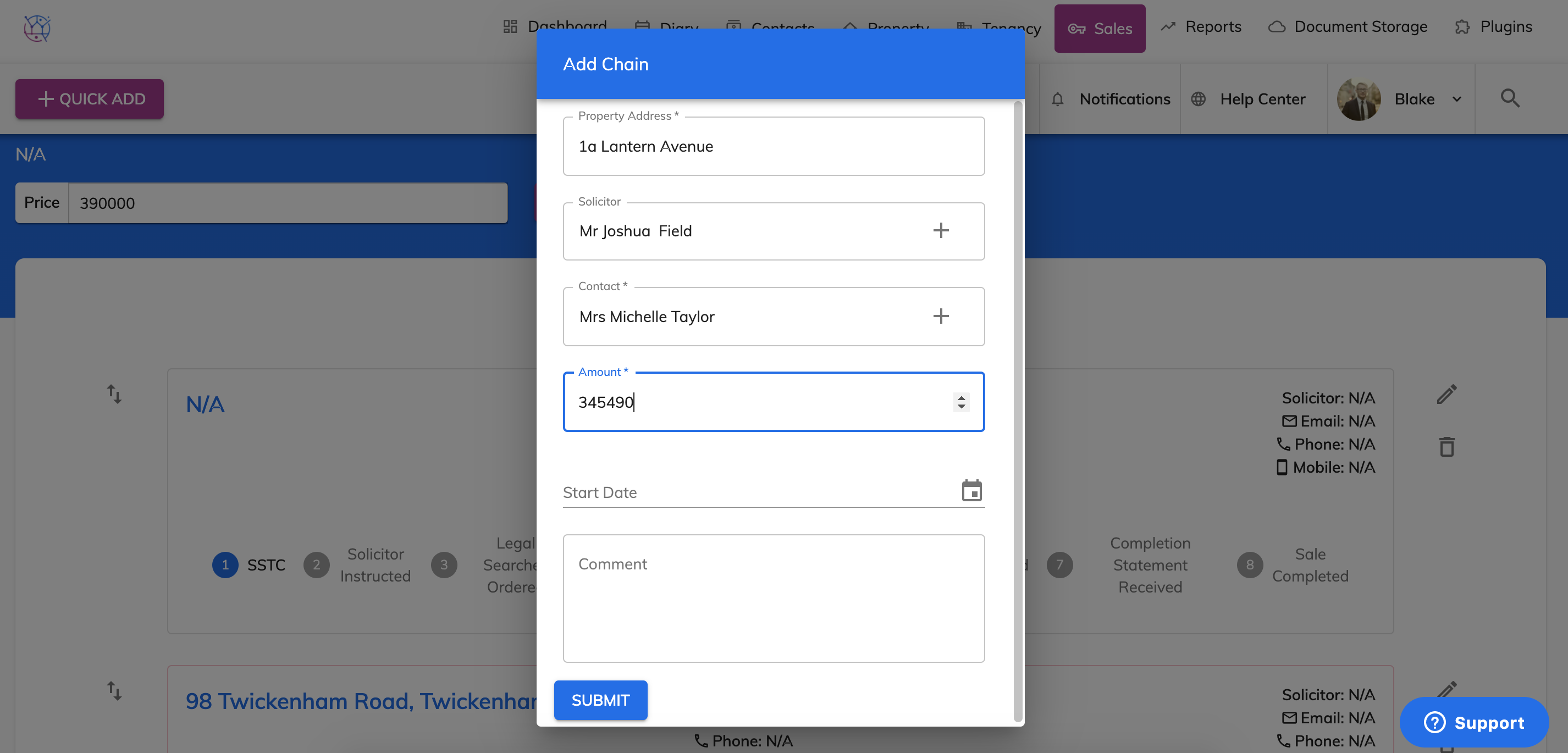
8) Complete the form by starting with the property address - this is just for your reference, the property will not be added a new property in your Juvo account.
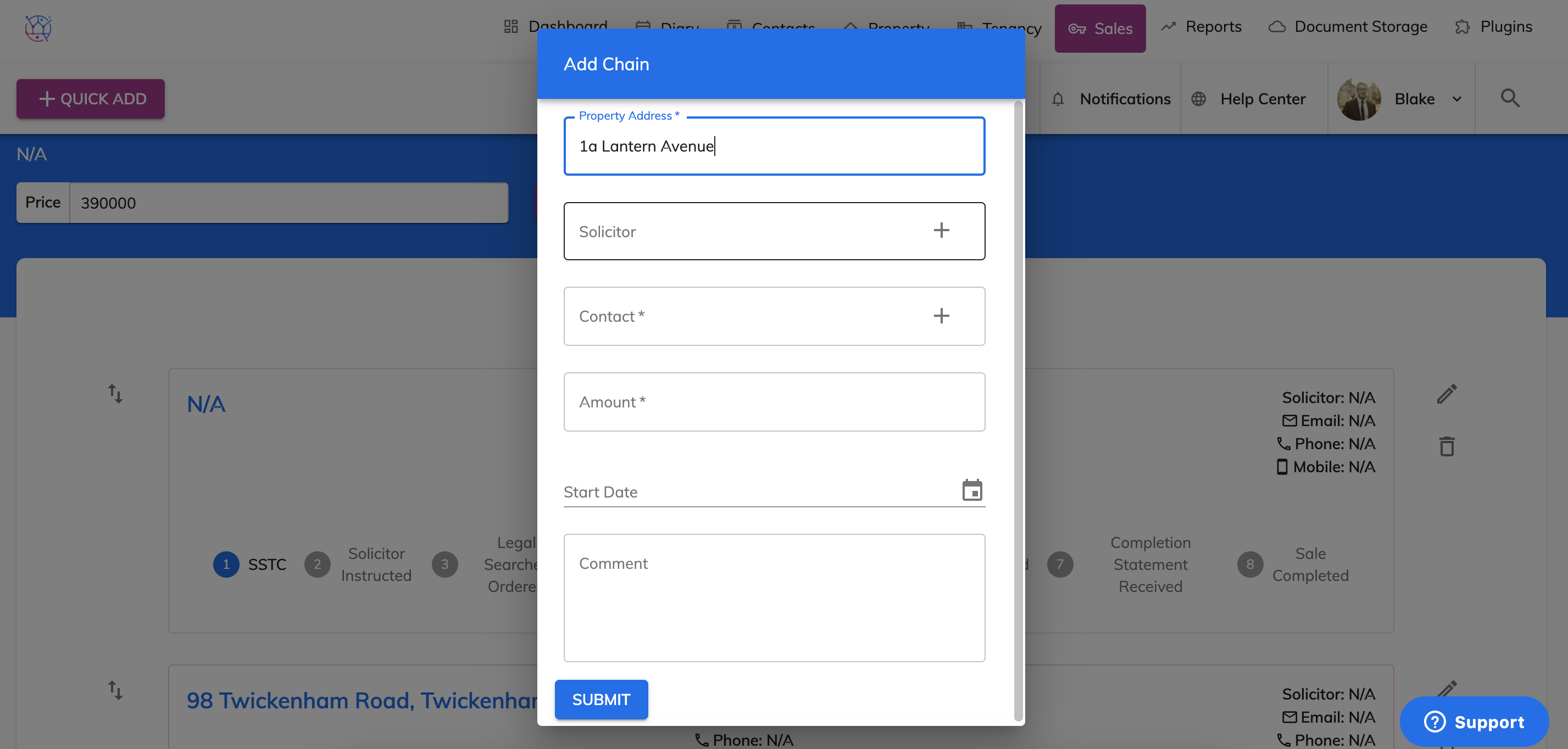
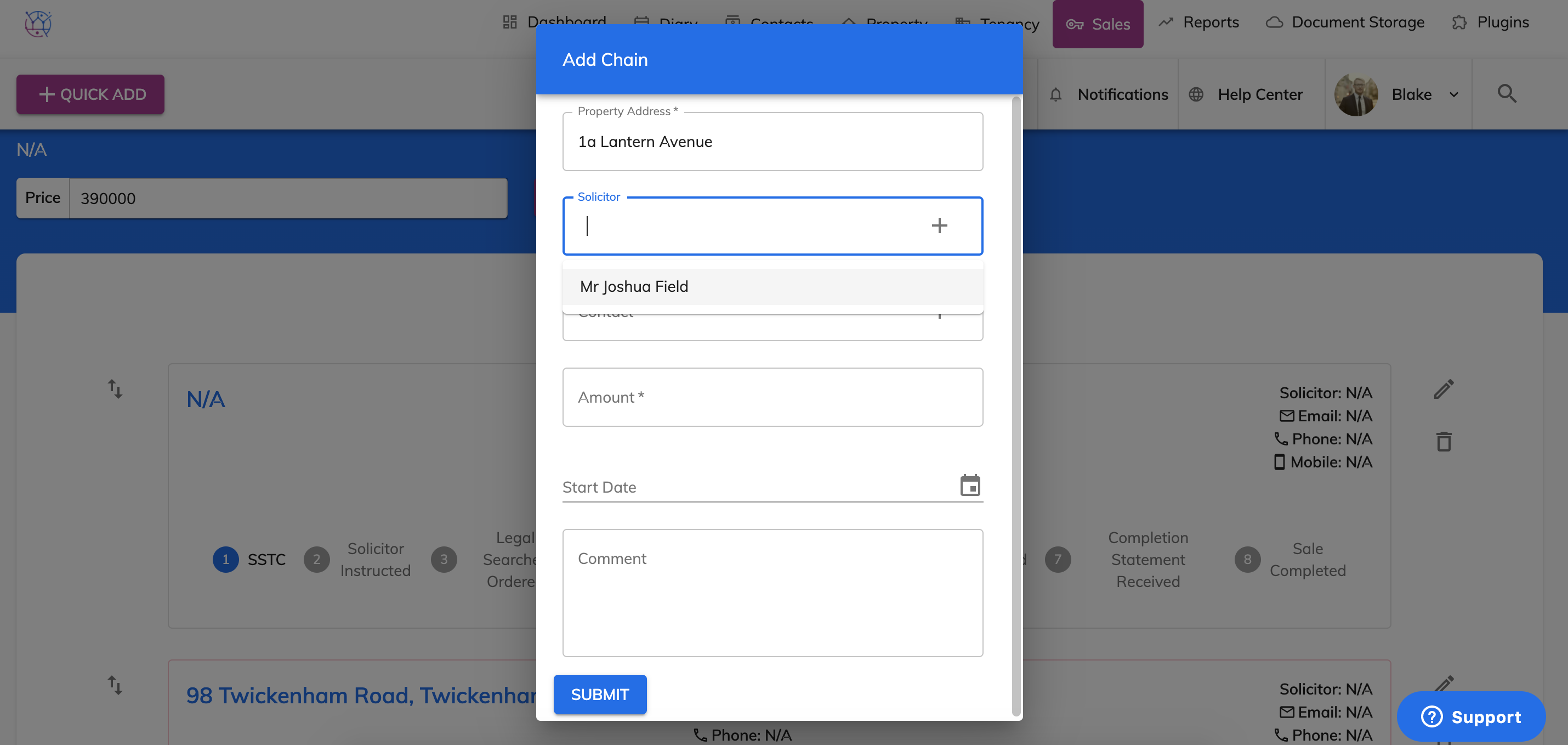
9) Start typing in the name of the solicitor & select from dropdown and to the same for the client.
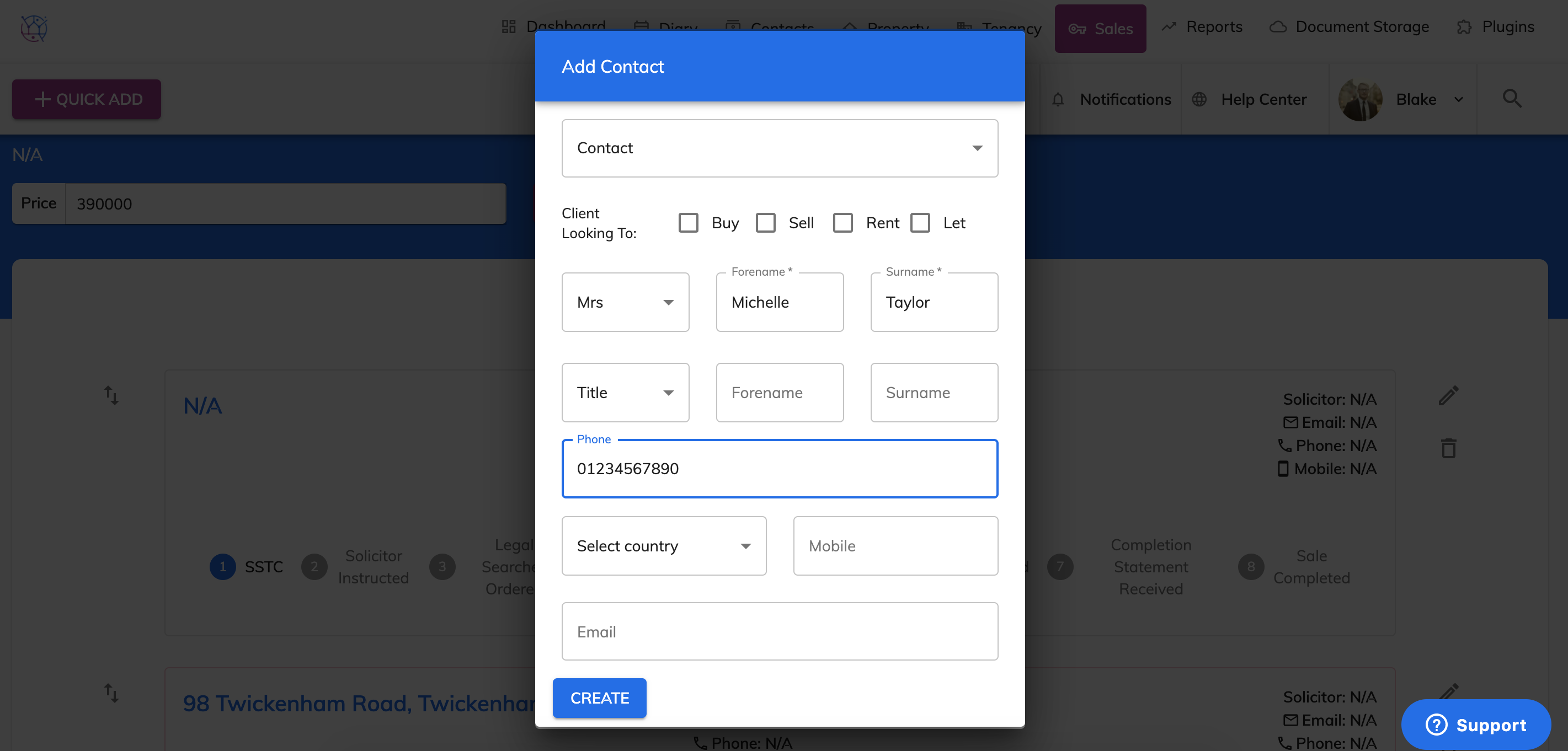
If the contact or solicitor is not already in your Juvo account, use the plus icon to use the quick add functionality.
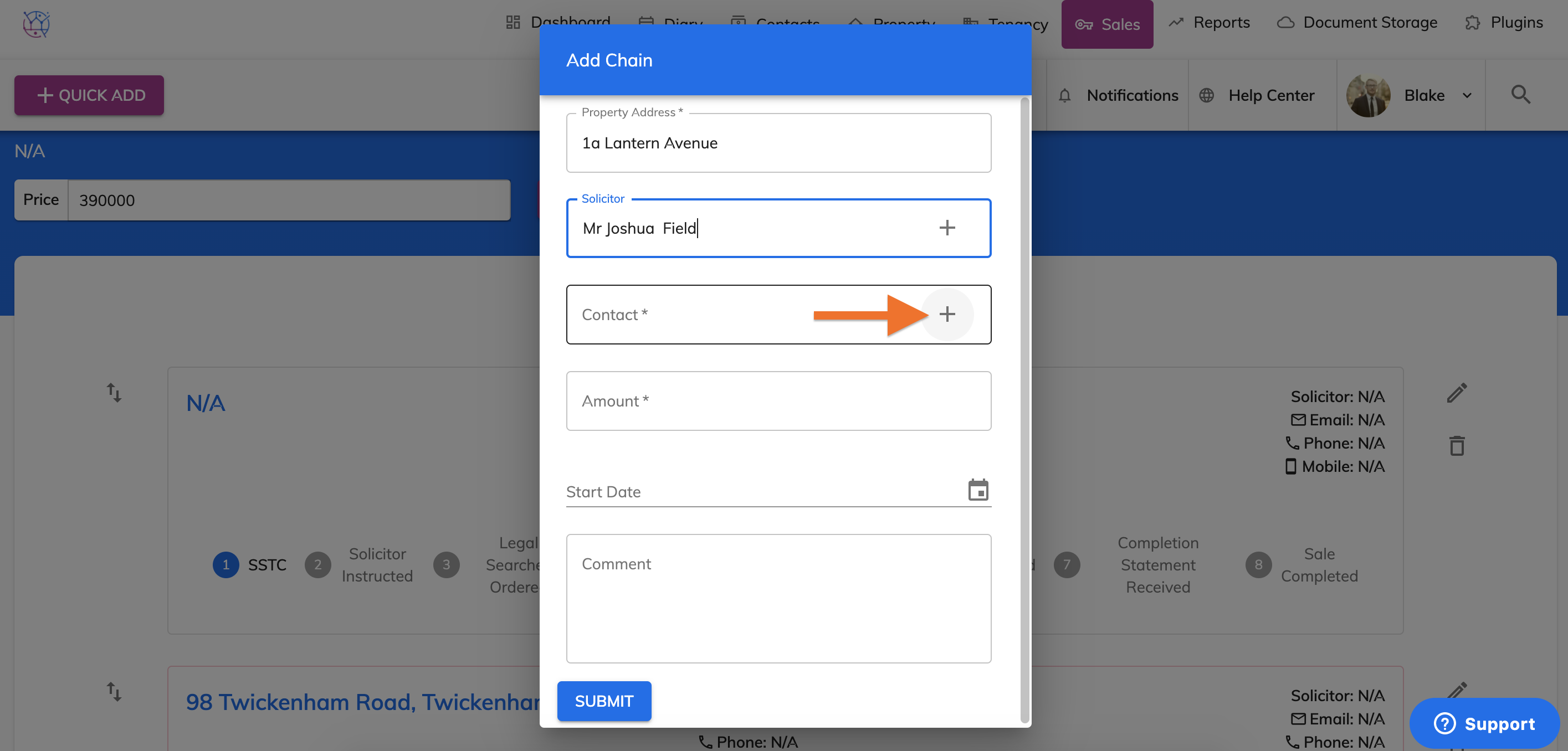
10) Complete the quick add form and press Create.
11) Now enter the accepted offer amount. Once complete press Submit.
12) This information will now be shown in the chain.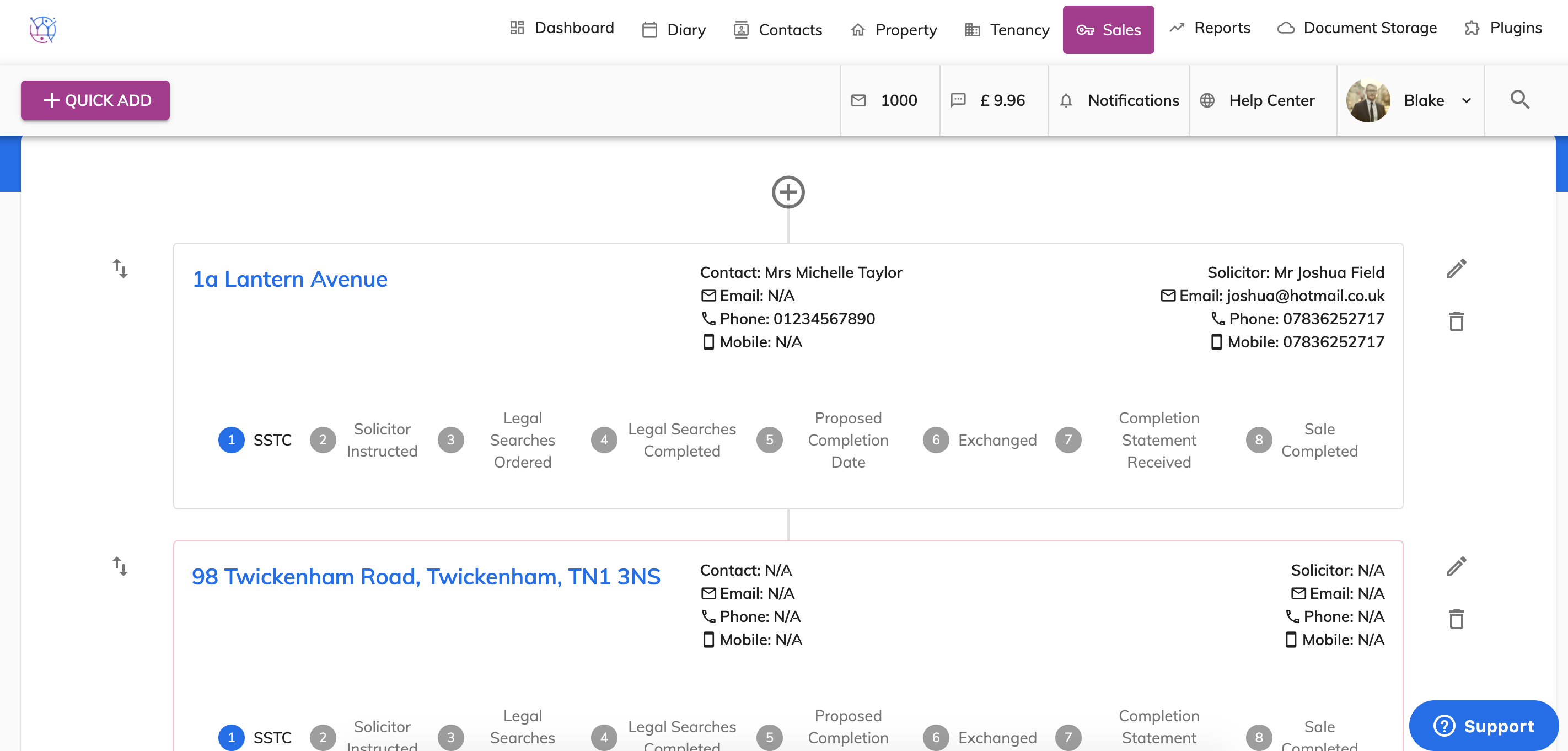
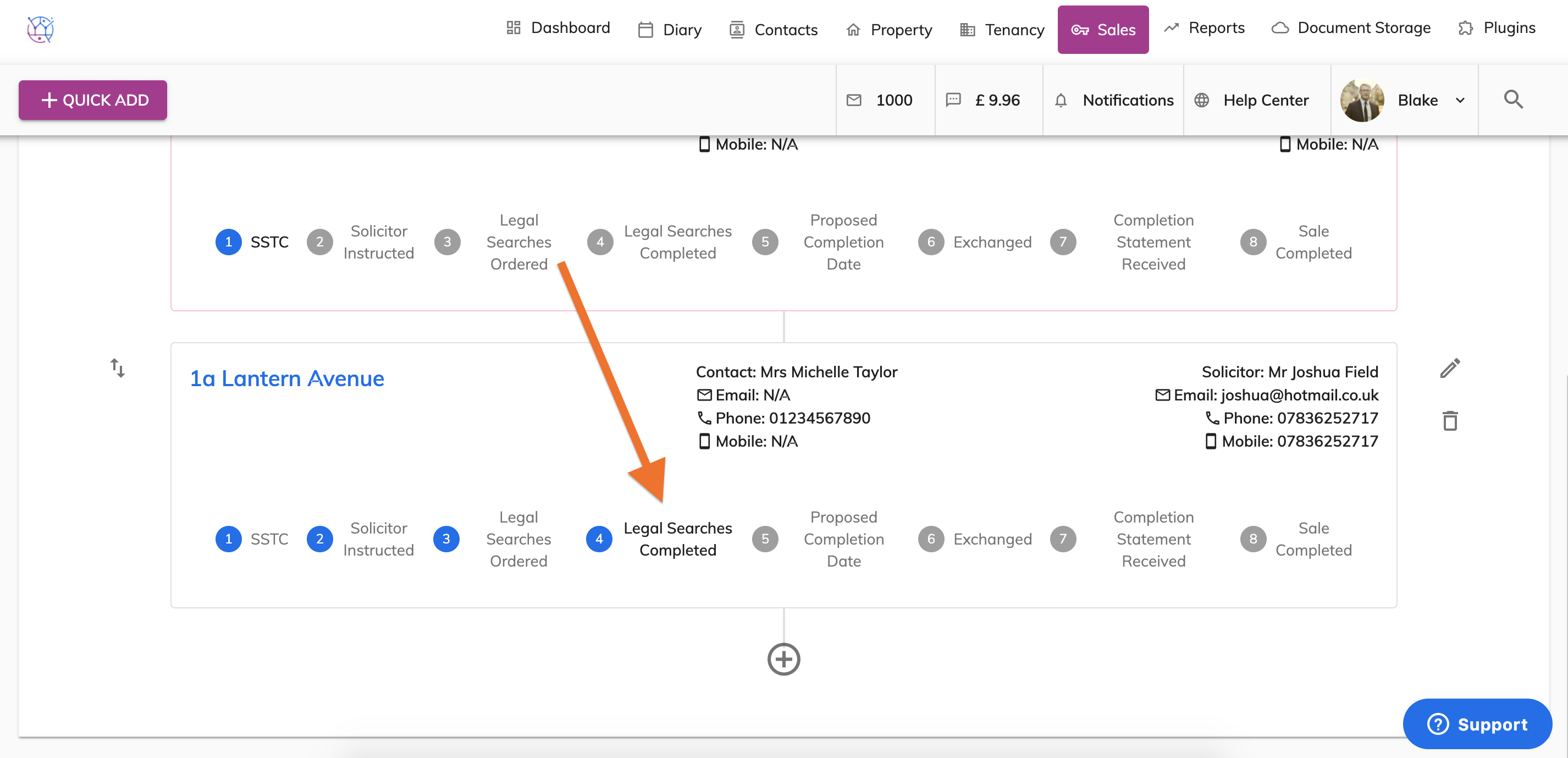
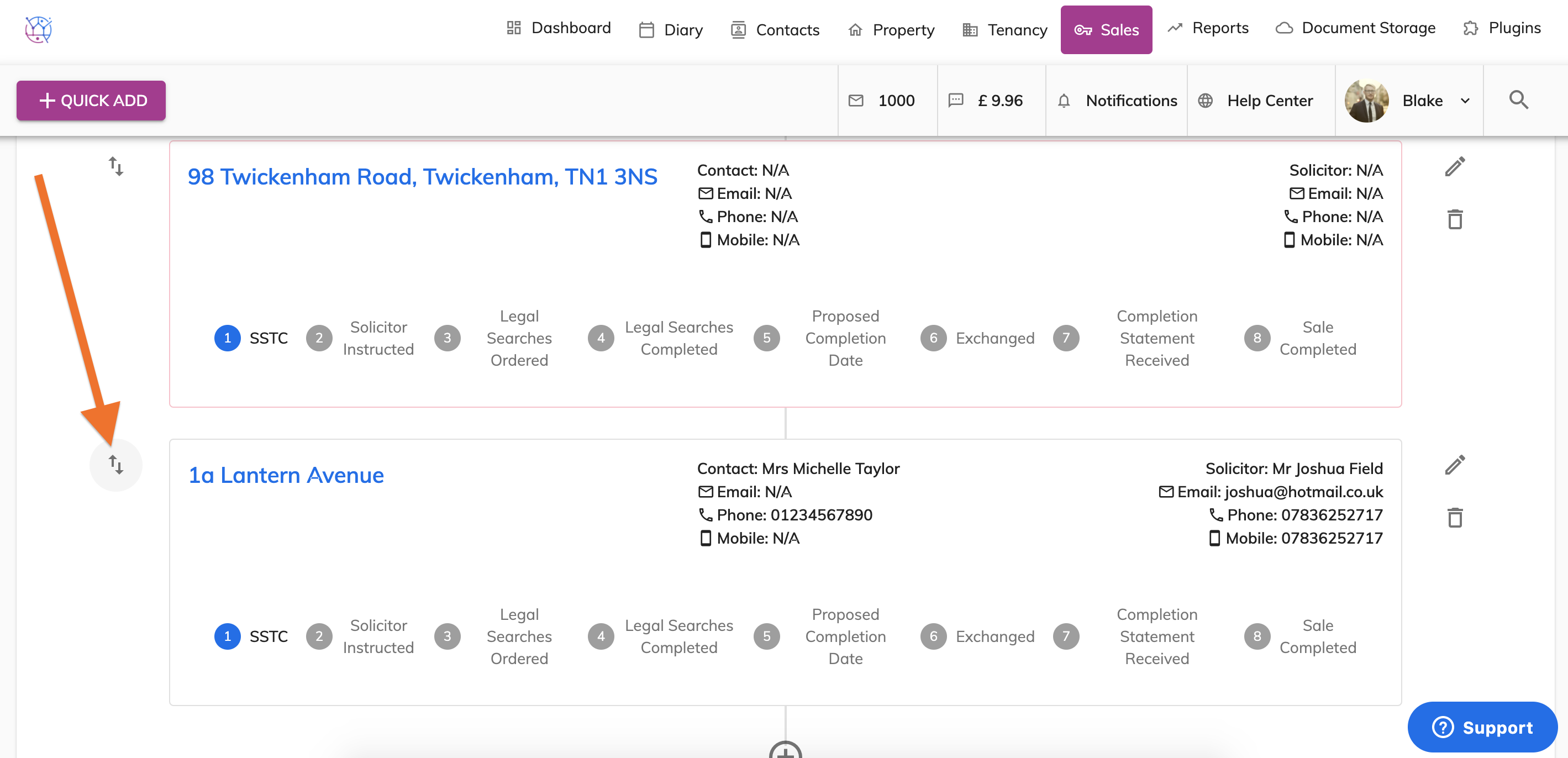
13) Repeat this process for everyone in the chain. If you need to change the order of the chain use the arrow icons and drag to desired listing.
14) Keep track of the sales process by updated the stage of the sale.