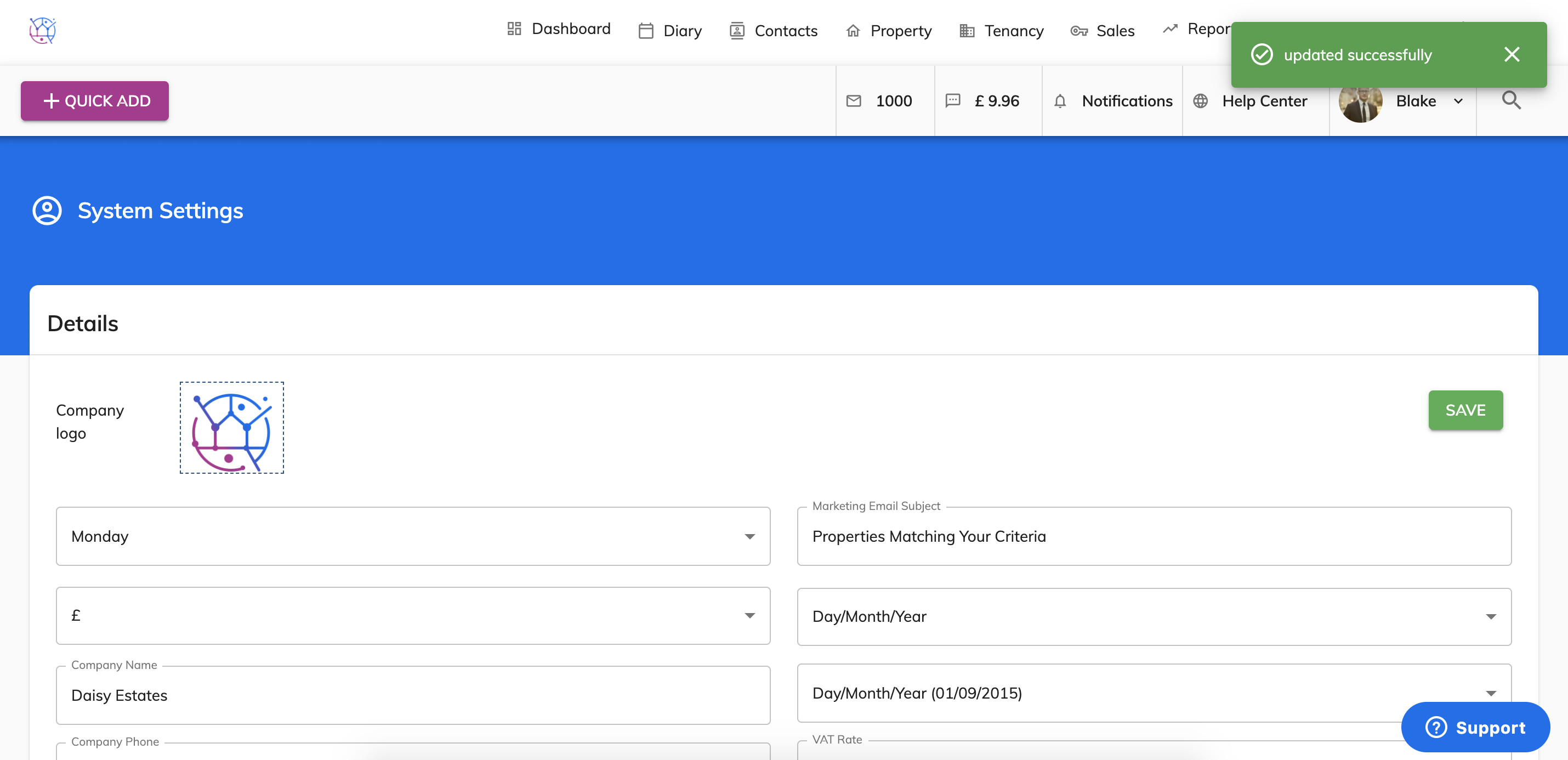
You can customise your Juvo account by adding in your company logo. Your logo will then be displayed on templates and mailing lists.
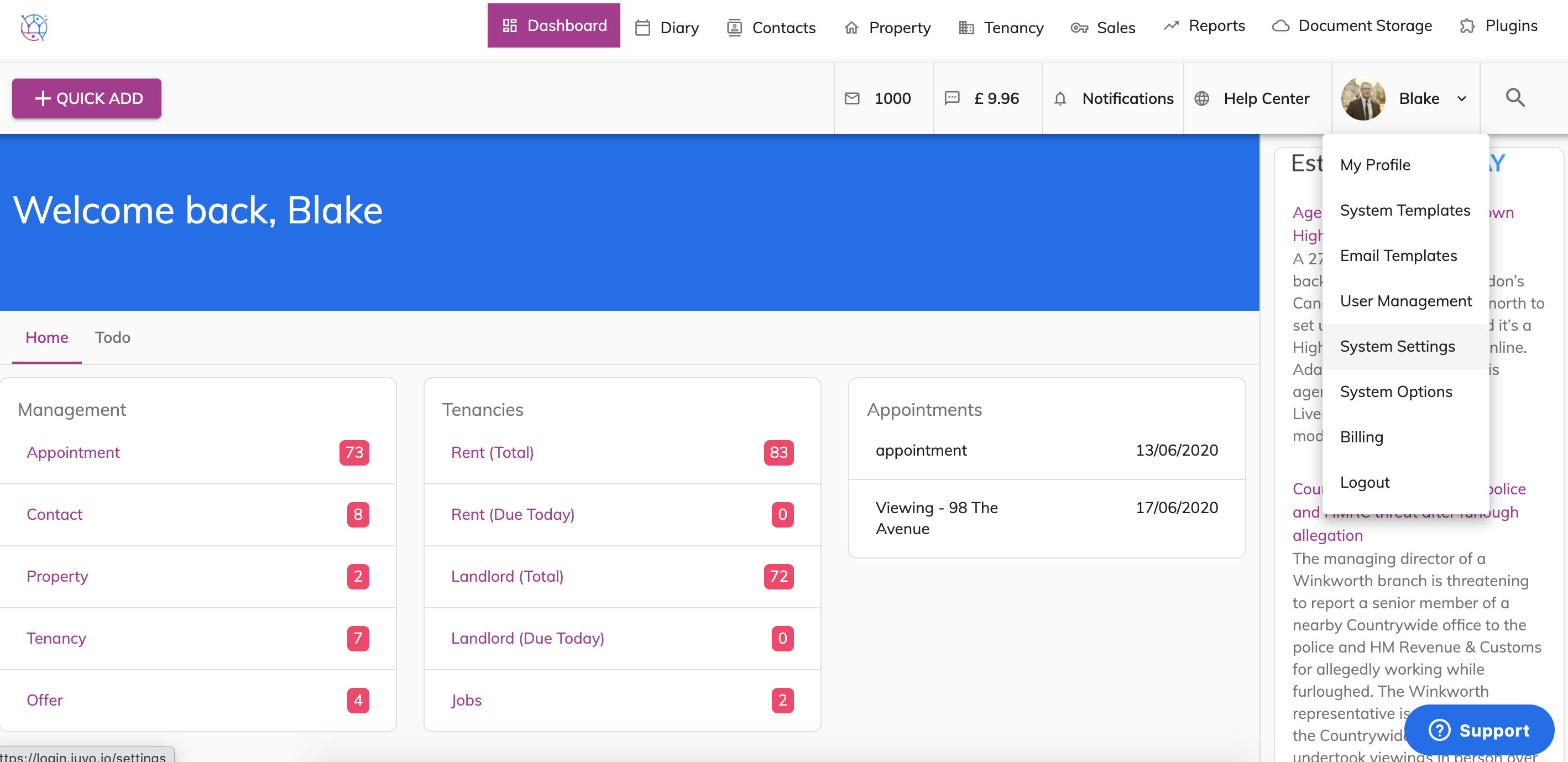
1) Go into Admin by clicking on your user image & name in the top right-hand corner.
2) Locate the Company Logo icon on to the left of the screen. If you have not previous uploading a logo, you will see a cloud icon. If you have previously added a logo, you will see that logo in the square box.
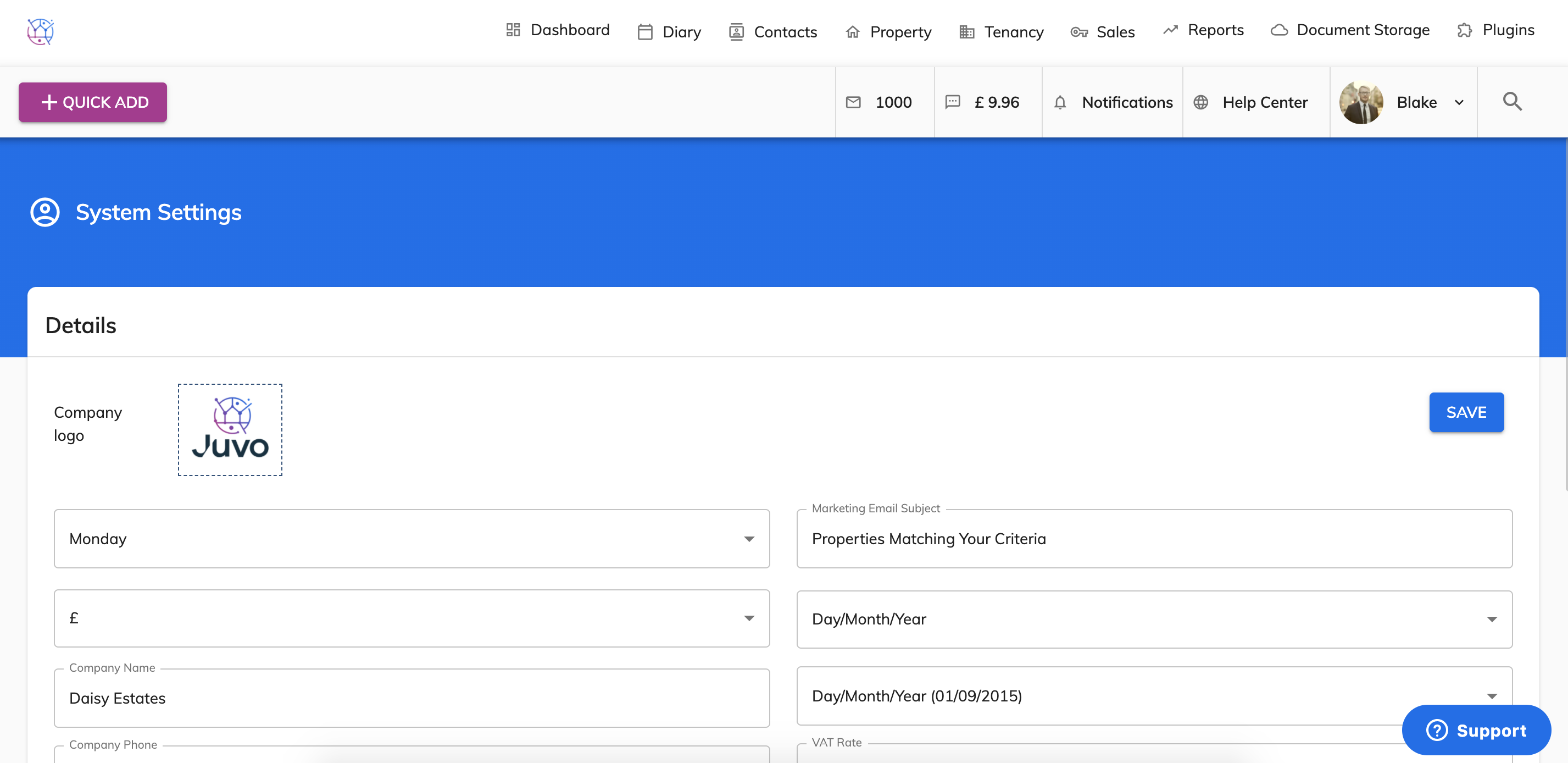
3) Click in the centre of your existing logo or cloud icon.
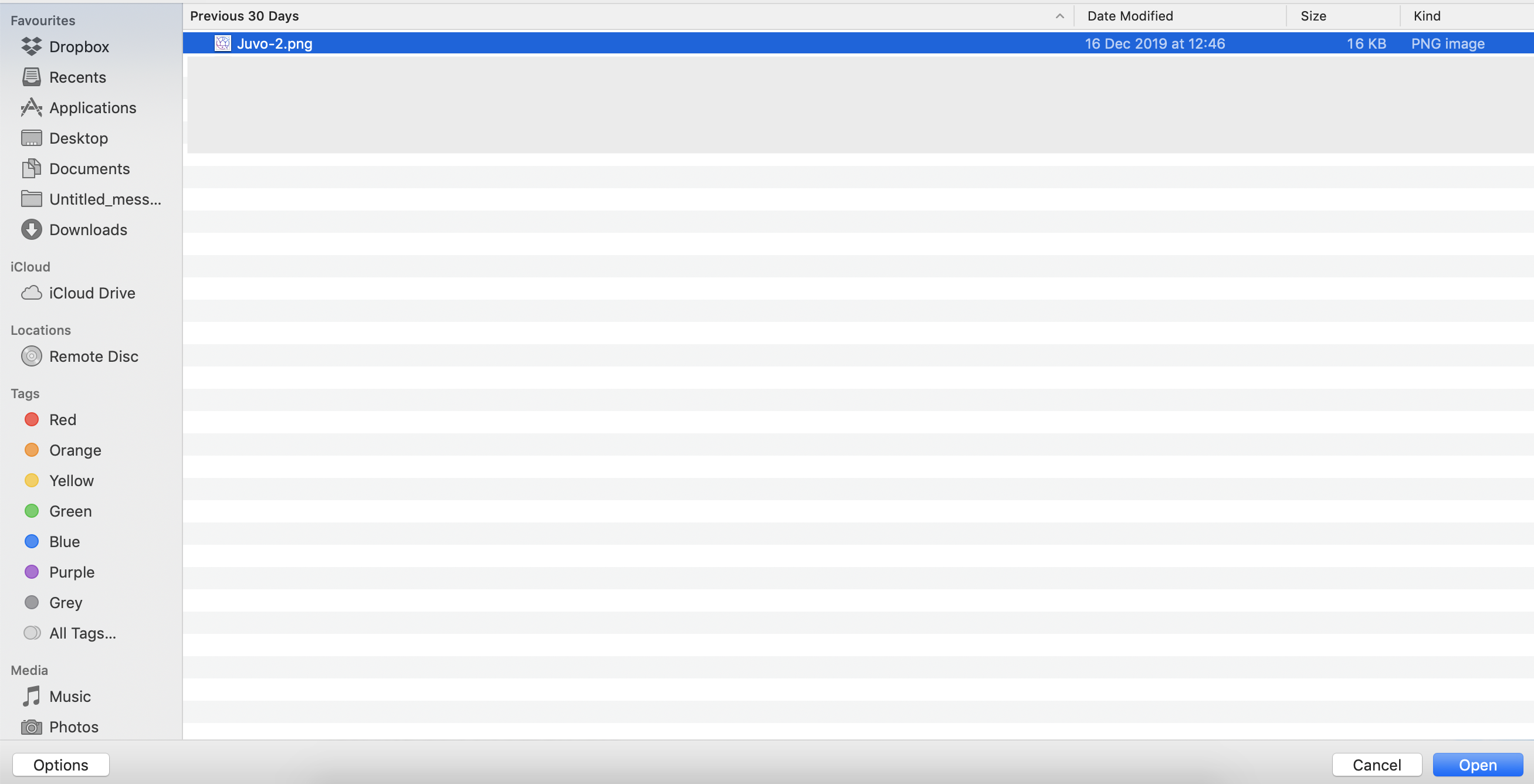
4) Select the image (in a png or jpeg format) from your computer and press Open. The logo will now be updated in the Logo icon square. This may take a minute or 2, please be patient.
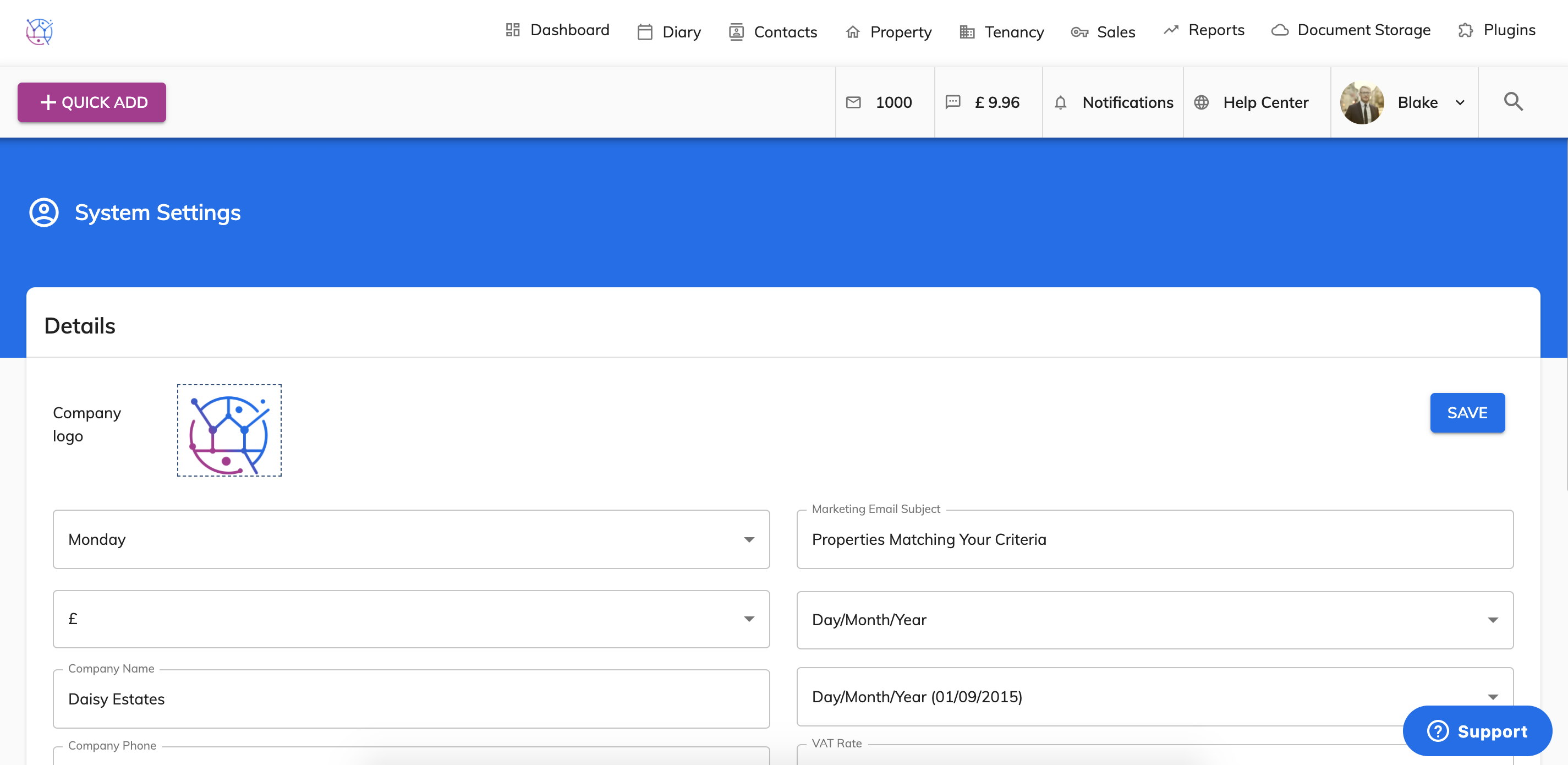
5) Now press the Save button. Your logo will now be updated on any future template letters, statements, brochures, window cards and emails sent.