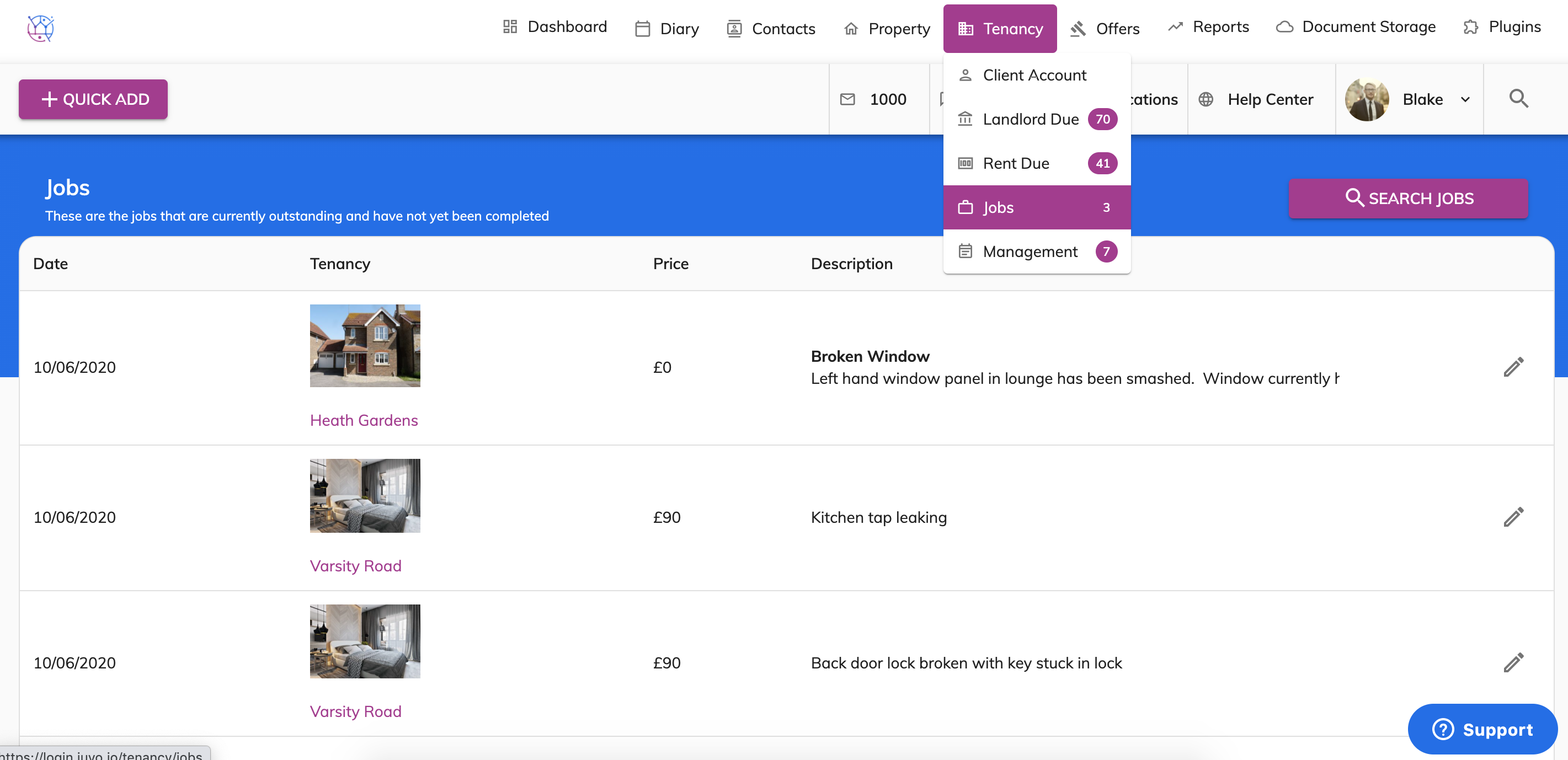
To add a job or works for maintenance on a tenancy, follow the steps below:
1) Click the Tenancy tab.
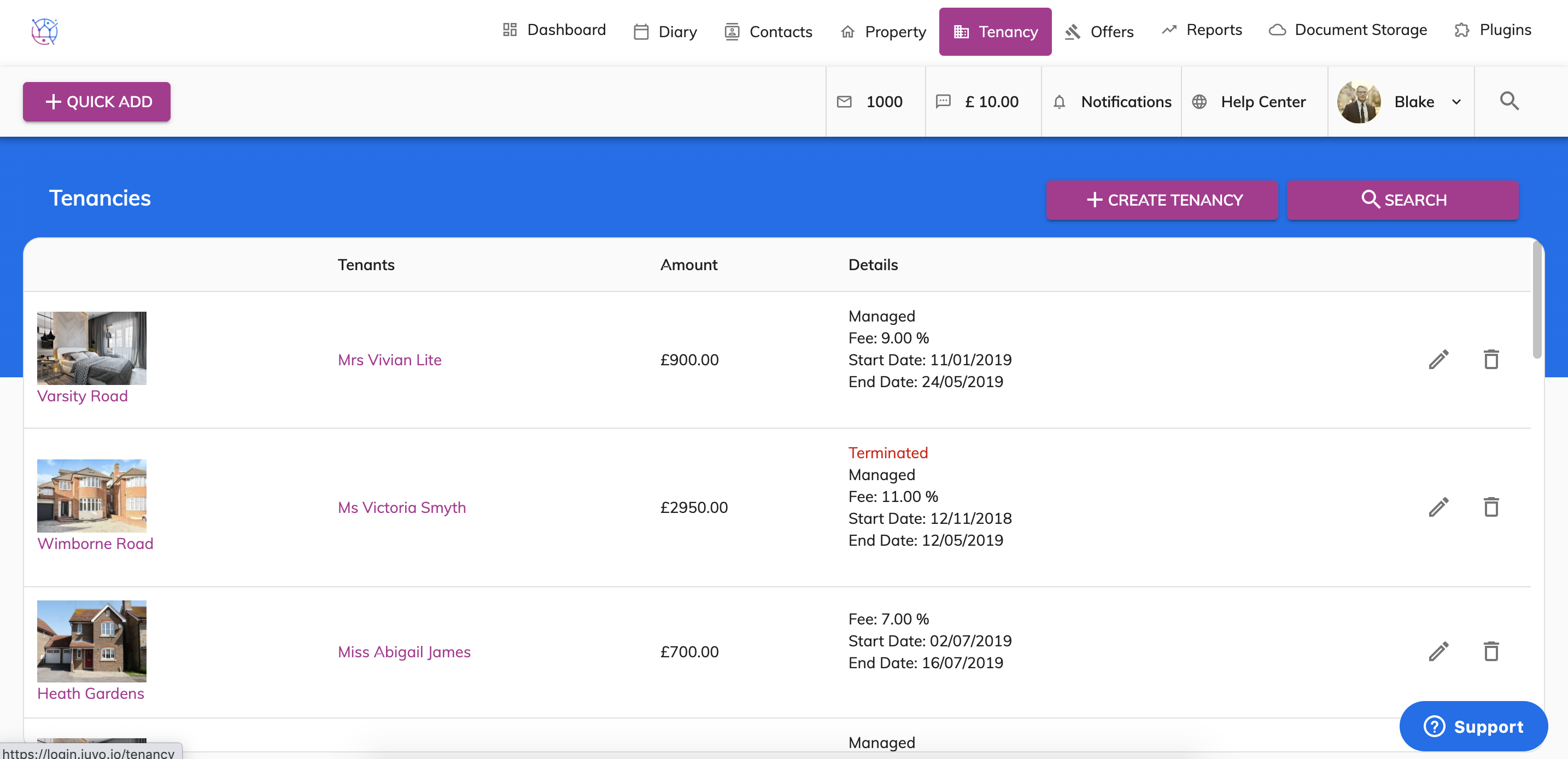
2) Using the tenancy search at the top of the page, enter key words, tenancy type or tenancy status. Press Search.
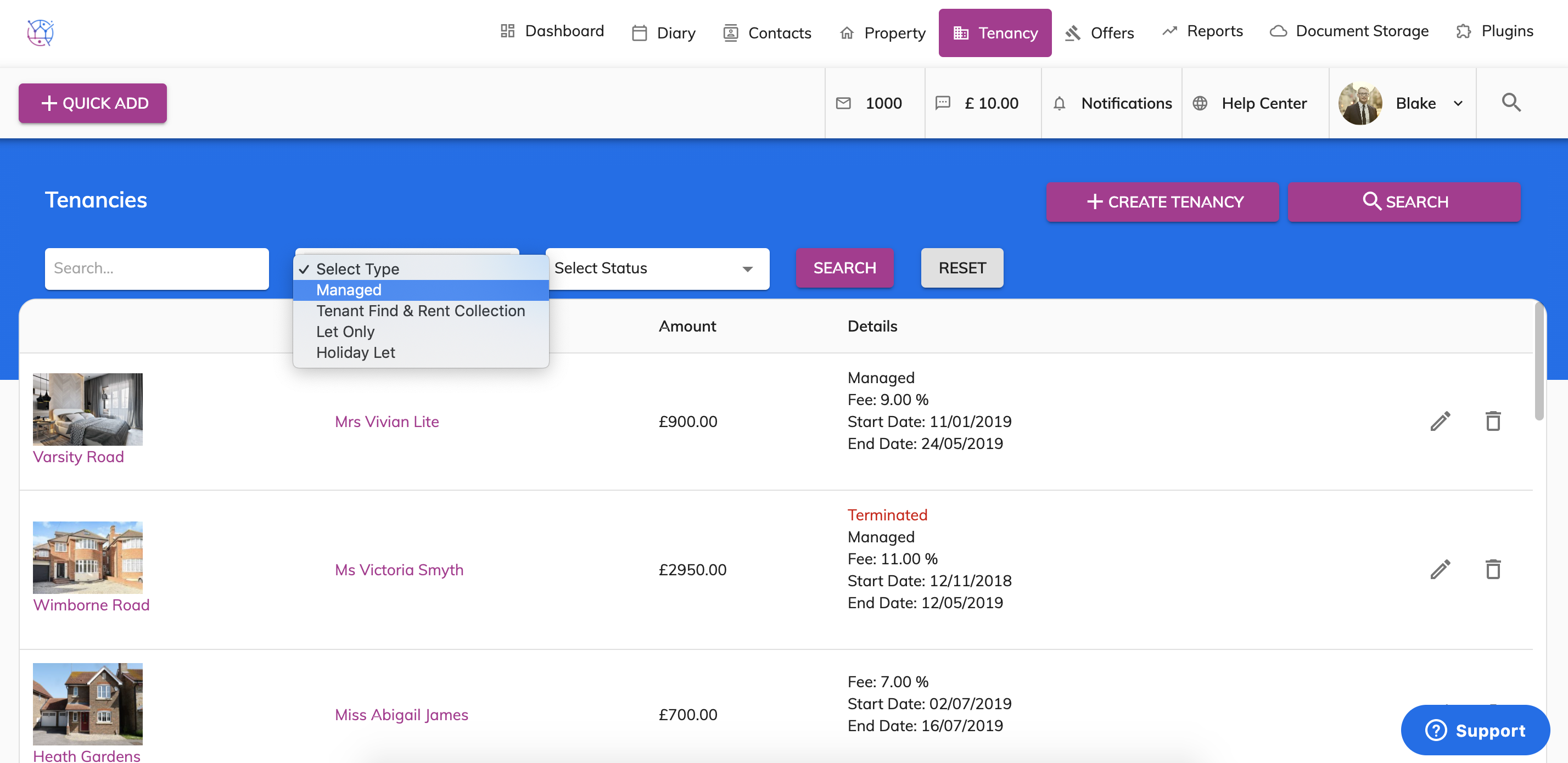
3) Click on the pencil icon to edit the tenancy.
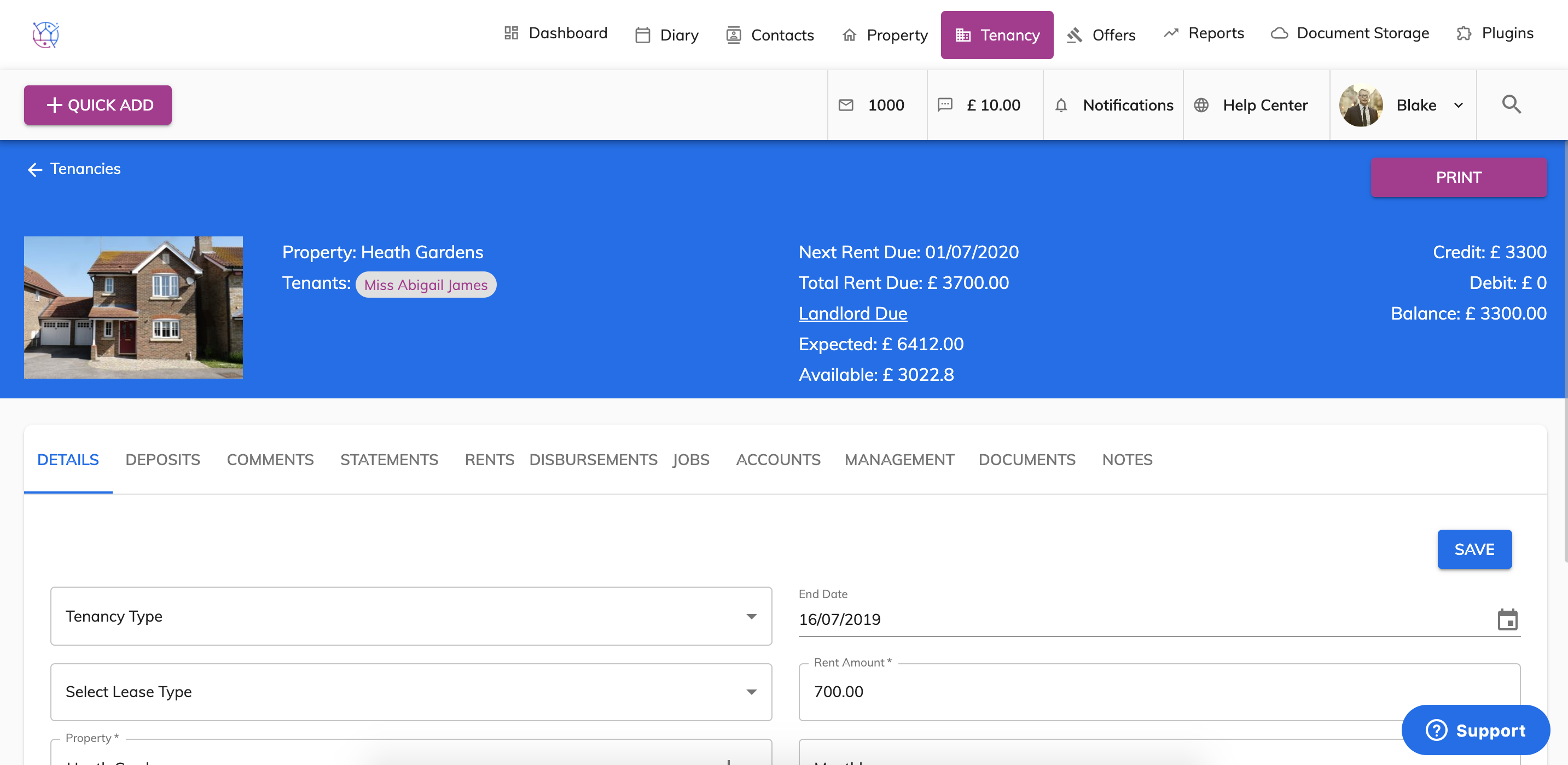
4) Select the Jobs tab from the menu
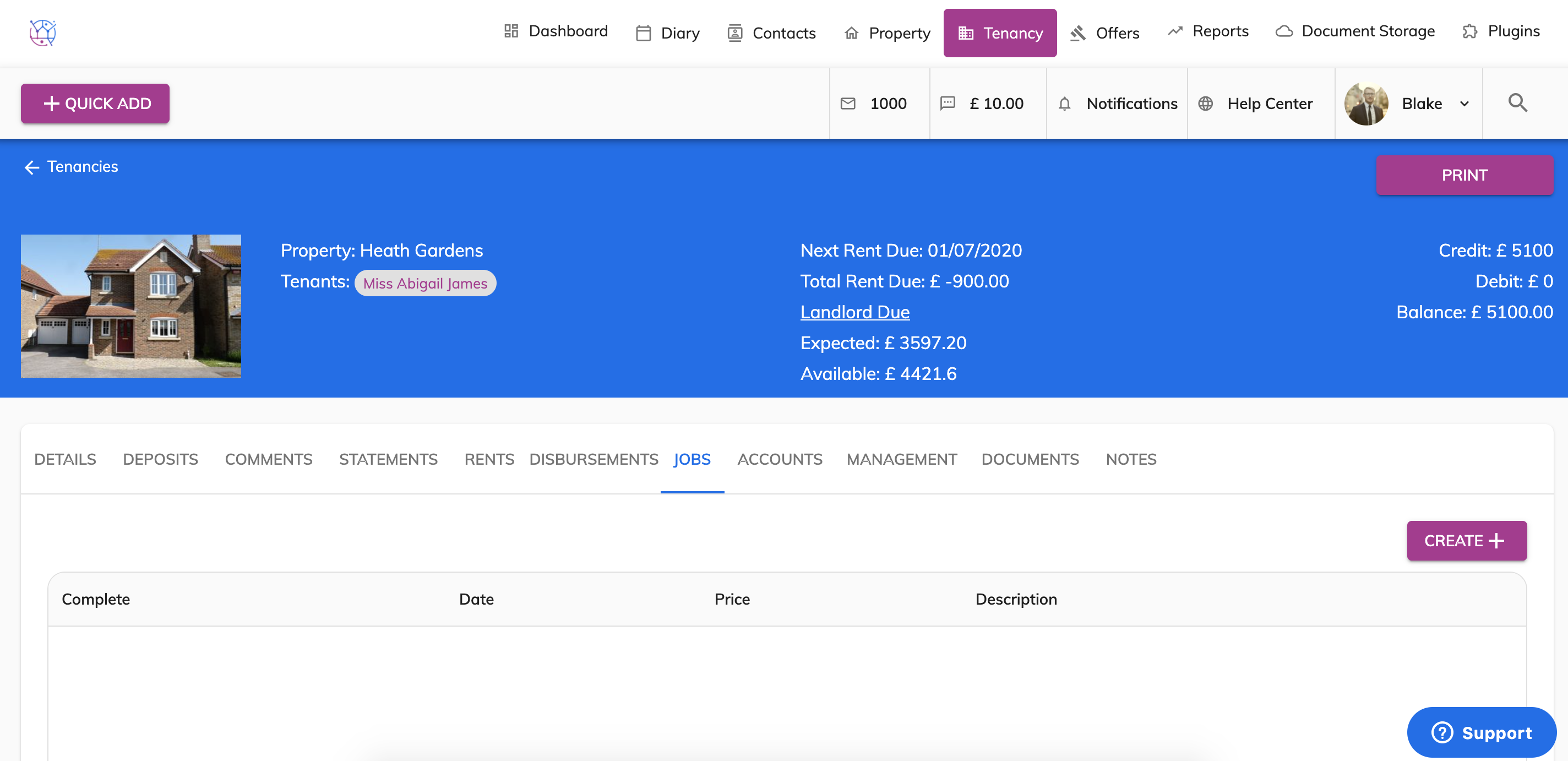
5) Click on the Create button.
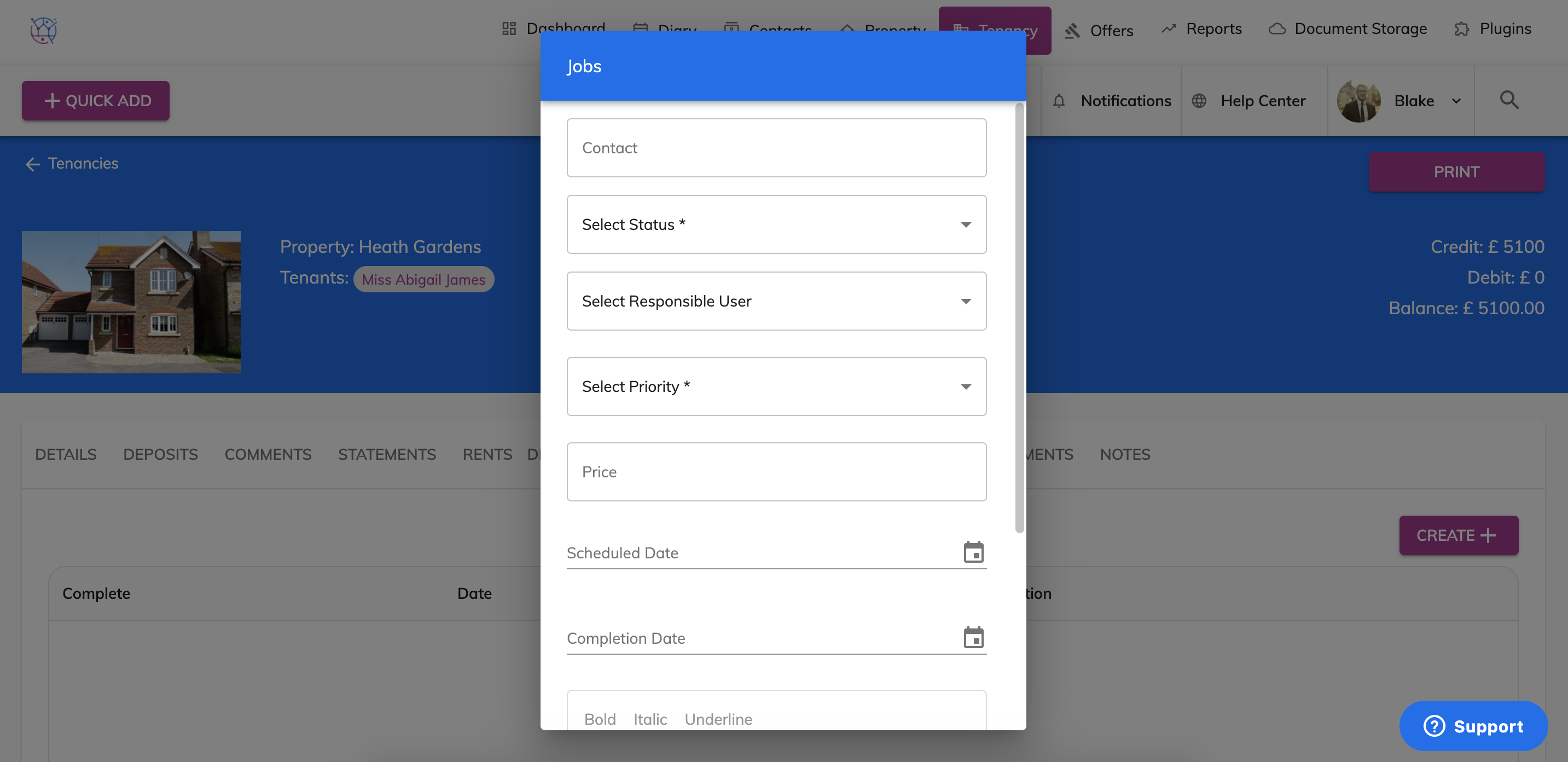
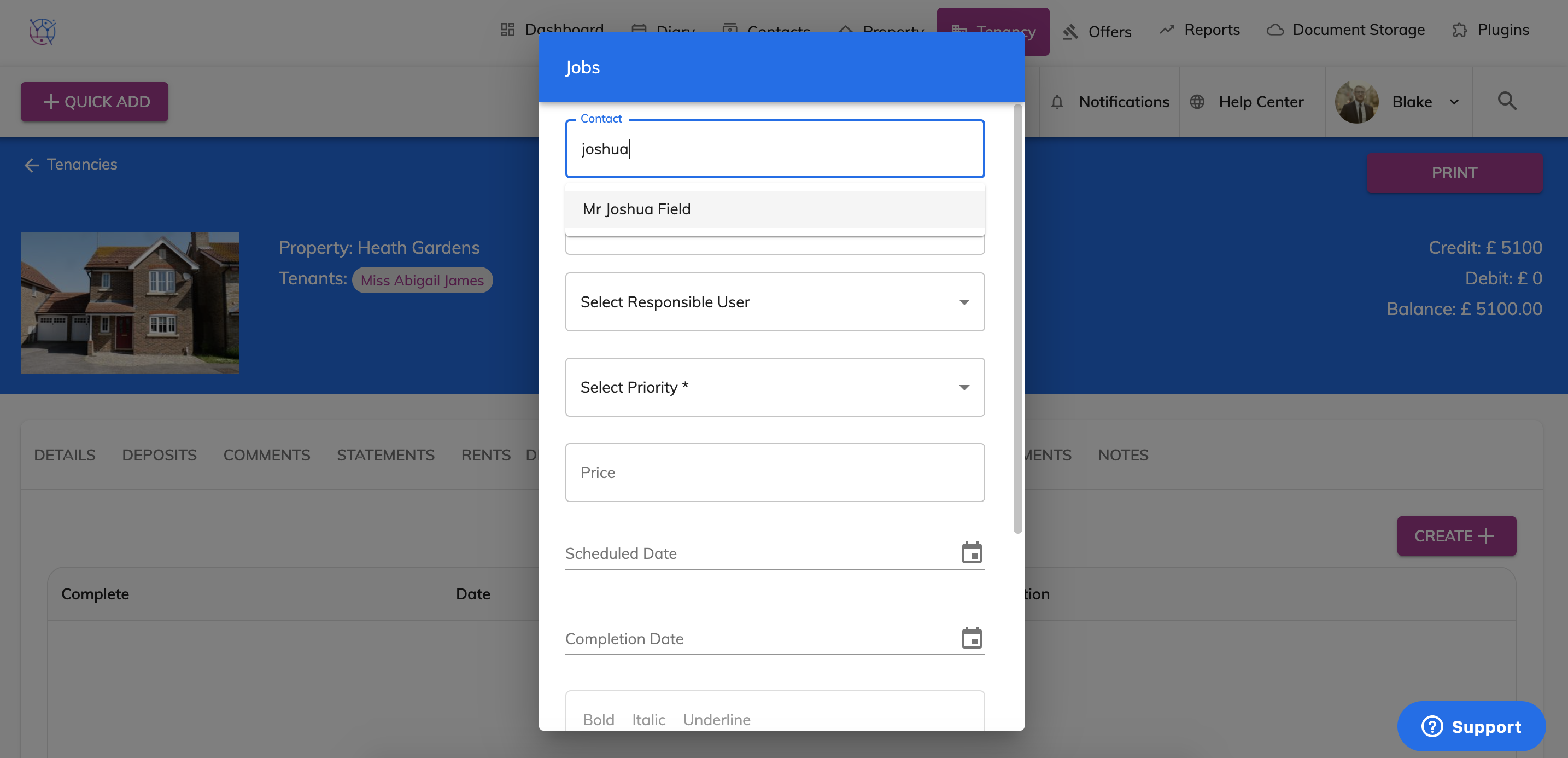
6) Start completing the form, first by entering contractor contact and selecting them from the dropdown.
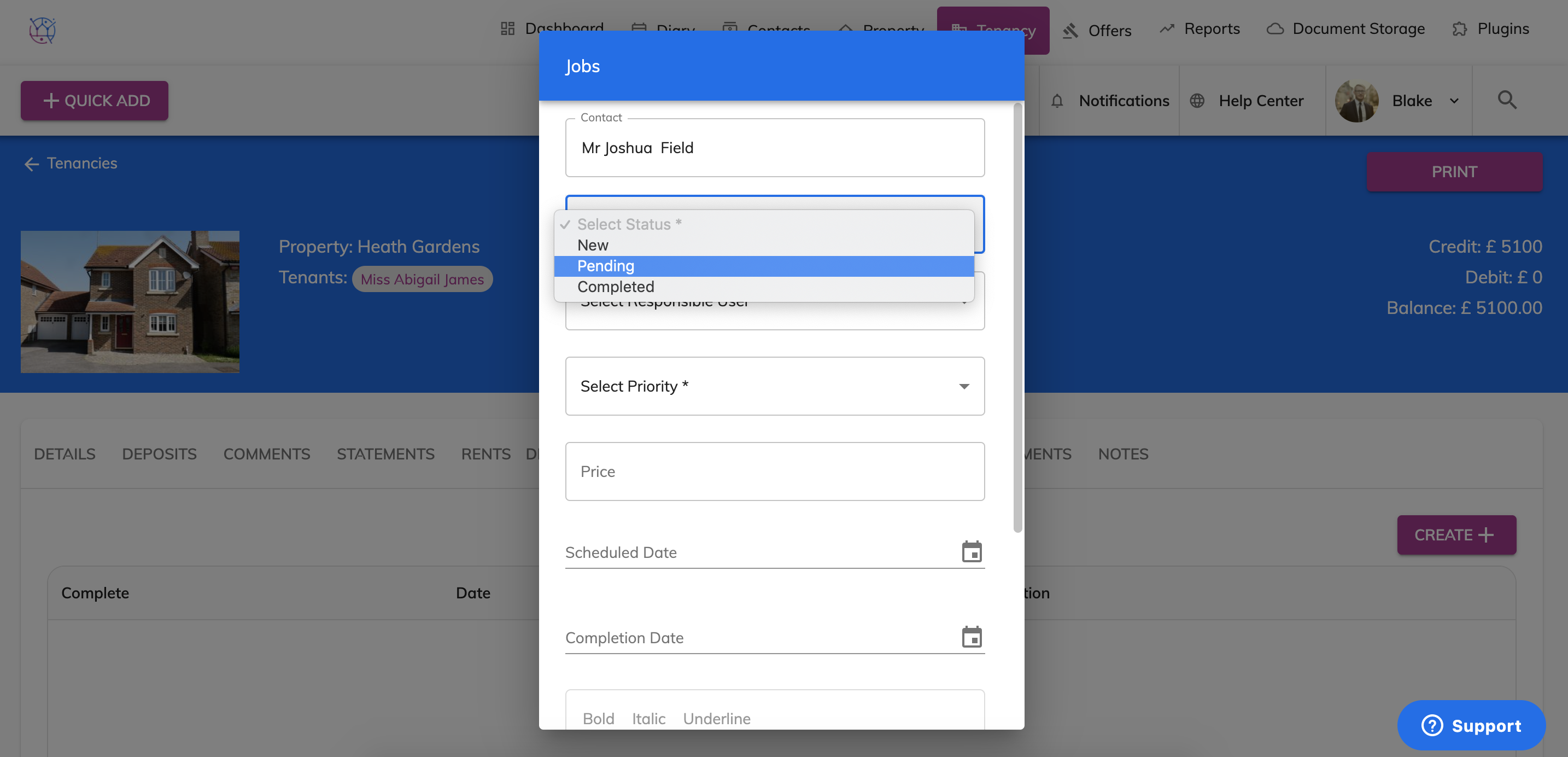
7) Select the job status
New - a job that is new in that has not yet been actioned.
Pending - a job that is in progress.
Completed - a job that is completed.
8) Select the member of staff that is responsible for the completion of the job.
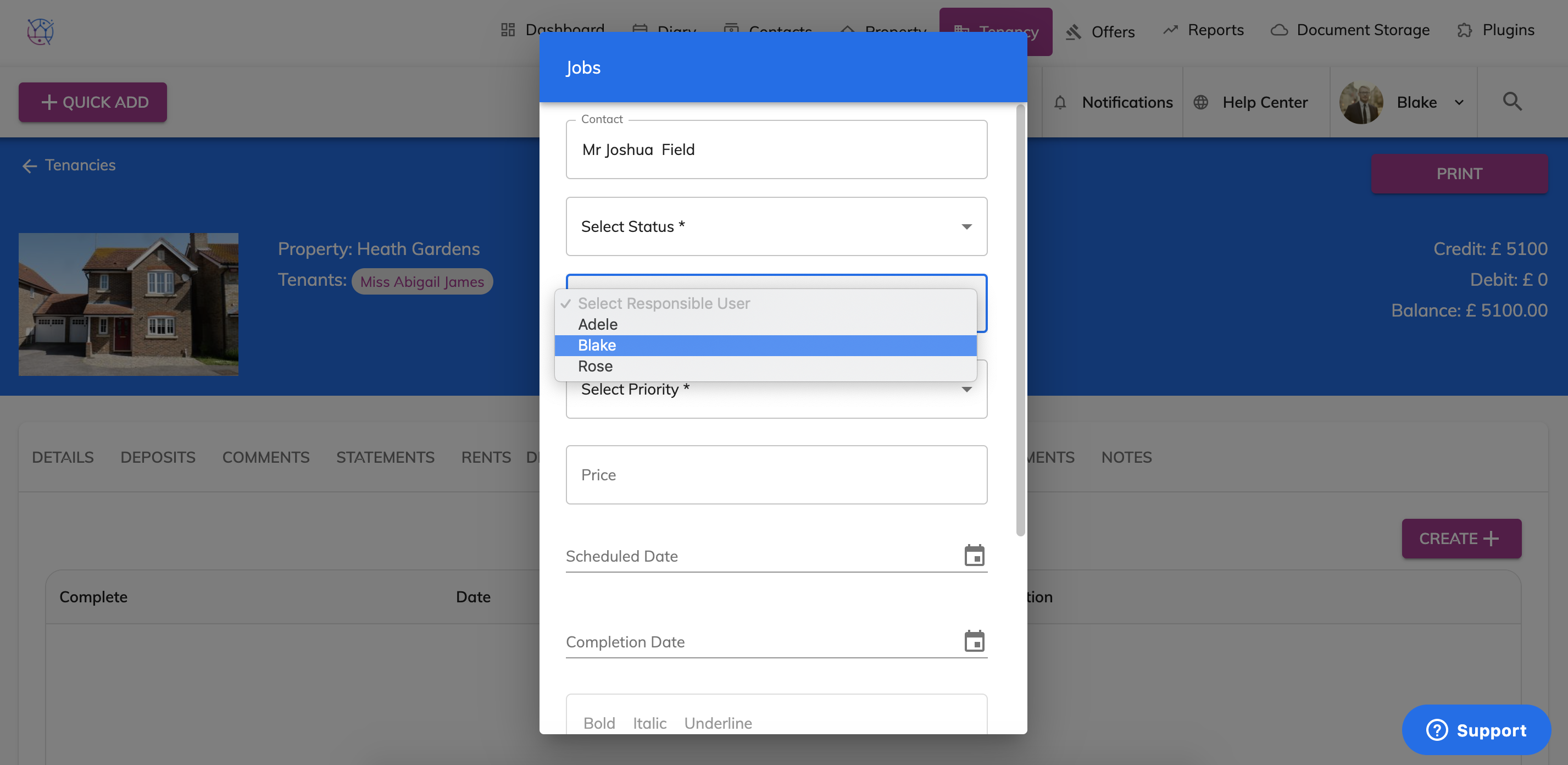
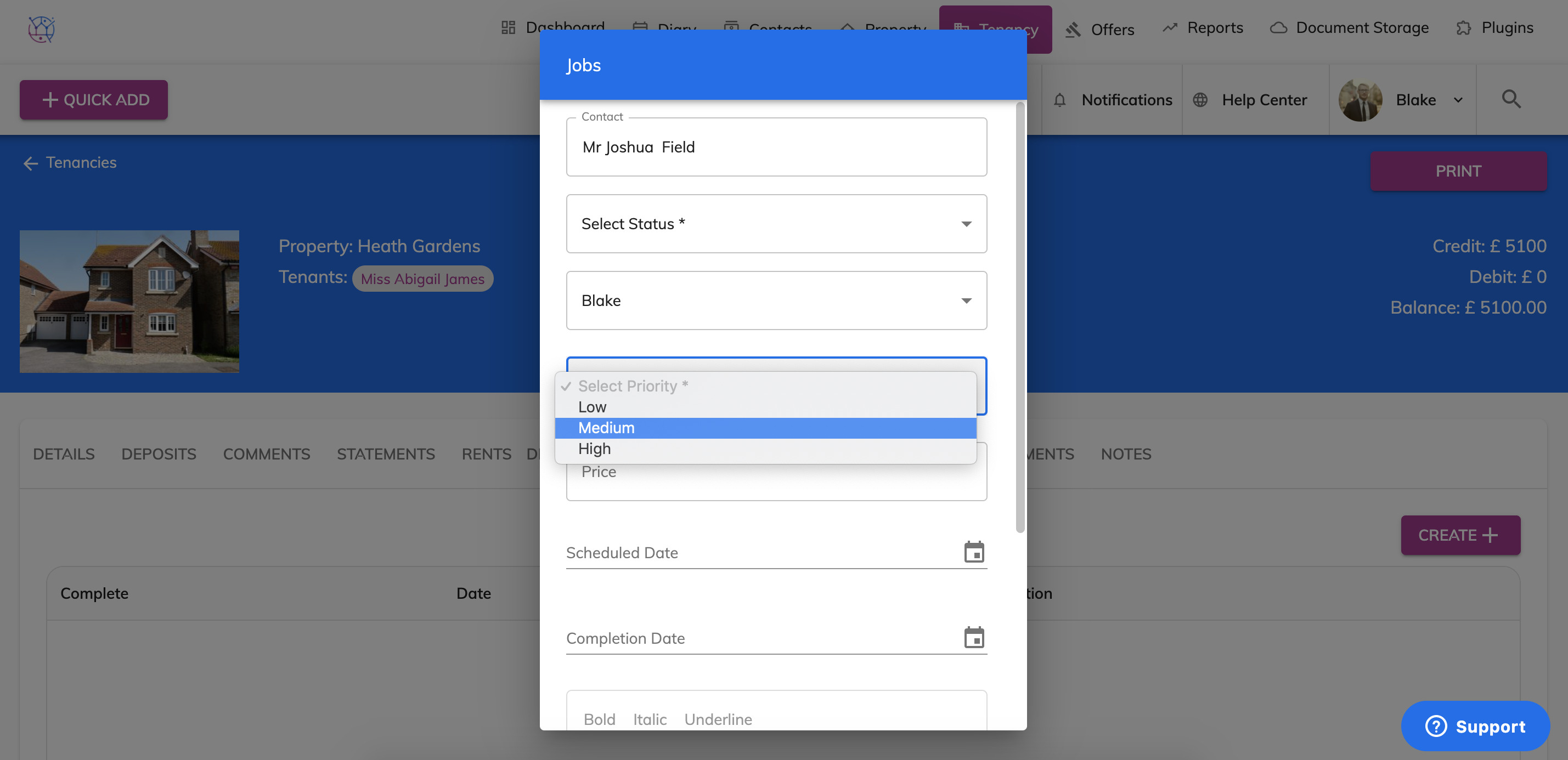
9) Select the job priority
Low - a job that is of low priority.
Medium - a job that is of medium priority.
High - a job that is of high priority
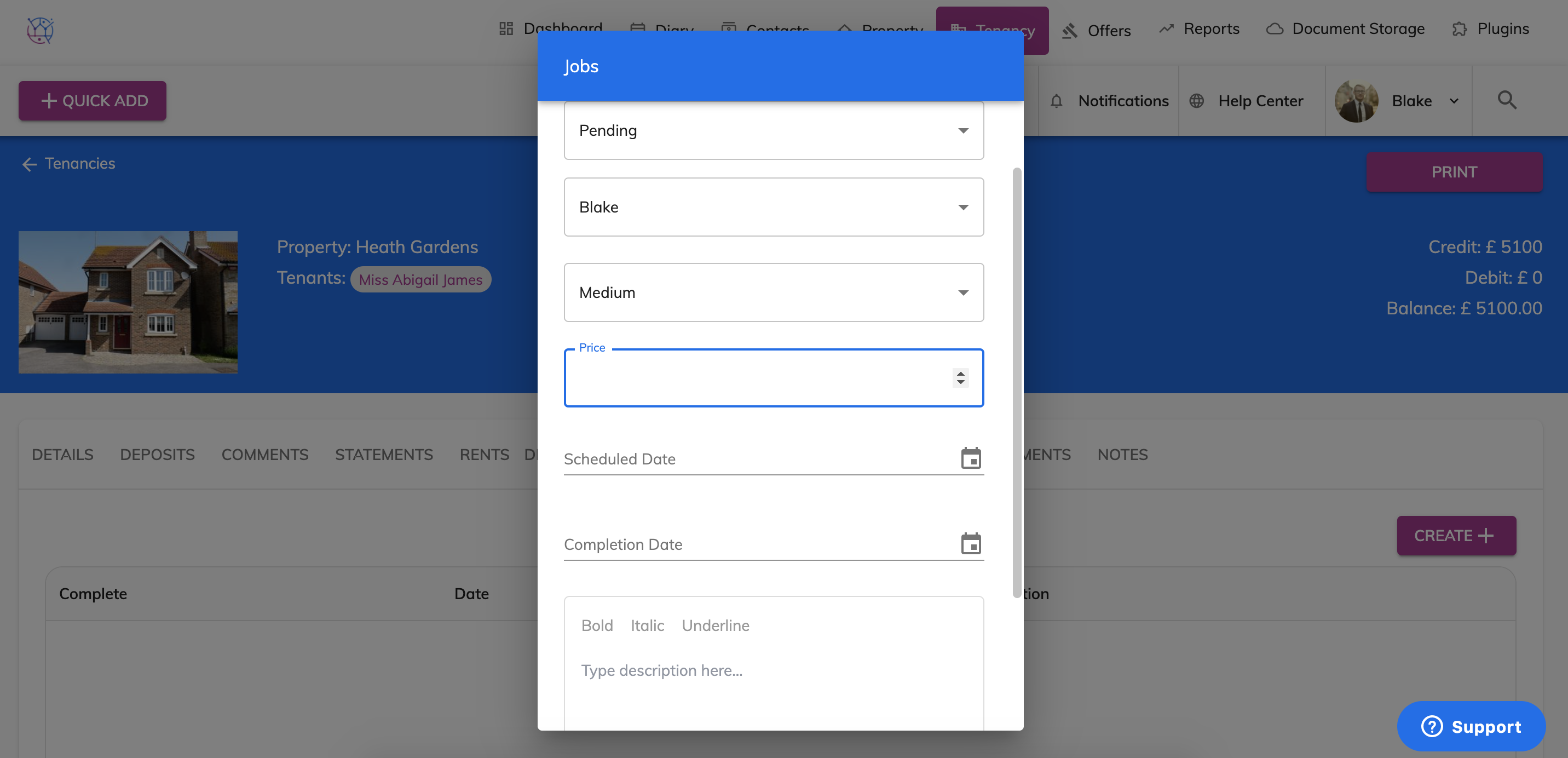
10) Now enter the price estimated for the job given by the contractor, the actual price can be updated once the contractor has sent you the invoice. If you do not have an exact price or estimate price, this can be left blank.
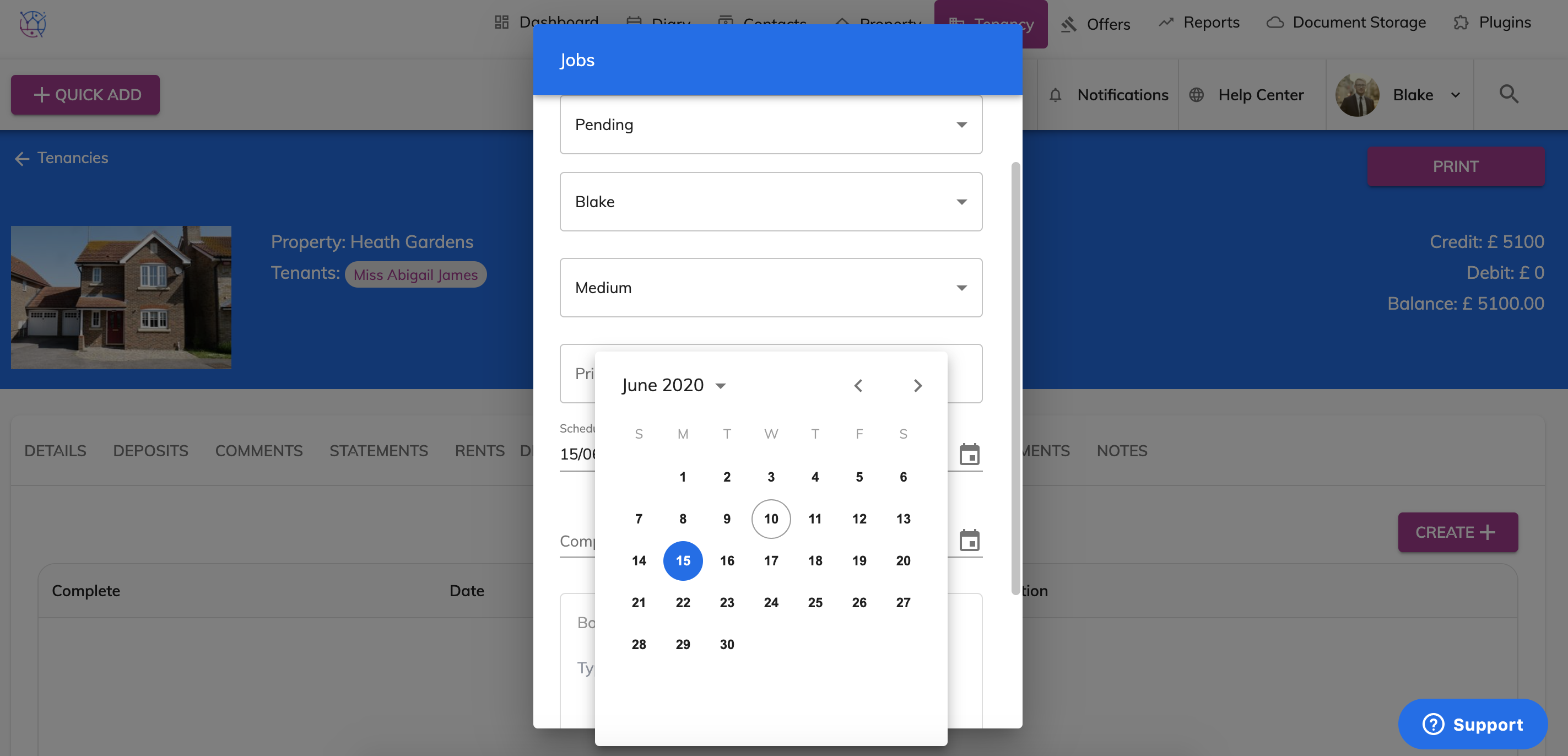
11) If the contractor has already been arranged to carry out the works, enter the scheduled date. If the contractor has not yet been arranged, this can be left blank.
12) If the job has already been completed, enter the date the job was complete. If not leave blank.
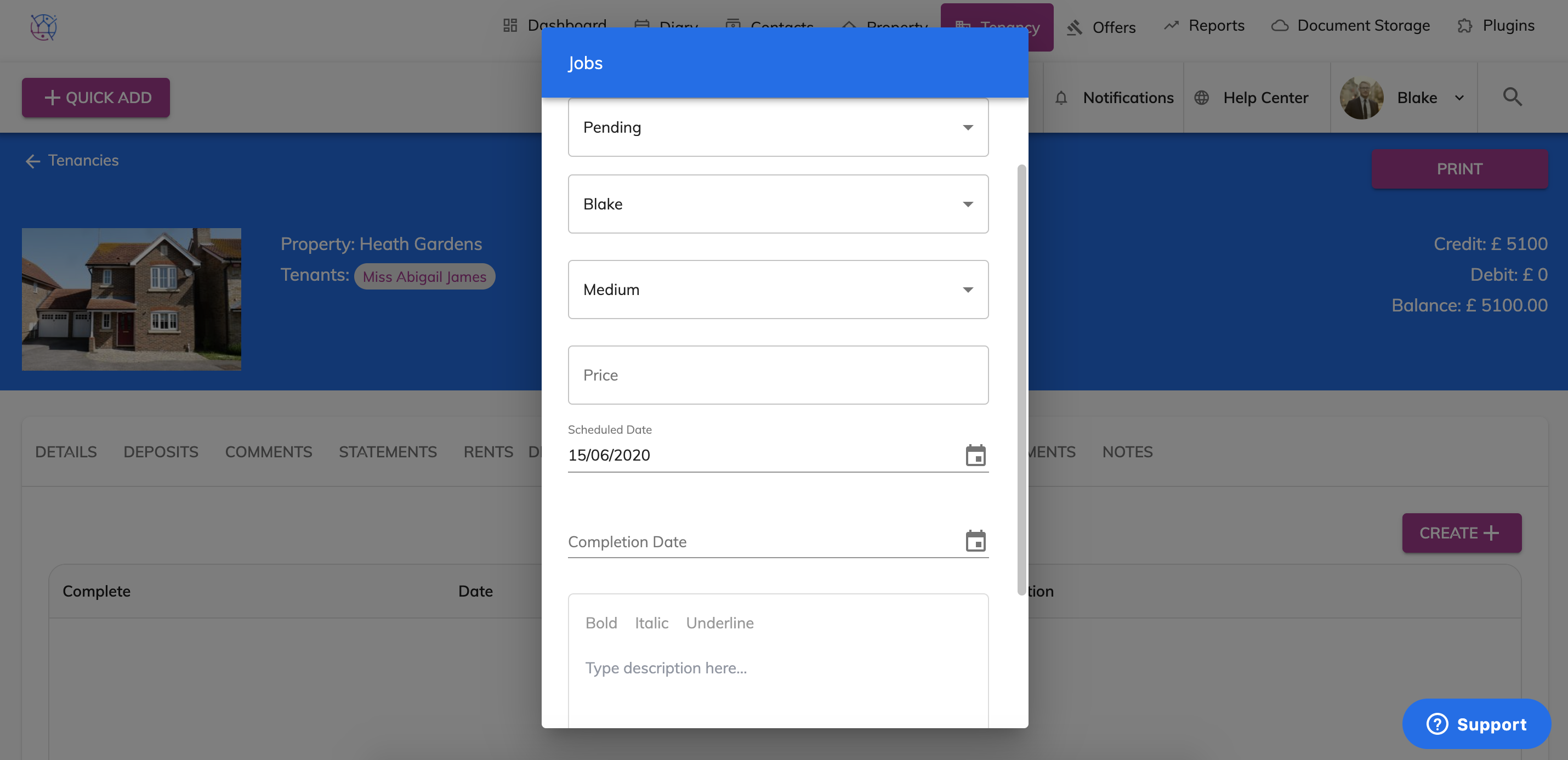
13) In the description field enter as many details about the maintenance/job that you have. This is helpful when relying information to the contractor and the landlord.
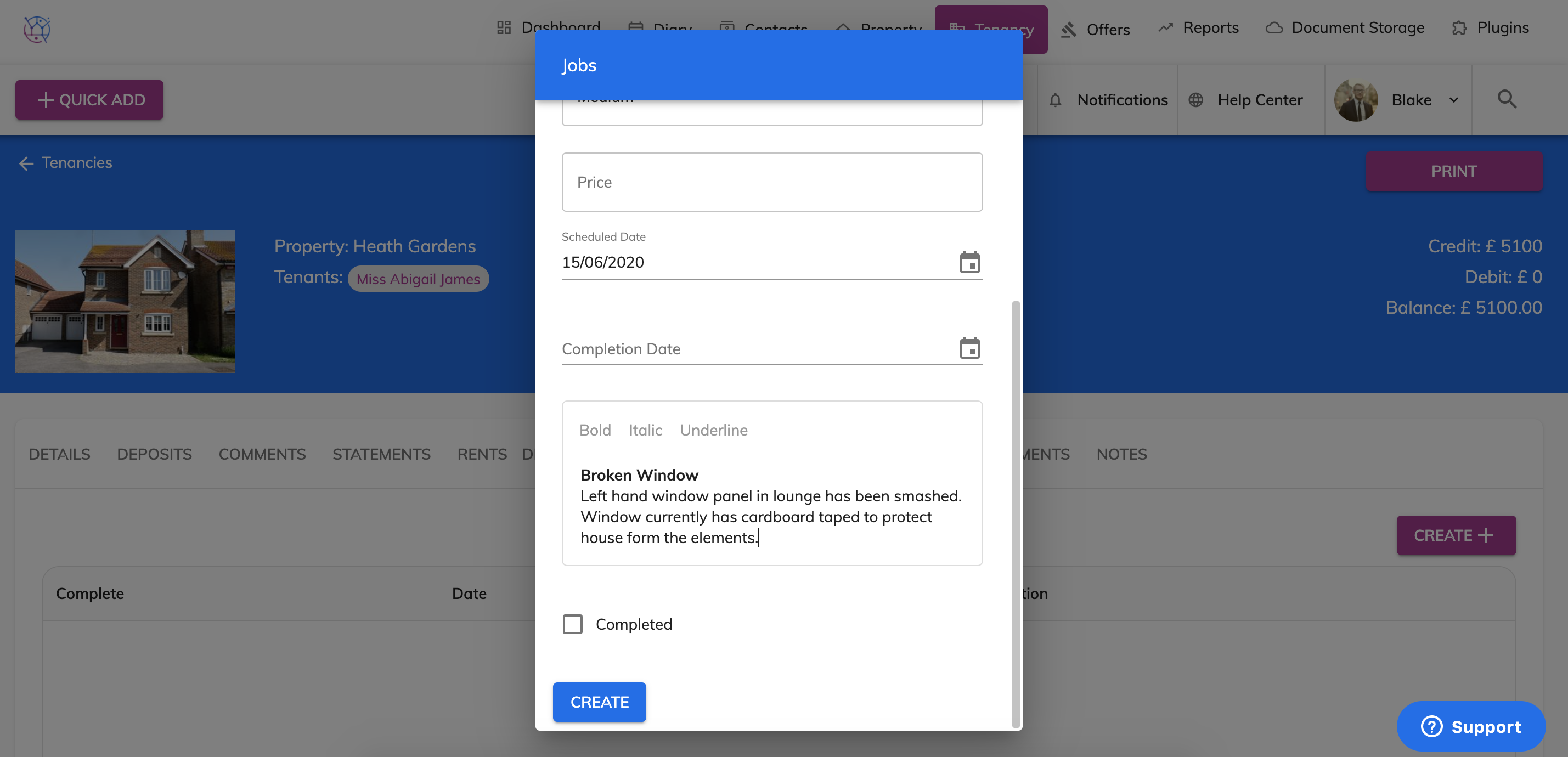
If the job is completely finished, tick the completed box. If not leave blank.
14) Once the form is complete, press the Update button.
This will save the job against the tenancy.
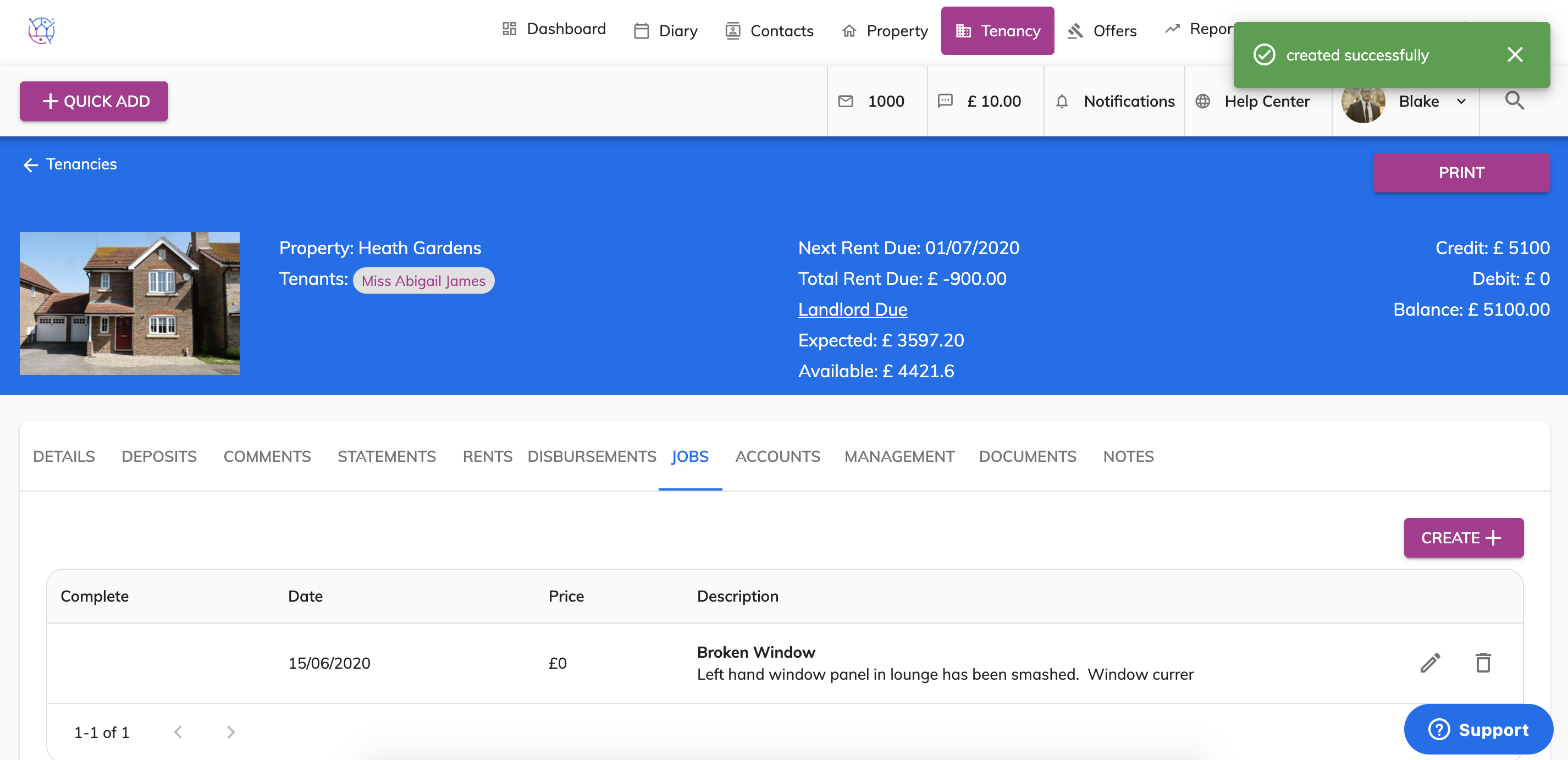
If the job has not yet been completed a reminder will show on the dashboard and on the Jobs listings on Tenancy.