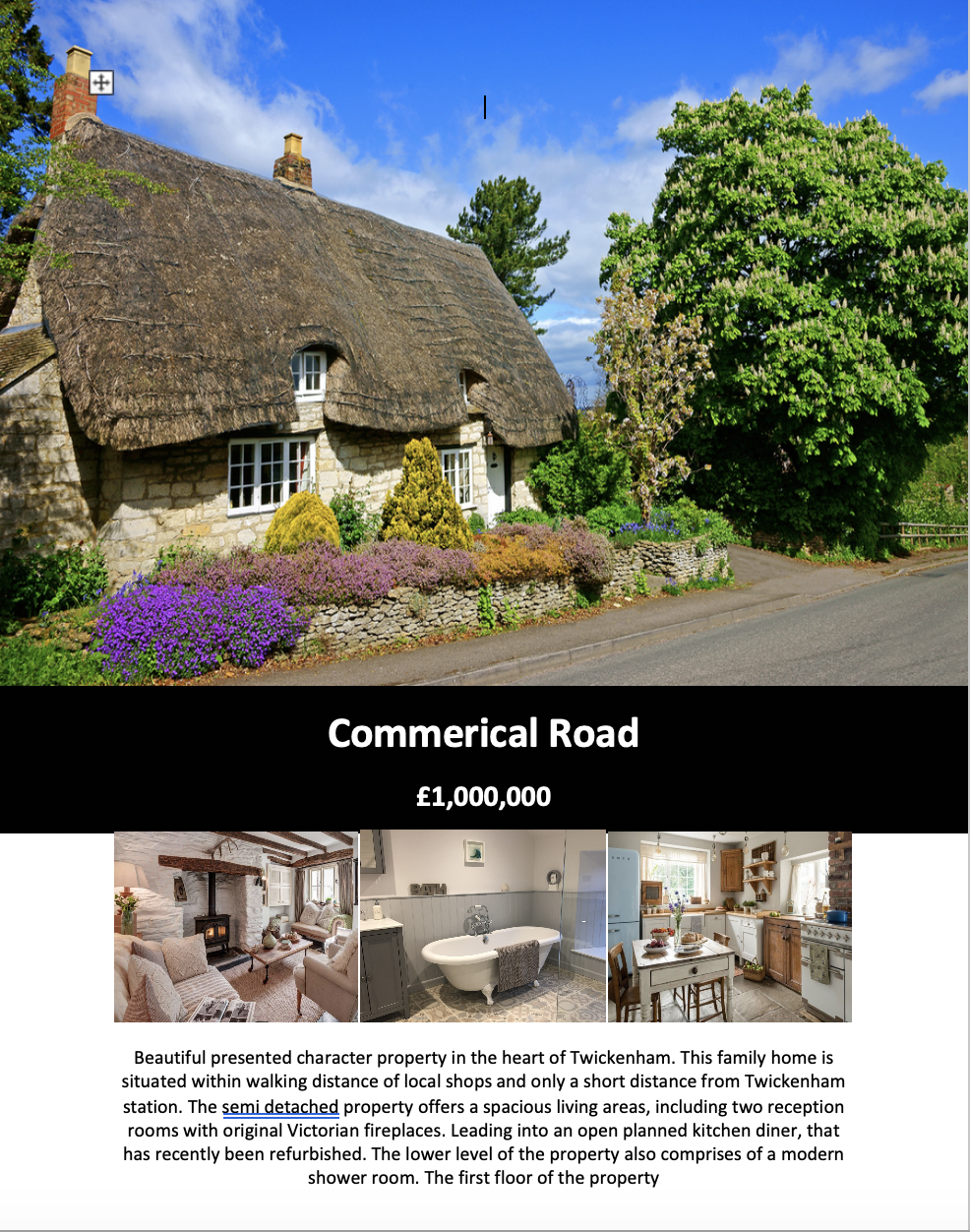
To create customised brochures, window cards and letter templates, follow the steps below:
1) Click the Property tab.
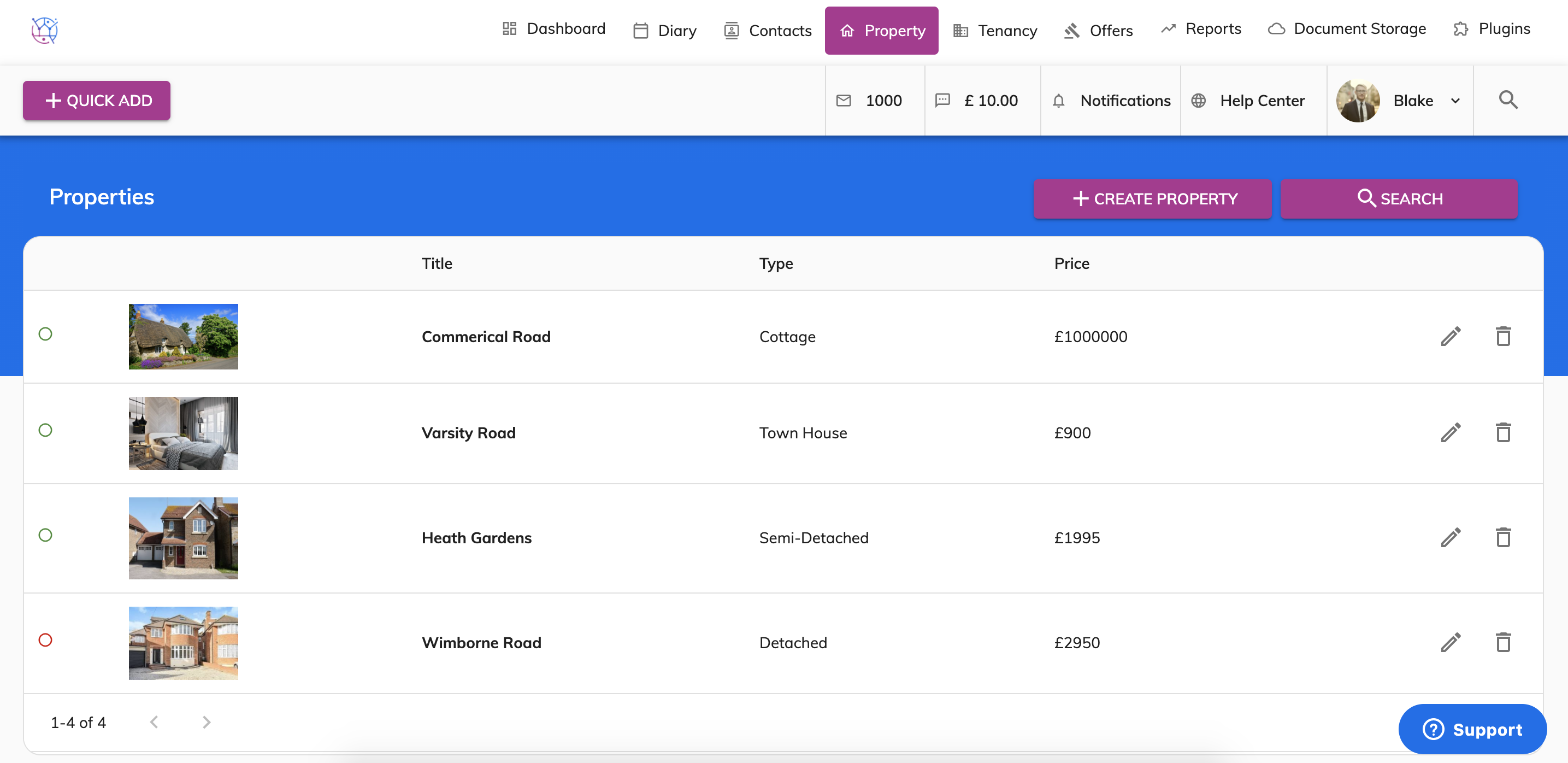
2) Find the property you would like to create a letter for from the property listings or from the search at the top of the page. Click on the pencil icon to edit the property.
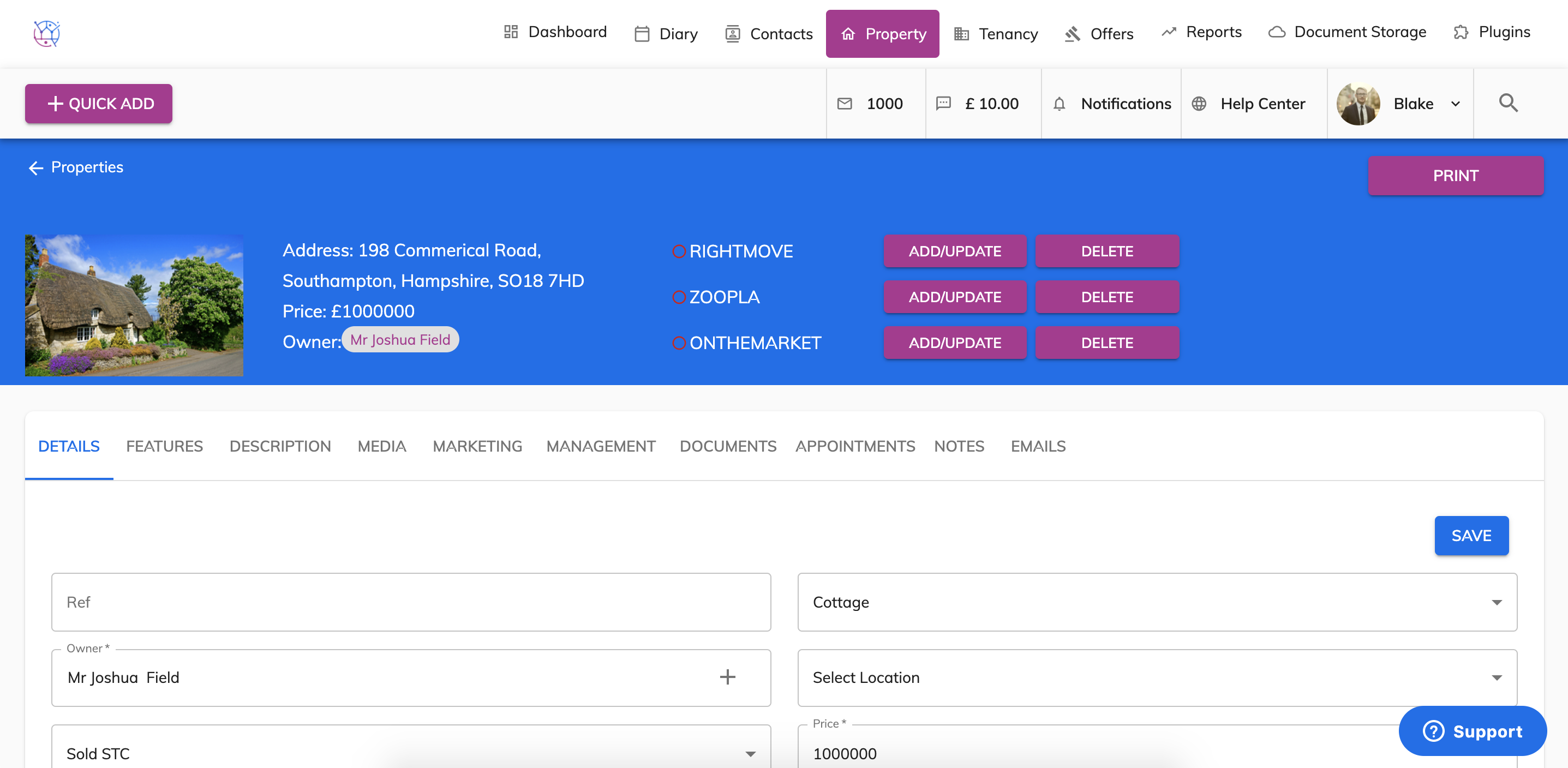
3) Press the Print button and select the template from the dropdown.
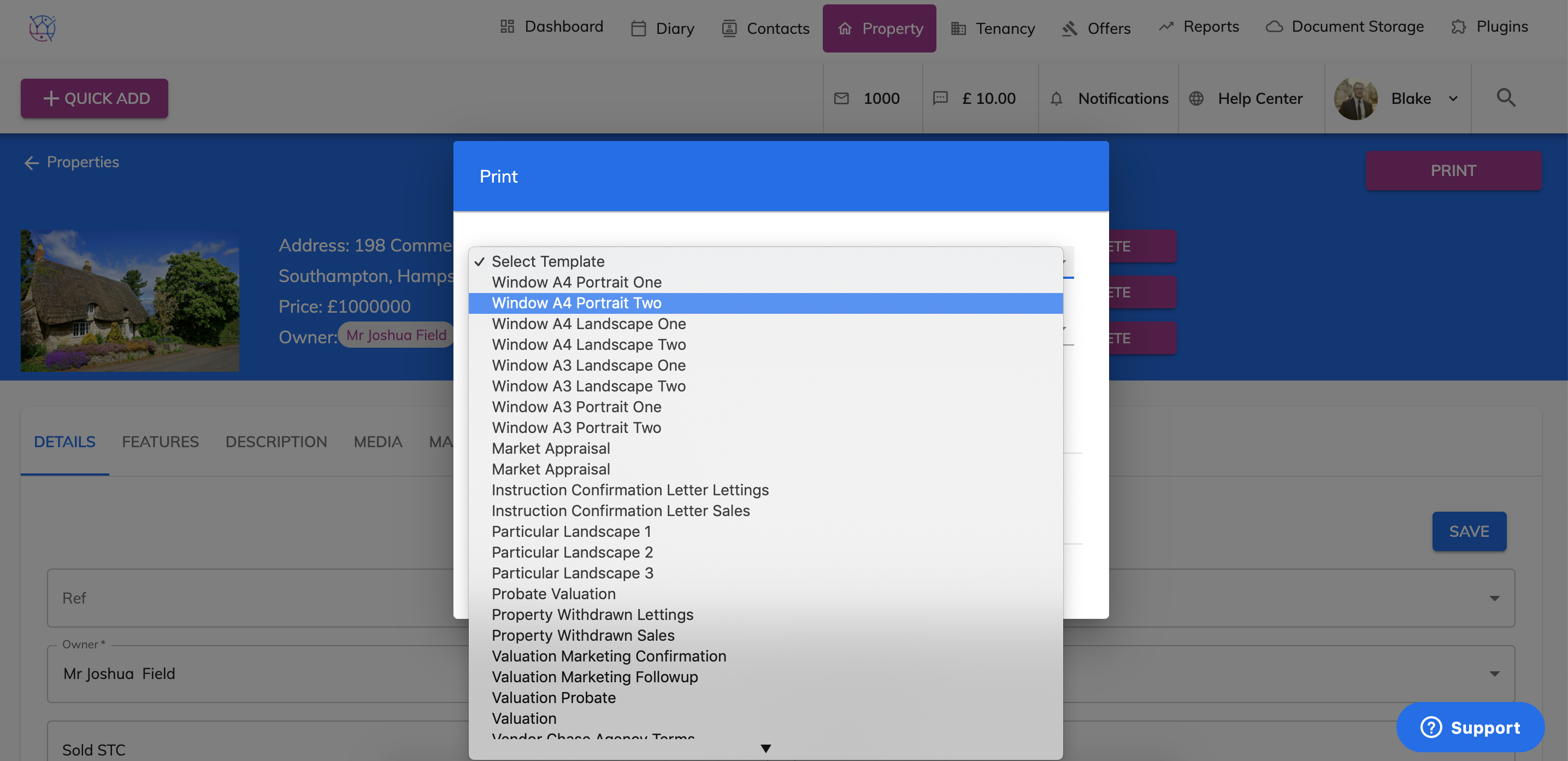
4) Select the format of the template from the dropdown. DOC is Microsoft Word (which can be amended after being downloaded) or PDF cannot be amended after being created.
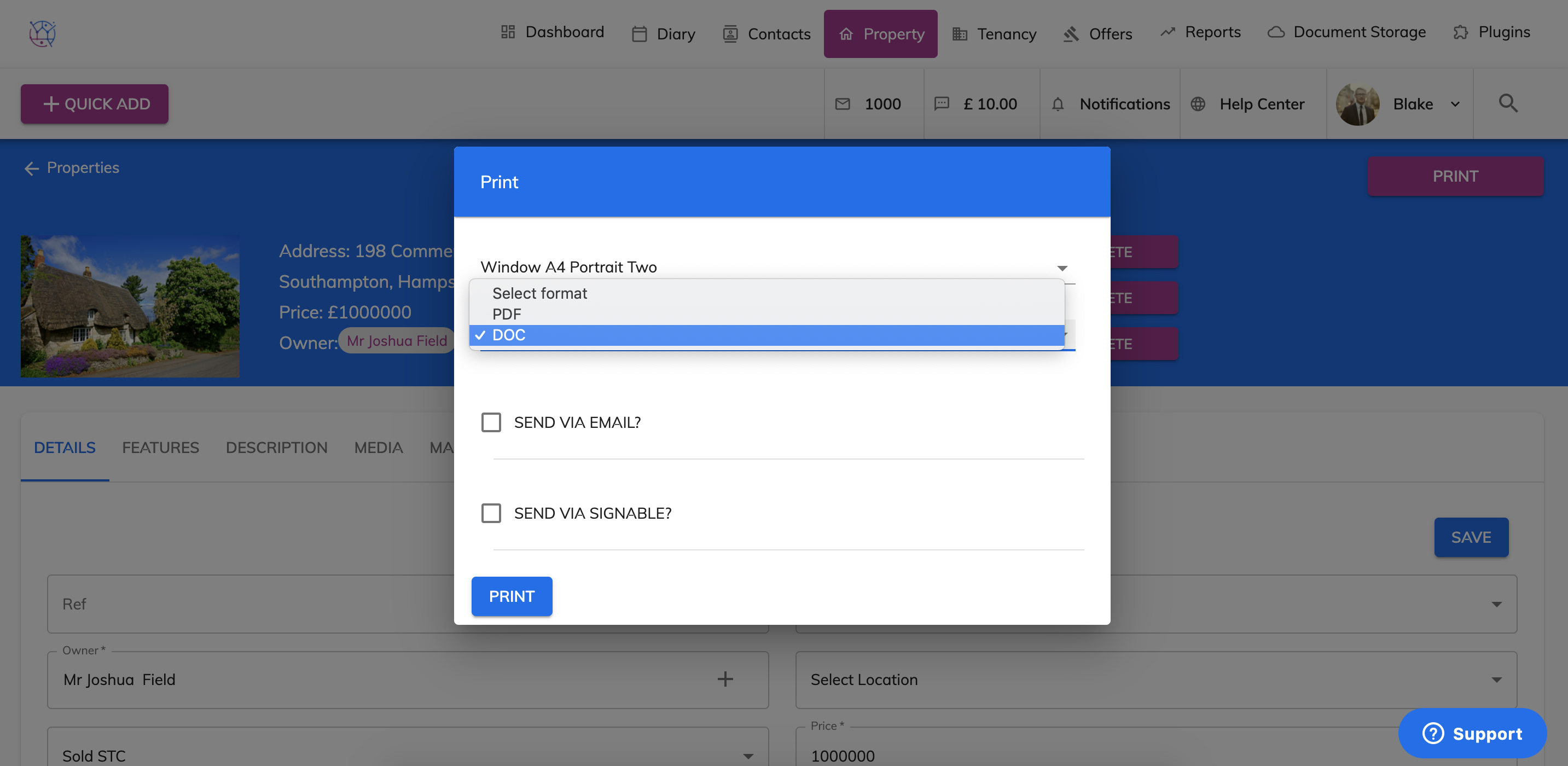
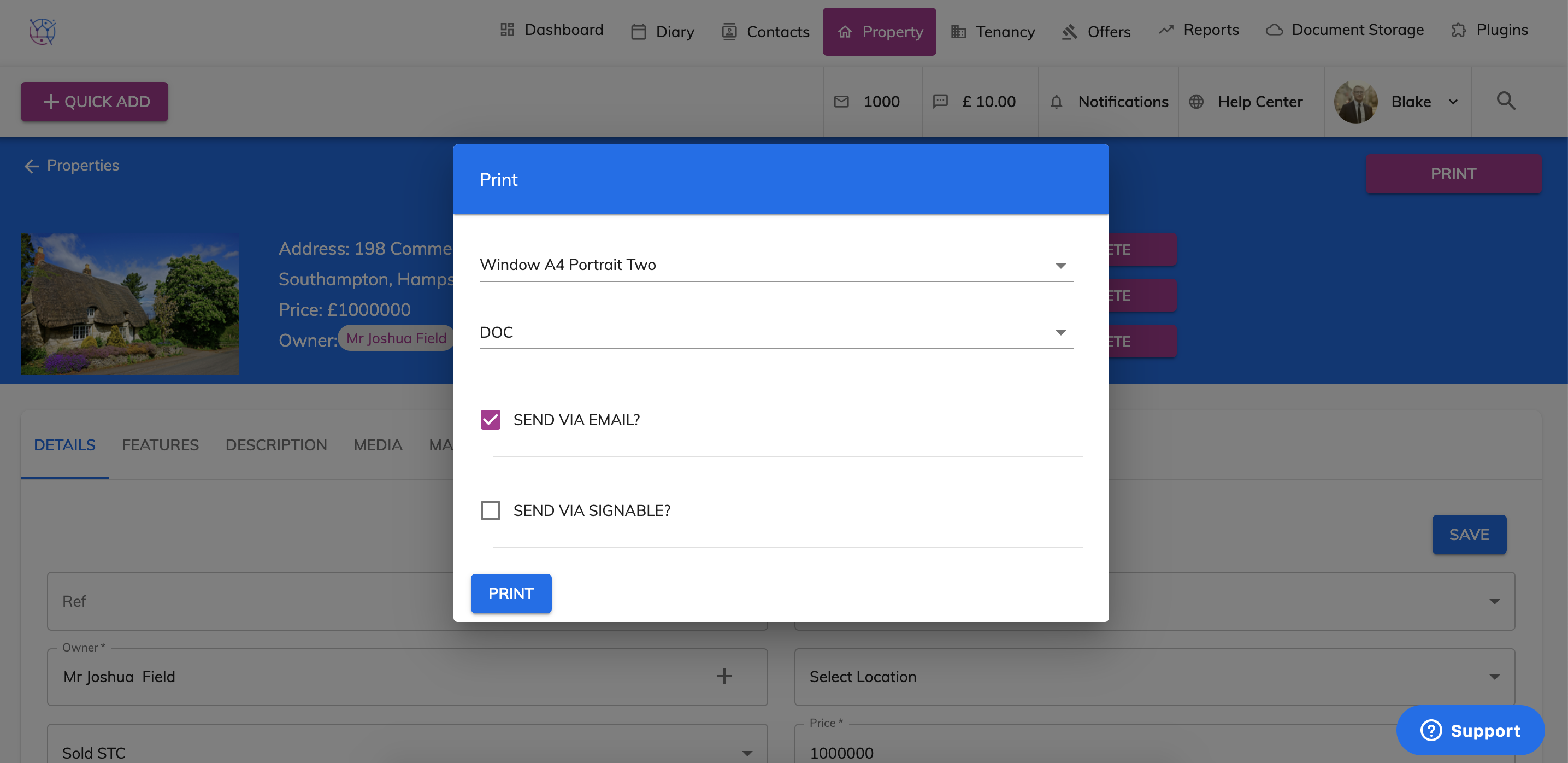
5) If you would like to send the template letter via Email or Signable, tick the relevant box and press Print. Select the email template and enter the email address in the To field. You can also amend the text in the body of the message. Once ready Press Send. This will send this template as an email attachment to the contact.
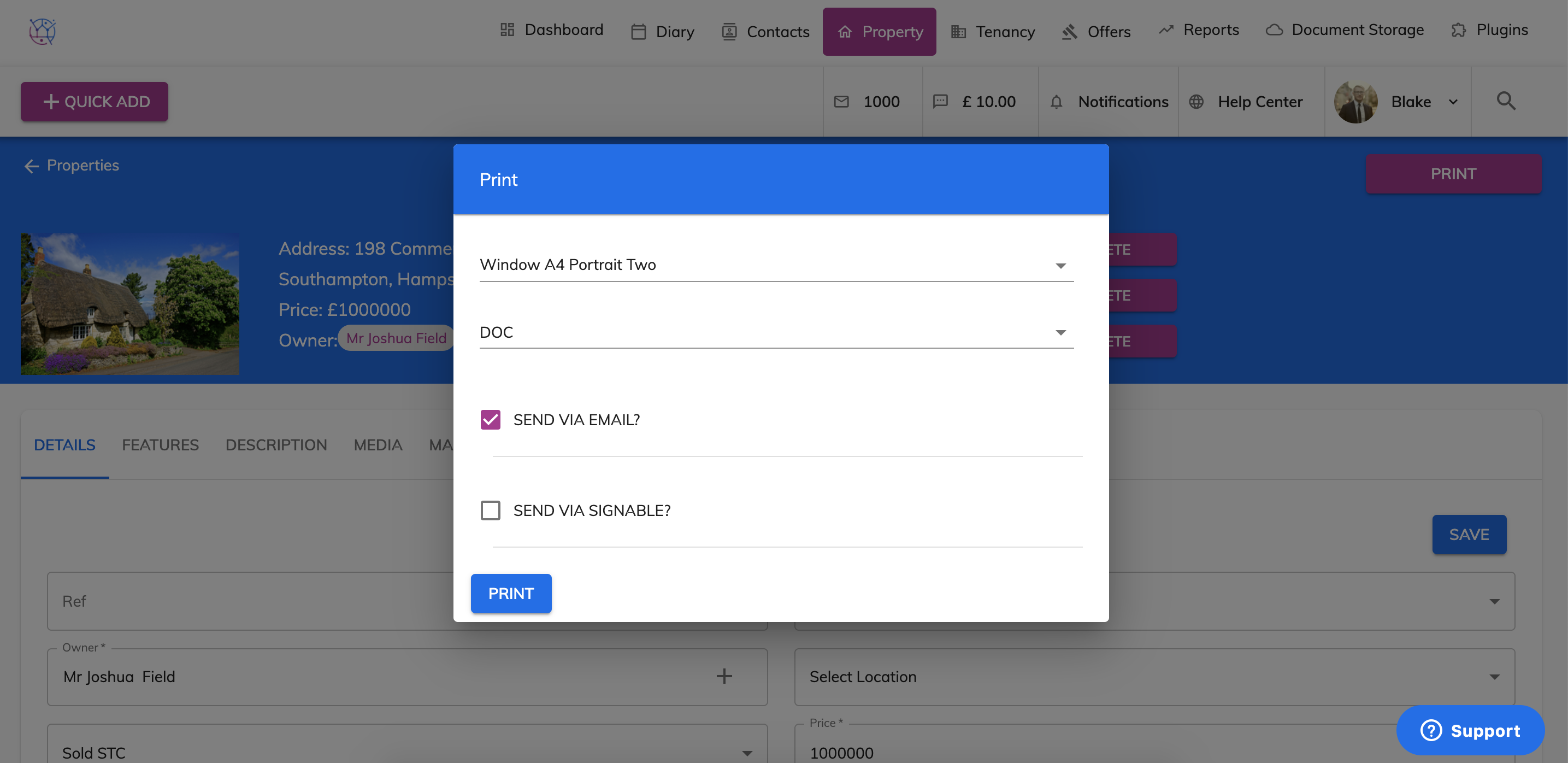
6) To download the letter template on your computer leave the Email and Signable boxes unticked and press Print.
7) The template will then be downloaded to the Downloads folder on your computer.