
Images are pulled through on to templates using Template Placeholders
Image placeholders can use any image with the correct code for the ALT Text.
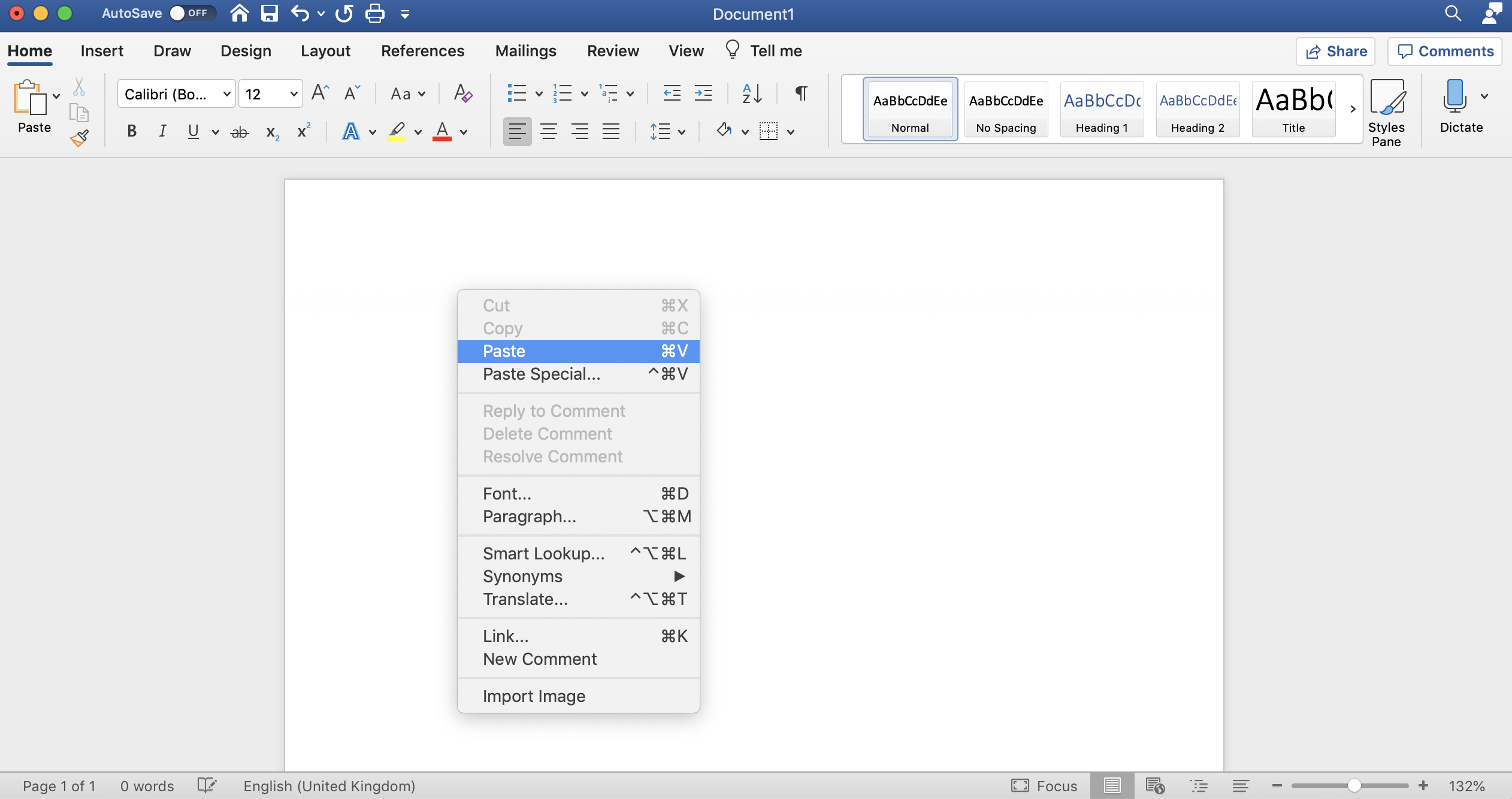
1) Copy the below image.

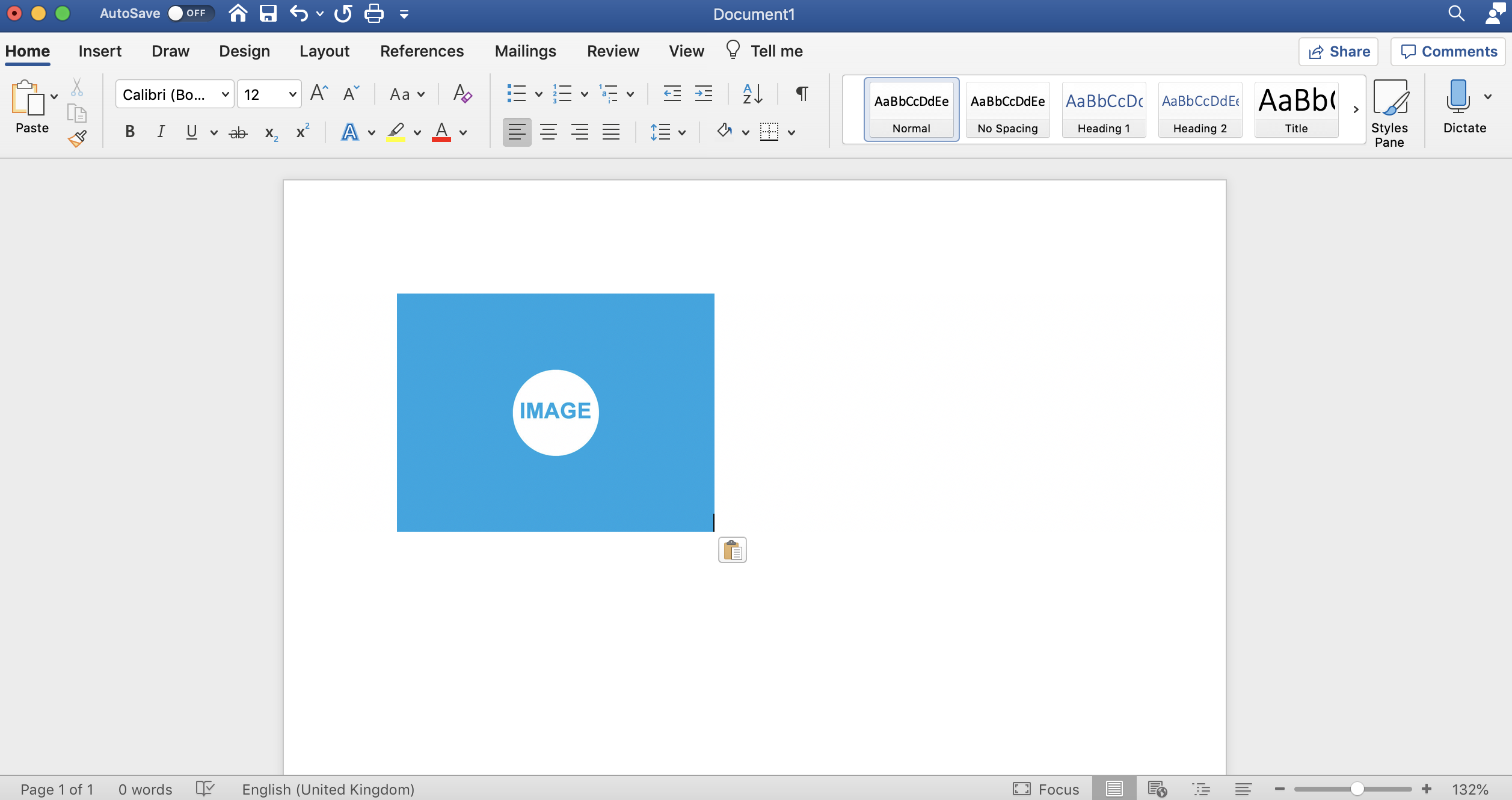
2) Open up your Microsoft Word template. Right click and select Paste.
This image will now show on this document.
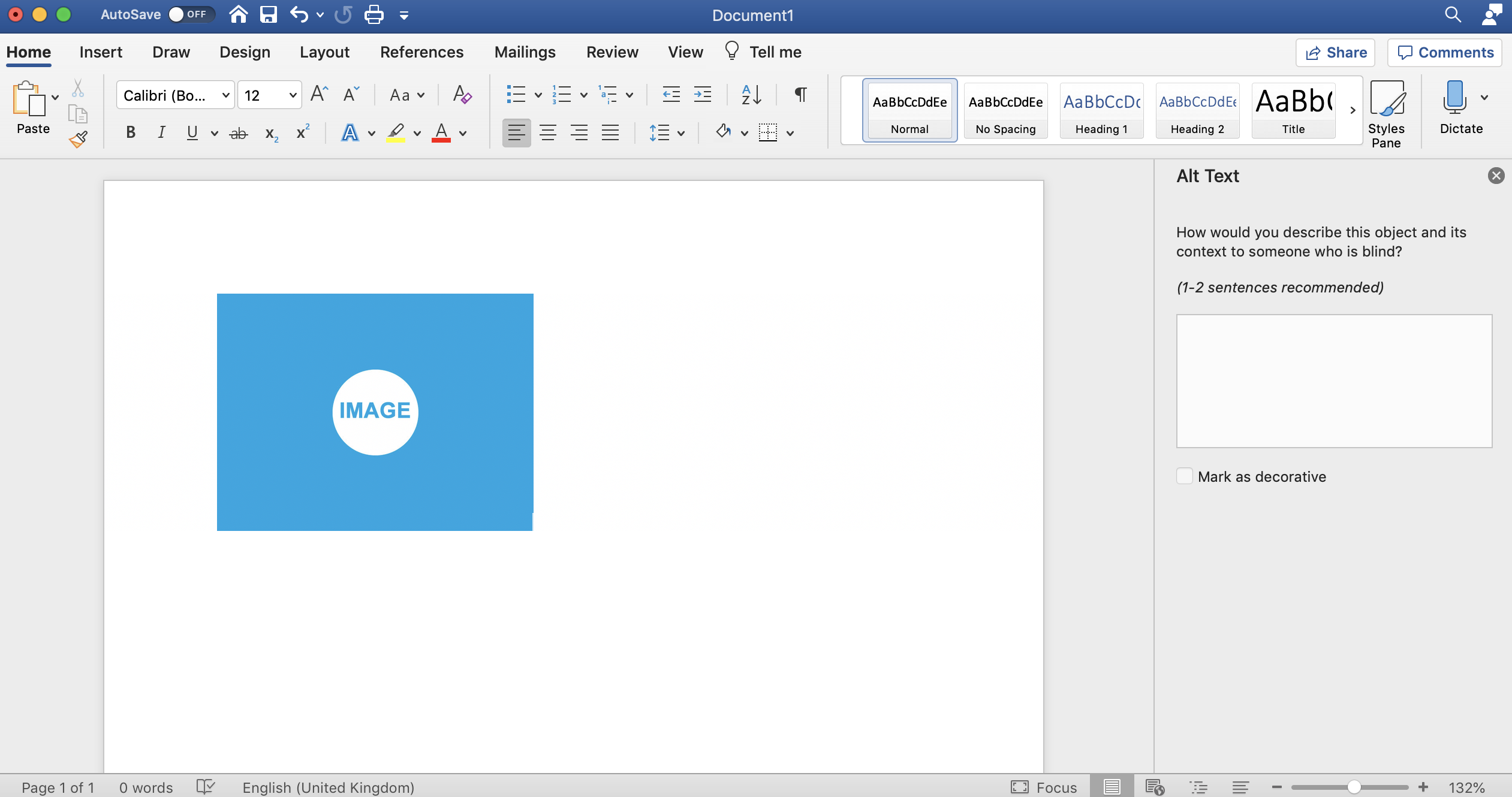
3) Right click on the image & select Alt Text from the list.

4) The Alt text menu will now show.
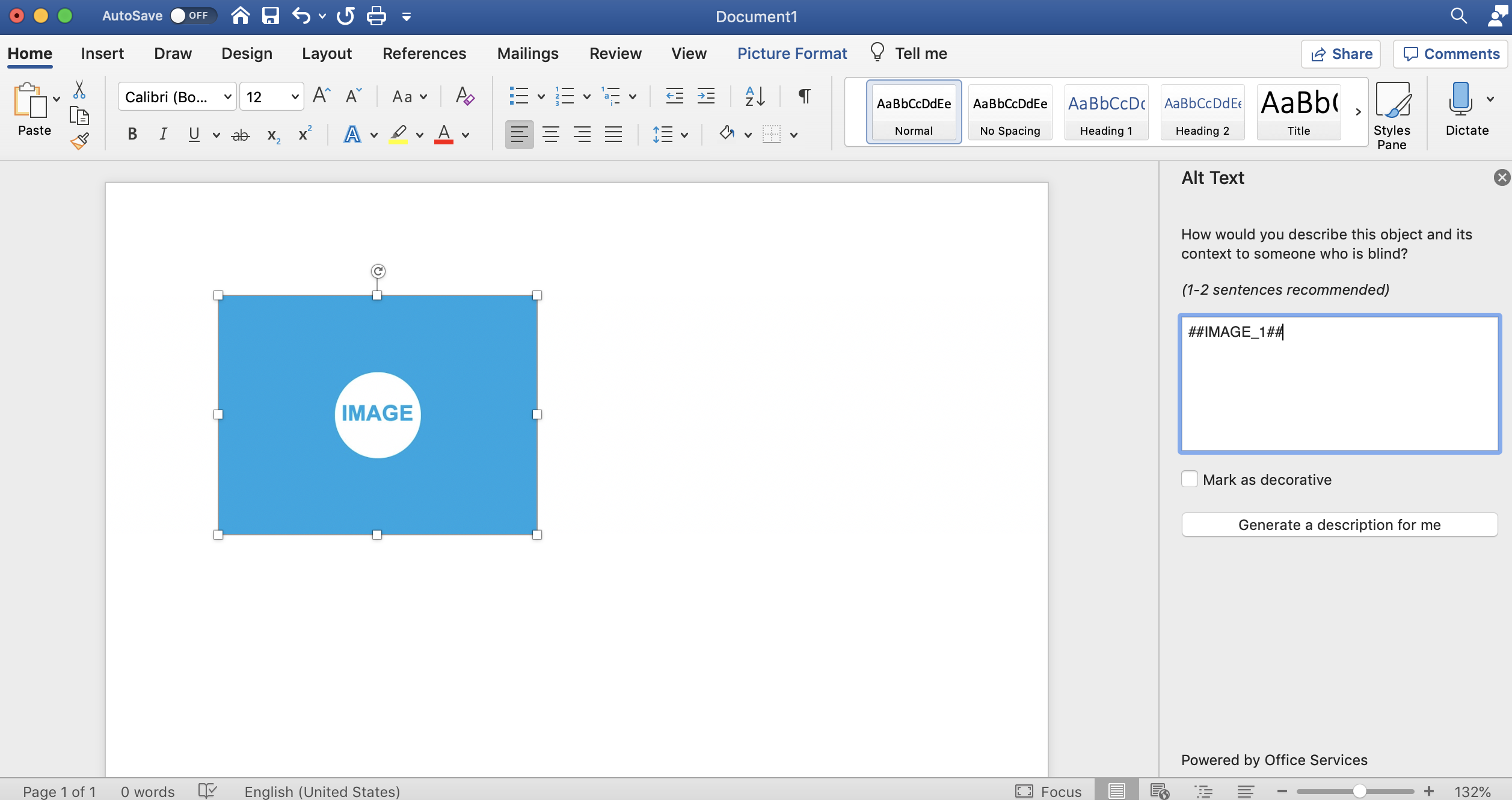
5) Find the correct ALT Text tag from the table below:
| Tag | Description |
| ##IMAGE_1## | Image 1 |
| ##IMAGE_2## | Image 2 |
| ##IMAGE_3## | Image 3 |
| ##IMAGE_4## | Image 4 |
| ##IMAGE_5## | Image 5 |
| ##IMAGE_6## | Image 6 |
| ##IMAGE_7## | Image 7 |
| ##IMAGE_8## | Image 8 |
| ##IMAGE_9## | Image 9 |
| ##IMAGE_10## | Image 10 |
| ##IMAGE_11## | Image 11 |
| ##IMAGE_12## | Image 12 |
| ##ACCOUNT_LOGO## | Account logo |
Then type or paste the relevant image tag eg ##IMAGE_1## into the ALT text field.
6) Finish the template as normal and then upload this into Juvo using this help article https://juvo.zendesk.com/hc/en-us/articles/360038641651-Add-templates-to-Juvo