
Now it's time to start using this fantastic feature within your Juvo account - Signable. Juvo already have a ready-made Signable Sales/Lettings instruction contracts in the property section and Lettings agreement in the tenancy section of your account.
1) Click into the area that you would like to create the Signable Document from. For example to create an Instruction Signable Template click into Property and for a Tenancy Agreement Signable Template click into the Tenancy section.
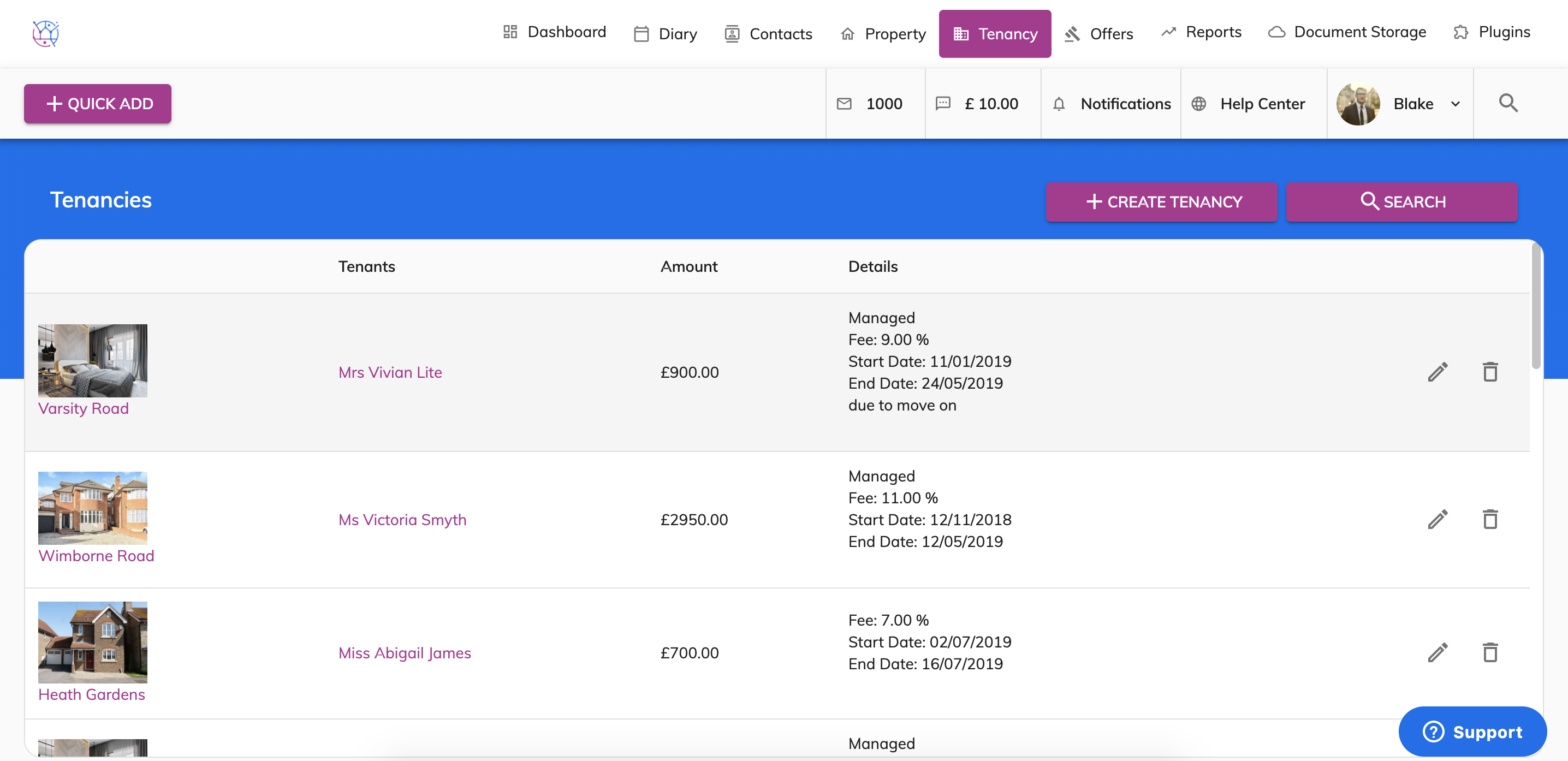
2) Edit the relevant contact/property/tenancy or offer by pressing the pencil icon.
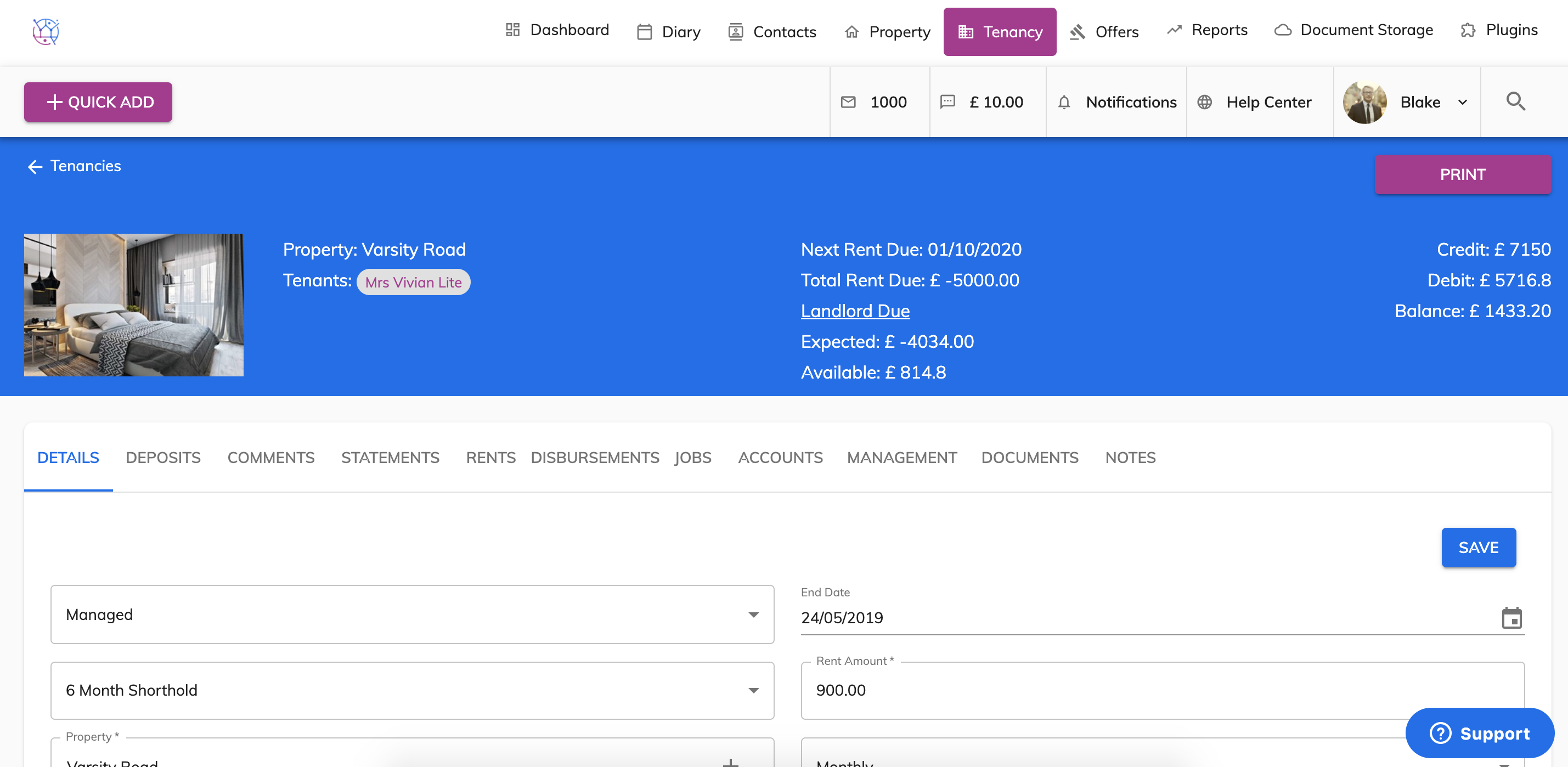
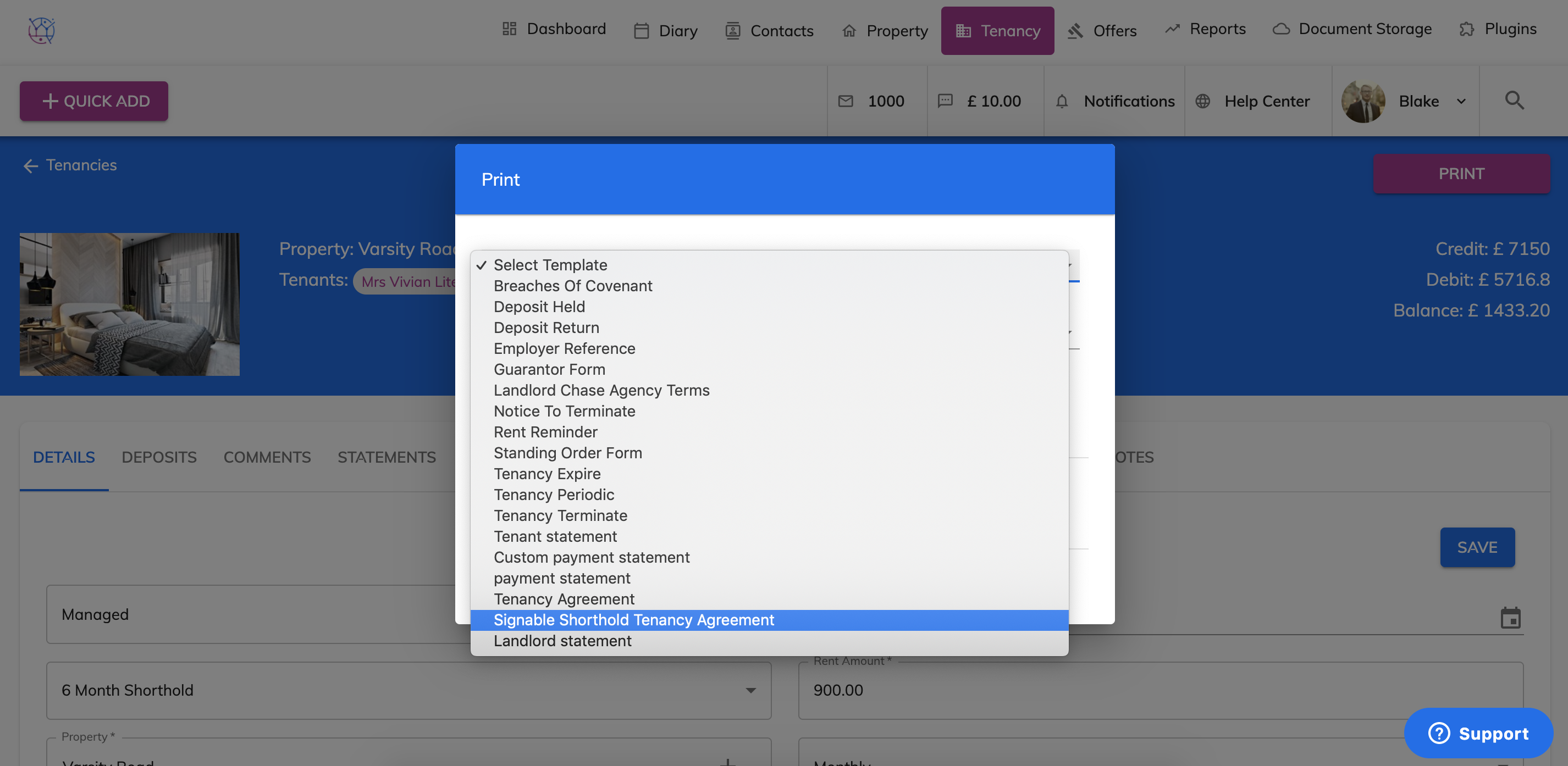
3) Press the Print button and select the template from the dropdown. The standard Juvo Signable templates are clearly named in the dropdown.
4) Select the format PDF from the format dropdown and tick Send Via Signable.
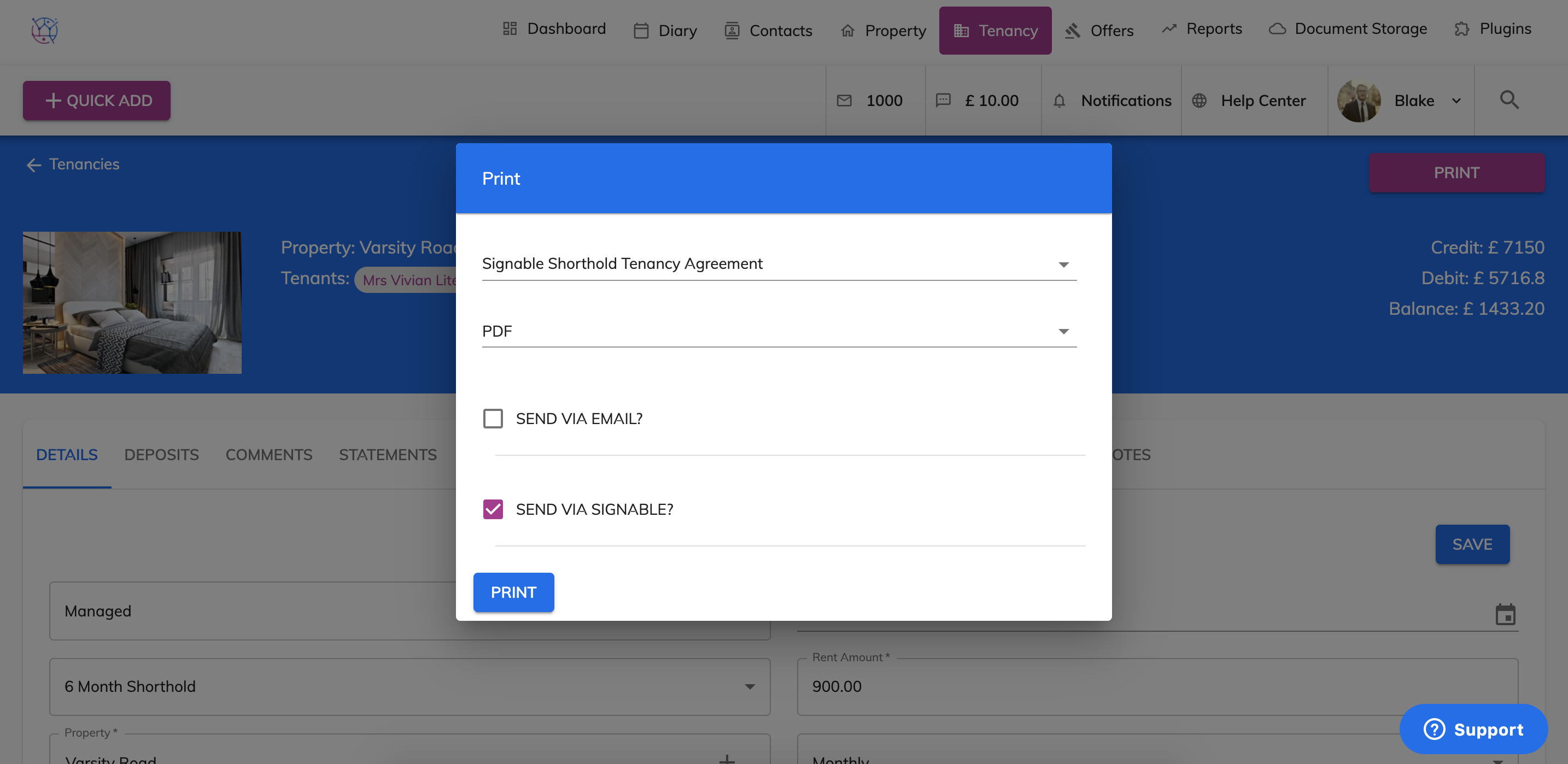
5) Click Print.
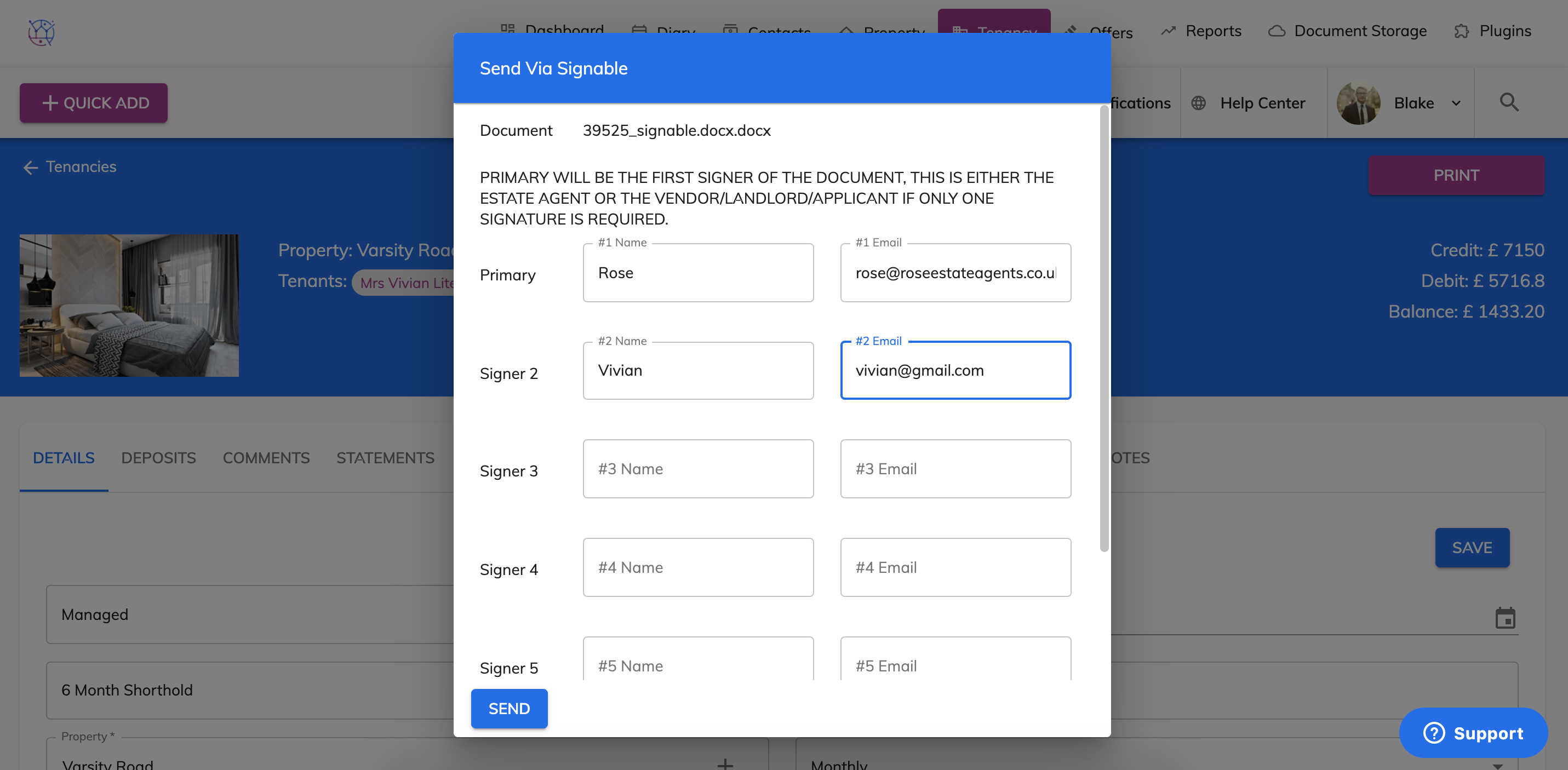
6) A pop up box will appear called Enter the names and email address’s of the clients you would like to send the document to, please note you can have up to 6 signatures per document.
In the Juvo Signable Templates:
The Primary signer is the Landlord or you as the Agent.Signer 2 is Tenant 1
Signer 3 is Tenant 2
Signer 4 is Tenant 3
Signer 5 is Tenant 4
Signer 6 is Tenant 5
7) When the names and email address's have been entered, press the Send button. This will create the template pulling through the necessary information and then send to the Signers added. The document will be sent to the Primary signer and then go to Signer 2, Signer 3 etc.
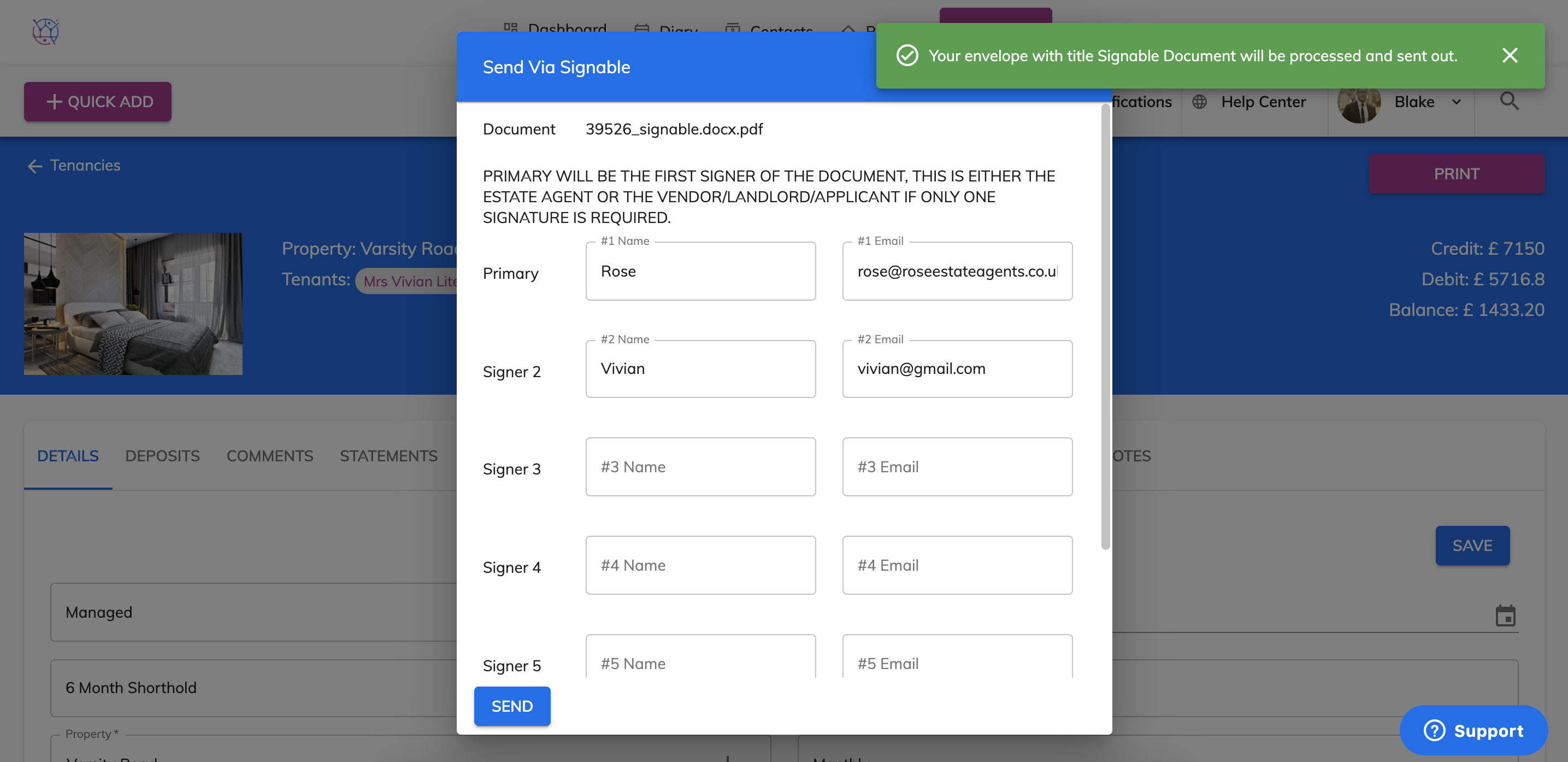
If a signer has not signed the document, they will automatically receive an email from Signable as a reminder.
Once all parties have signed the document. You will receive the document via email directly from Signable.