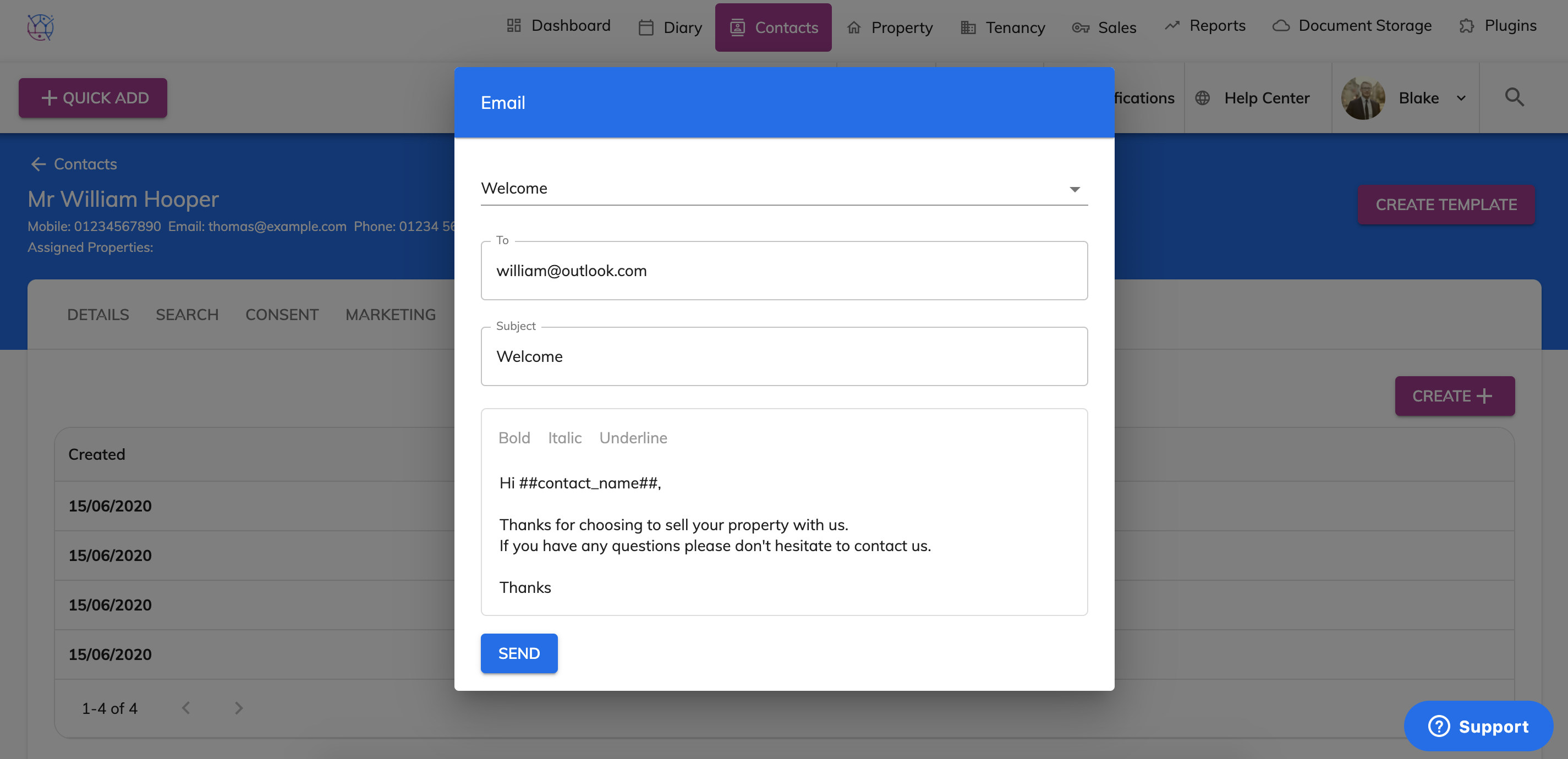
You can customise Juvo and add your own email templates, to enable your team to quickly and efficiently communicate with your clients. Follow the steps below:
1) Go to Admin section by clicking on user icon and name.
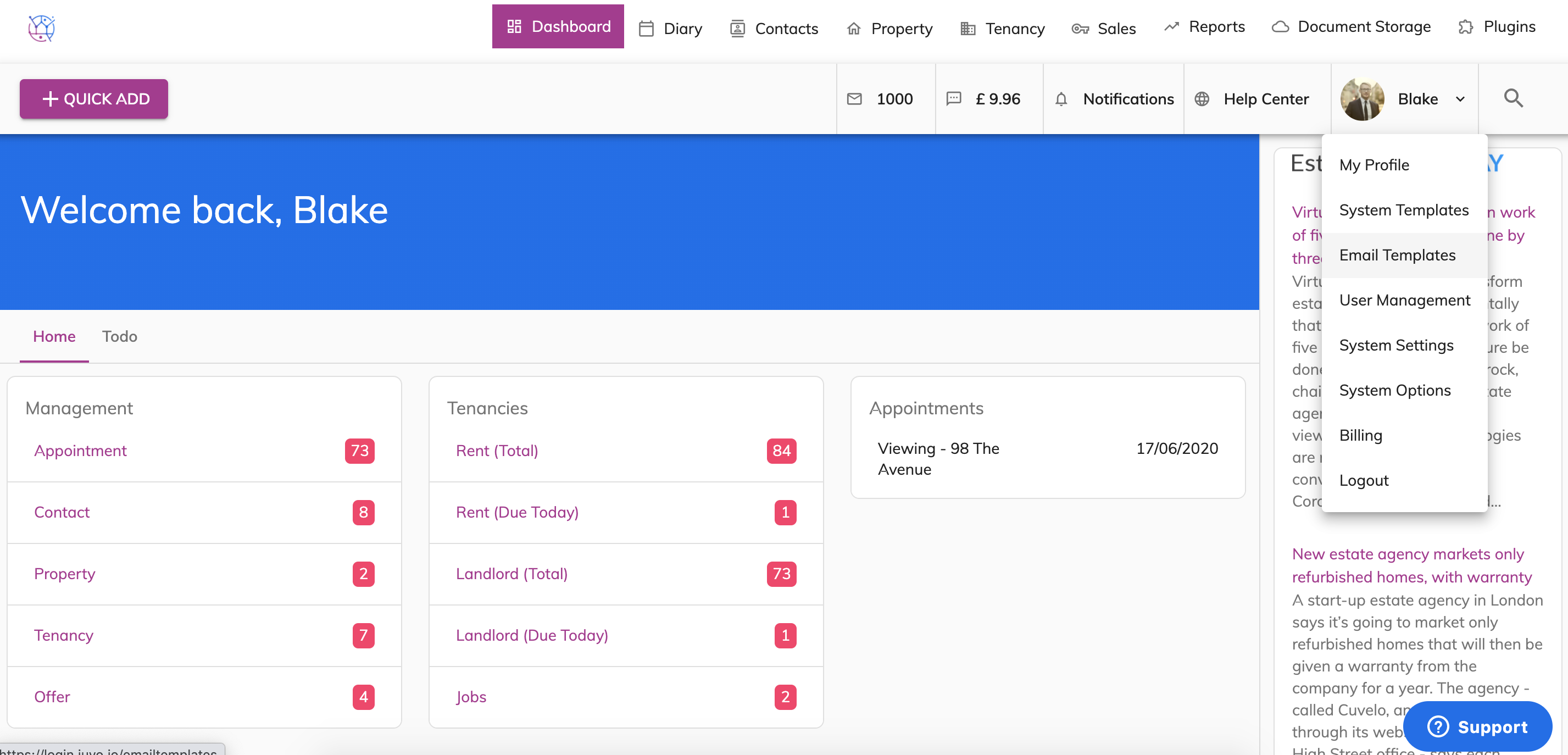
2) Select Email Templates from the dropdown.
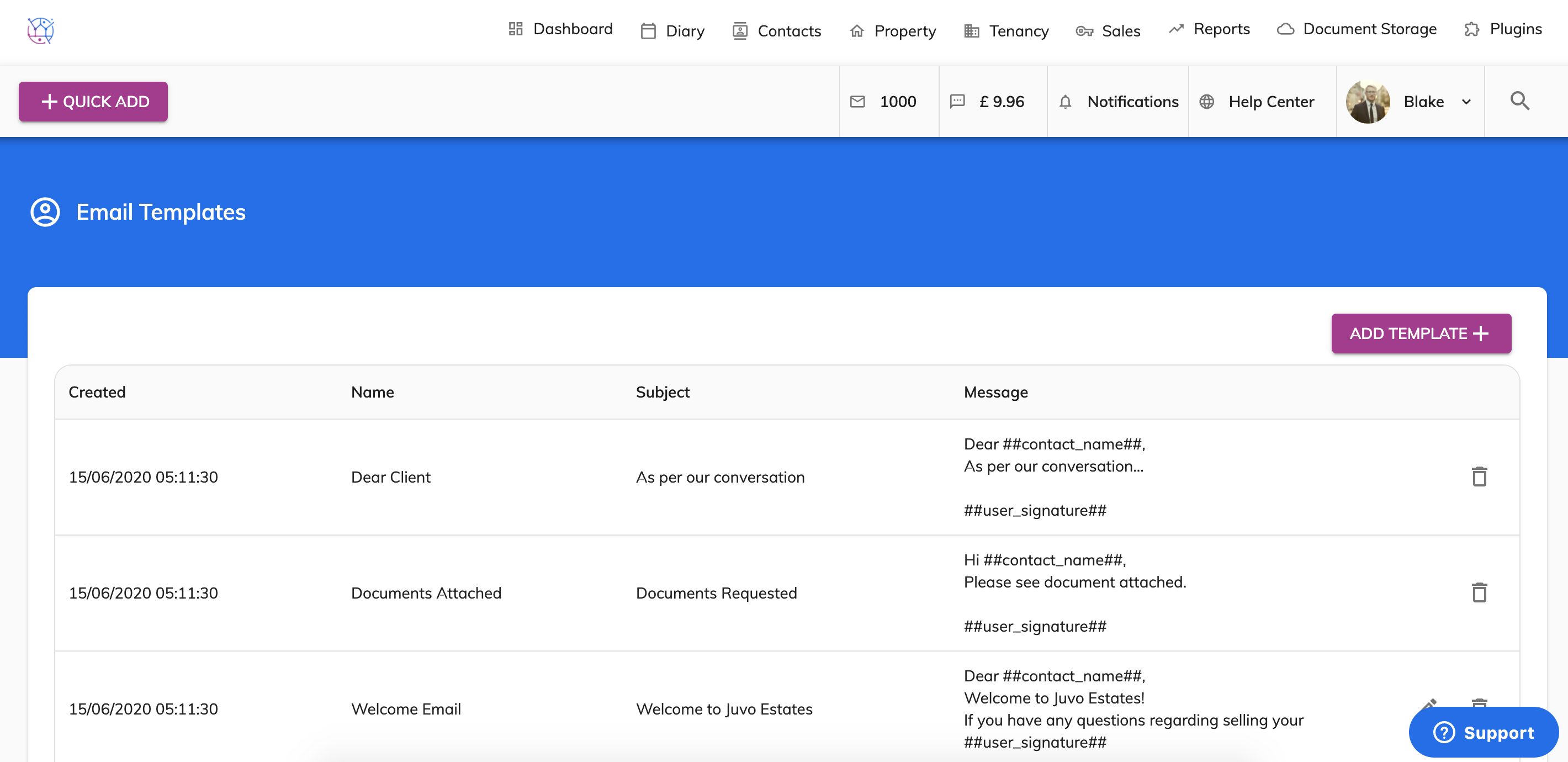
3) Press the Add Template button.
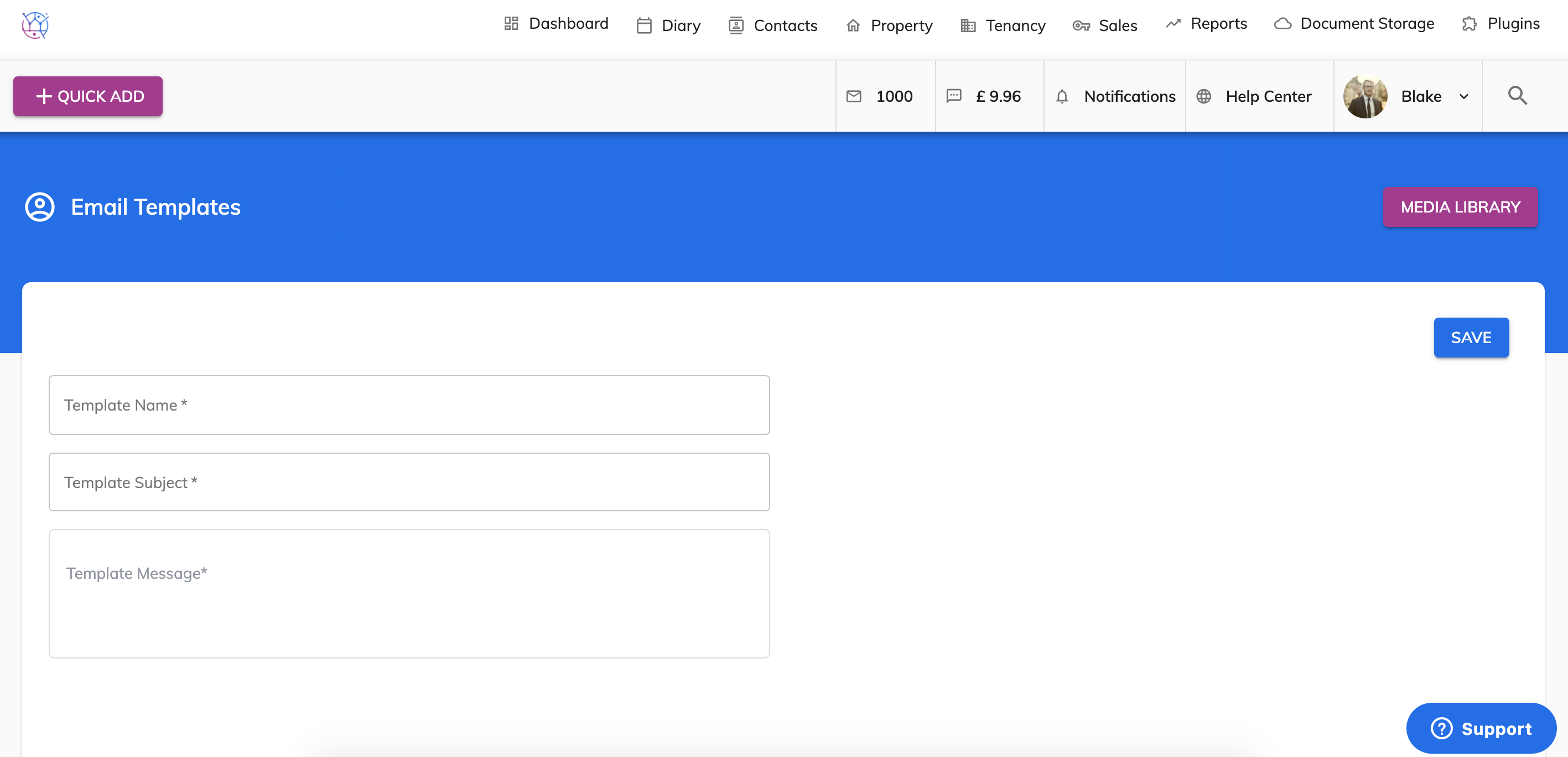
4) Complete the template including name, subject and message.
Use the following tags to pull through the contacts information automatically:
##contact_name## will pull through the name of the contact.
##user_signature## will pull through the signature of the user sending the email.
As well as any other tags that can be found in the Juvo Template Specification document.
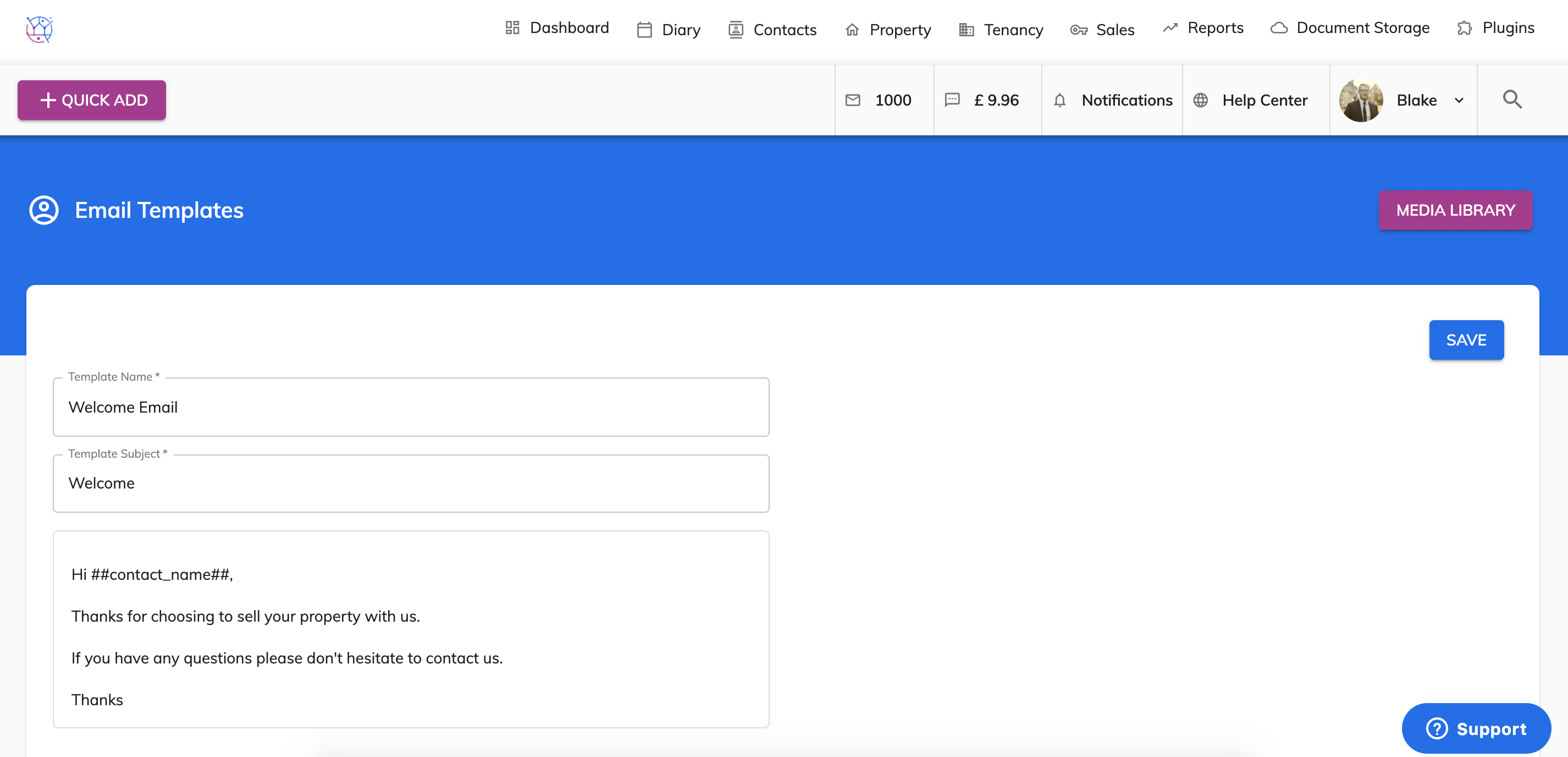
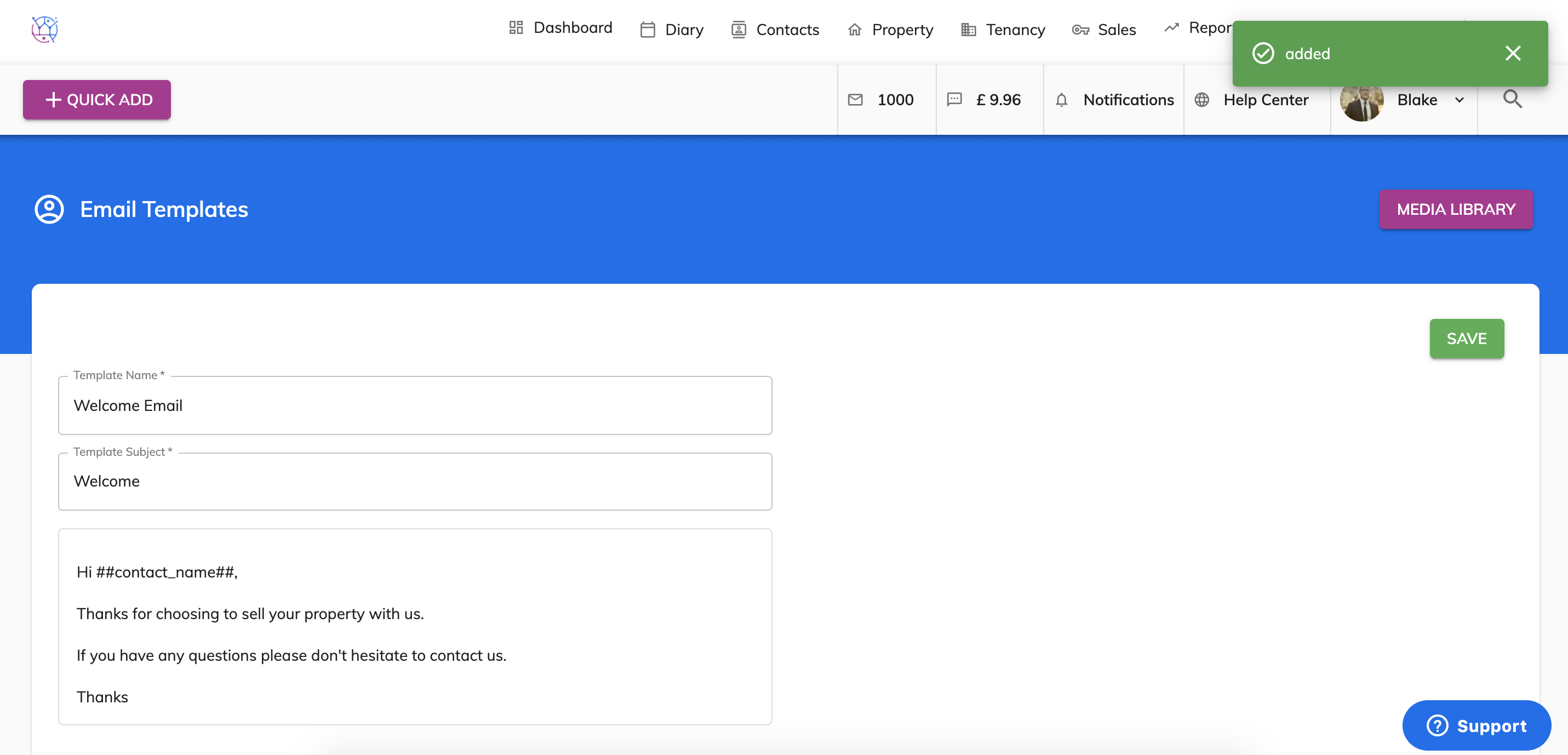
5) When ready, press the Save button. It will add the email template to your email template library.
6) The templates will appear in the email tab on the contacts and properties. To send this template to a contact, simply edit the relevant contact or property and go to the Emails tab. From here select the relevant email template from the dropdown.
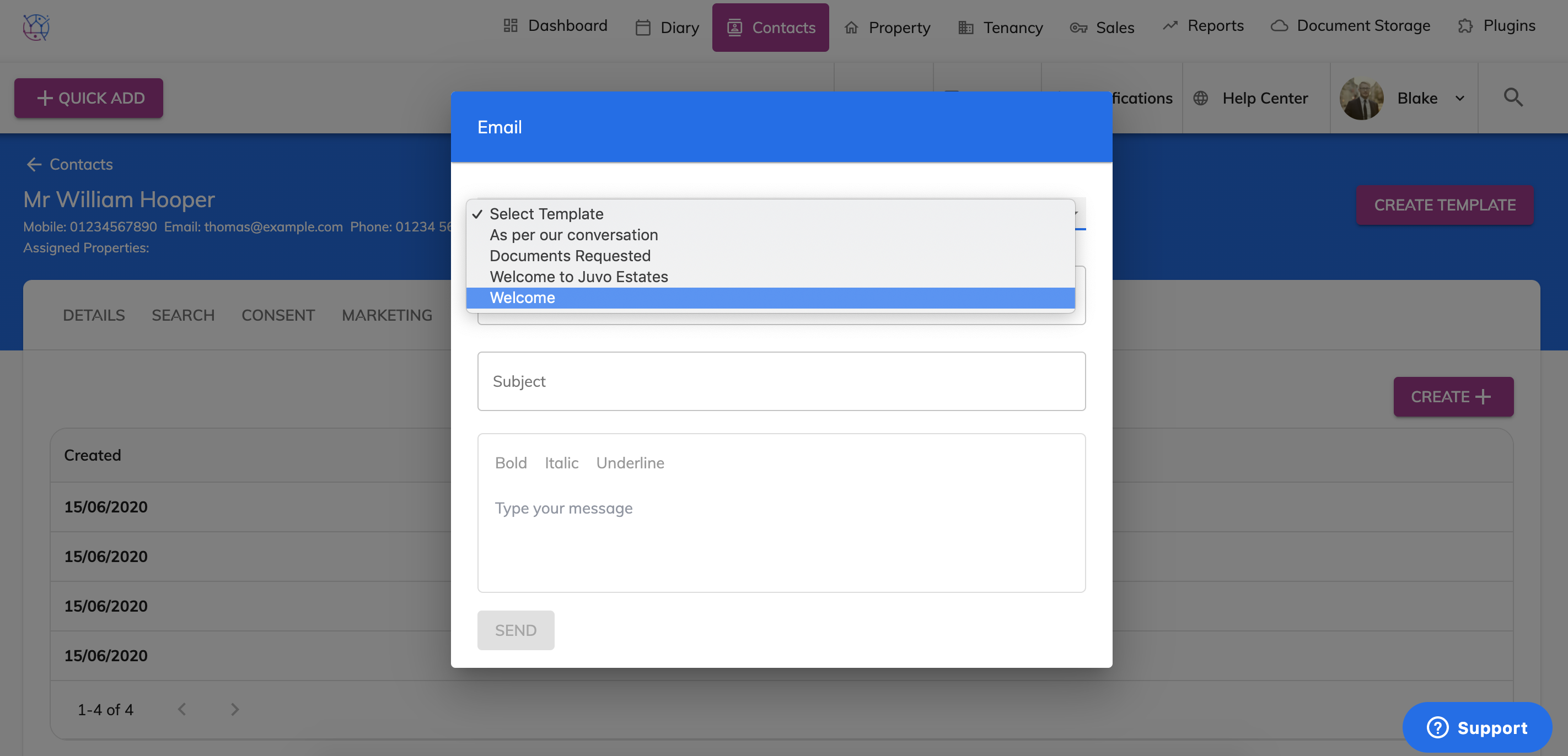
7) Complete the rest of the email form and press Send.